 InSnap
Why OCR Returns the Wrong Word Instead of an Error

Text recognition rarely says it failed. It hands back a full sentence with one character wrong — the one that matters. Here is where that happens and how to catch it.
Copying text out of a screenshot usually works, and that is the problem. When it fails, it rarely fails loudly. There is no red underline, no "could not recognise text", no empty box. There is a sentence that reads perfectly well — except for one character, and that character changes the meaning.
This is why people paste an order number that is off by a digit, a config key with a wrong letter, or a sentence in a document with a character that was never there. The recognition did not crash. It guessed confidently.
Recognition is a classifier, not a parser
It helps to know what the engine actually does. Text recognition splits the image into lines, then into character-shaped regions, then runs each region through a classifier that returns the most likely character. That classifier never says "I don't know". It always returns the closest match it can find.
At good input quality, that closest match is right almost everywhere. At poor quality, the closest match is a different character that happens to look similar: an a that could be an o, a 1 that could be an l, or one CJK character that could easily be mistaken for a neighbour with a shared component. The engine has no idea it is wrong.
What makes the input "poor"
Four things matter, in roughly this order:
- Text height in pixels. Smaller text has fewer pixels to classify. This is the big one.
- The character set. Chinese, Japanese and Korean characters are dense; a few lost pixels change both the shape and the identity of the character. Latin letters are simpler and survive longer.
- Anti-aliasing and scaling. Every resize blends the edges of every stroke. One resize is fine; three, stacked, lose the shape.
- Contrast and background. Grey-on-white and light-on-dark both reduce edge strength. So do gradients and photos behind the text.
Most of the failure reports come from the first one, and the fix is usually to capture more pixels, not to try harder.
InSnap has no separate accuracy setting. It works on the pixels you select: a 1x screenshot of a dense UI already has each line at the height the screen drew it, and a 2x Retina capture has double that. The difference between the two, for a given paragraph of text, is often the difference between correct and plausible-but-wrong.

Where the practical line sits
To see the boundary rather than guess at it, it is worth building a small, repeatable test: render the same sentence at several text heights, run the recognition on each, and compare the output to the input character by character. That is exactly what the two images below do, using real output from a local engine, not made-up examples.
The Chinese line and the English line were rendered at five heights and recognised fresh each time. Red marks the characters that differ from the original.
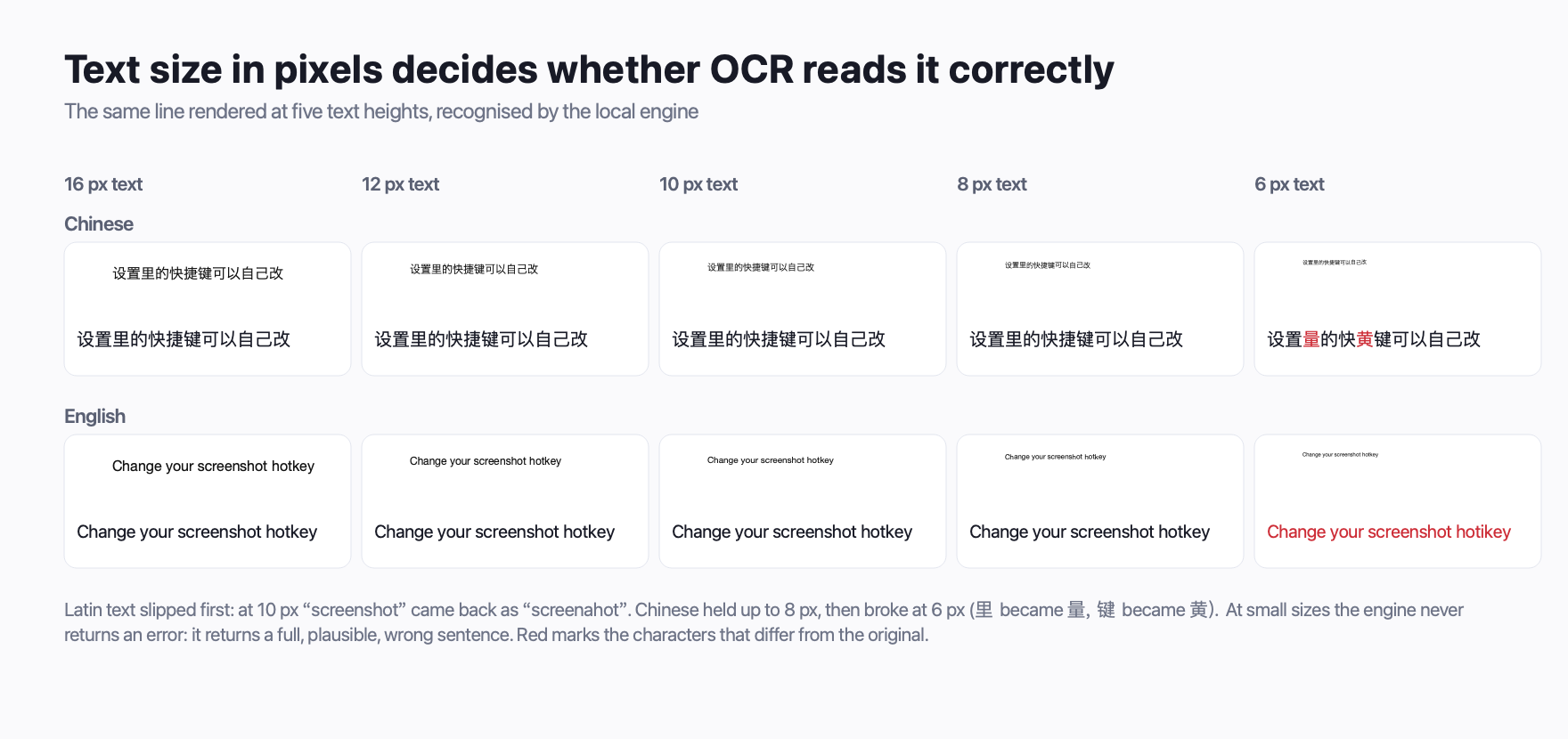
Two things come out of it. First, the line is correct until it is not: there is no gradual degradation, just a size below which the wrong character appears. Second, the two scripts break at different points. Latin text slipped earlier here, while Chinese held on longer, which is the opposite of what most people assume from "Chinese is harder".
When the same sentence is recognised at even smaller sizes, the output becomes a different kind of wrong. Not empty, not gibberish, but a real sentence with real, wrong characters:
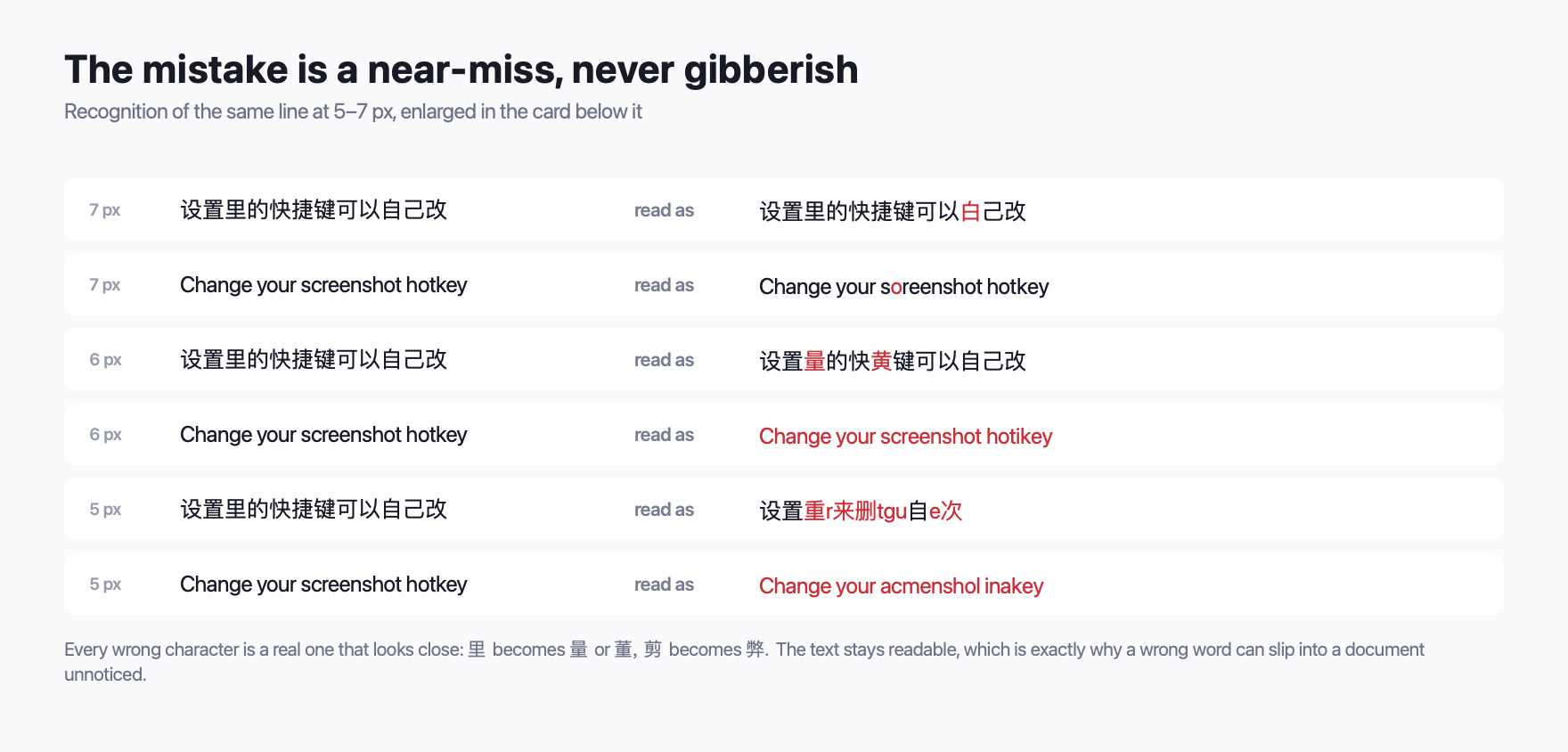
That second image is the useful one. It shows what a wrong result actually looks like: not obvious enough to notice, not subtle enough to be nothing.
How to catch it before it reaches a document
The recognition cannot tell you it is unsure, so you have to check in places where a wrong character is expensive.
- Check anything with numbers or identifiers. Order IDs, licence keys, version strings, invoice totals. A single wrong digit is invisible in context and fatal downstream.
- Check the length. A two-character identifier that came back as three, or the reverse, is a reliable signal that something went wrong.
- Check unusual characters. Pipes, spaces, non-breaking spaces, Cyrillic versus Latin confusion. If the text is code, pasting into a monospace view makes these obvious.
- Check the edges. Characters at the start or end of a line are the first to be cut off during detection. If a line ends abruptly, look at the last one or two characters.
- Recapture at a larger size, do not upscale. Upscaling a blurry line does not create detail, and it rarely fixes a wrong character. Recapturing the same area at 2x, or zooming the source before capturing, does.
The practical corollary is that a screenshot taken with a wide selection at good resolution is easier to recognise than a tiny one cropped tightly. Cropping reduces noise, but shrinking reduces information, and information is what the classifier eats.
What you can rely on
The honest summary:
| Situation | Usually fine | Usually not |
|---|---|---|
| English and Latin-script text at normal UI size | Yes | — |
| Chinese at normal UI size | Yes | — |
| Text under roughly 10 px tall | — | No |
| Japanese kana, Korean, Russian | — | No |
| Text over a photo or gradient | Sometimes | Sometimes |
| Heavily resized screenshots | — | No |
InSnap's local recognition handles Chinese, English and Latin-script languages well, including accented characters. It is not reliable for Japanese kana, Korean or Russian. That is a property of the bundled model, not a setting, so the honest move for those scripts is to verify anything you copy.
FAQ
Does the text recogniser tell me when it is unsure?
No. A character classifier always returns a best guess, and the interface has no separate confidence indicator for copying. The safe assumption is that any character it returns is the most likely one, not a guaranteed one.
Can I fix a wrong character by running it again?
Not usually, because the input has not changed and the model is deterministic on the same pixels. The fix is to change the input: recapture the same region at a larger size, or zoom the source before capturing, then recognise again.
Why does it work on one screenshot and fail on another of the same page?
Most often text size in pixels, which depends on the display scaling and on whether the capture was at 1x or 2x. The same page at a different zoom or on a different display can cross the size boundary.
Does it read text inside images and photos?
Only if the text is large and clear over a plain background. Text over a photo, a gradient or a complex illustration is where wrong characters most often appear.
Do I need an internet connection for this to work?
No. Recognition runs locally, including the copy step. Nothing is uploaded, and the accuracy is the same offline.
More from the blog

How to Get Better OCR Results From a Screenshot
Text recognition is only as good as the pixels you give it. Crop tightly, keep the resolution, avoid skew and busy backgrounds, and know the language limits.
October 25, 2026
How to Copy Text From a Screenshot or Image on Mac and Windows
Turn the words in a screenshot into text you can copy. Built-in options on Mac and Windows, plus a fast on-device OCR workflow with InSnap.
October 23, 2026
How to Copy Text From a Video or a Paused Frame
Subtitles, slides, error messages and code in a video are still text. Pause on the frame, capture the area, and run OCR to copy it out — no retyping.
October 25, 2026
How InSnap Updates Itself (and How to Check Manually)
Automatic checks, the manual menu item, and the difference between the installed and portable Windows builds. What an update keeps, and what to do if it fails.
October 25, 2026