 InSnap
How InSnap Updates Itself (and How to Check Manually)
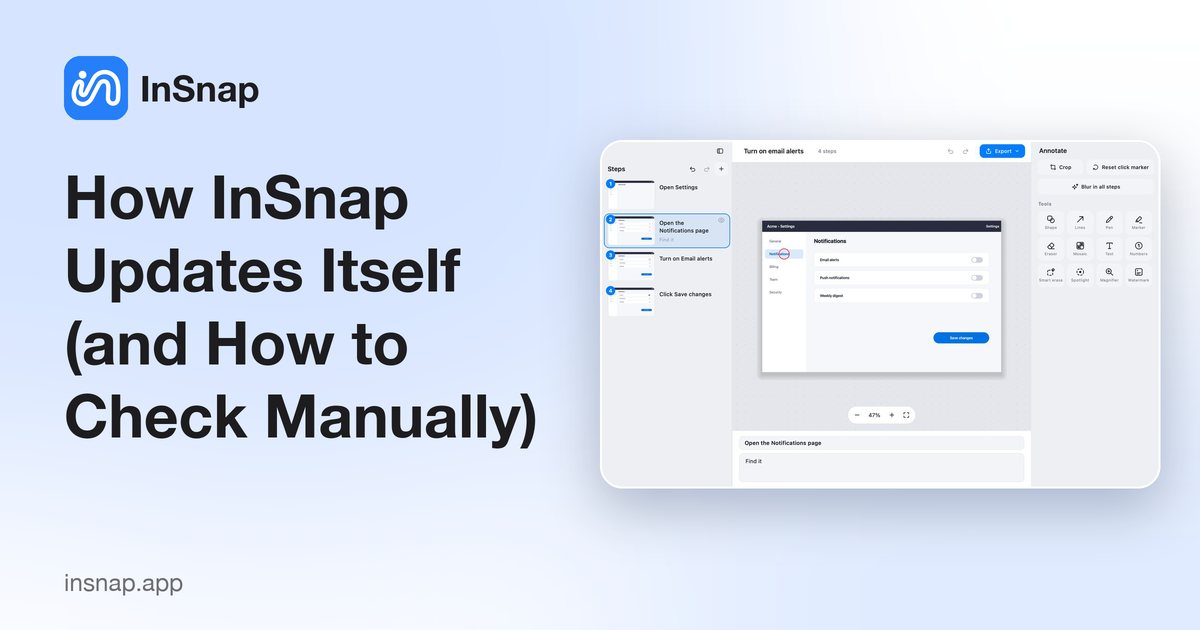
Automatic checks, the manual menu item, and the difference between the installed and portable Windows builds. What an update keeps, and what to do if it fails.
InSnap updates in the background on both macOS and Windows, but the behavior differs slightly between the installed and portable Windows builds. This page explains what happens automatically, how to check by hand, and what an update preserves.
Automatic checks
The installed app checks for updates in the background, normally once a day. When a new version is available:
- macOS downloads and offers to install it through Sparkle.
- Windows (installed) uses WinSparkle to download the installer, verify its signature and run it.
- Windows (portable) only checks and tells you a new version exists; it does not replace itself.
Automatic checks do not upload your screenshots or settings; they fetch a small feed file and compare version numbers. The check is lightweight and does not download a full update until one exists.
Check manually
- Menu bar / tray: choose Check for Updates….
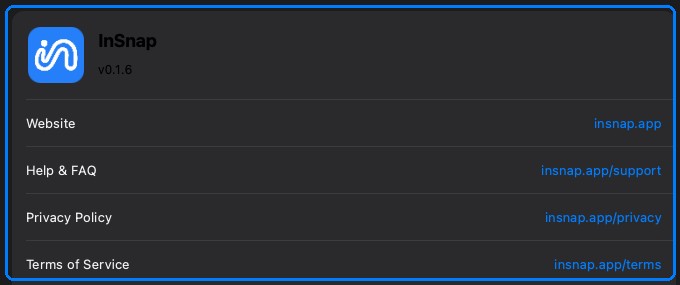
- Settings › About: the version is shown on the About page; the menu item opens the same check.
If the app was installed from the website and the updater is enabled, the check reports either “up to date” or offers the new version. In development builds, the updater may be absent; that is expected.
What an update keeps
An update replaces the application, not your data:
- Settings and preferences remain.
- Screenshot history and its thumbnails remain.
- The Pro license remains bound to the device.
- Cloud sign-in remains, subject to token expiry.
The app may restart during the update. Close any capture or recording first; the updater asks the app to quit and installs after it exits.
The portable Windows build
The portable zip is a fixed folder, so it cannot replace itself safely. Its update check only reports that a newer version exists and points to the download page.
To update:
- Download the new portable zip.
- Quit the running copy.
- Replace the old folder with the new one, keeping your data if it lives inside it.
If the portable copy is already open, close it before replacing files; Windows locks running executables.
If an update fails
- Download interrupted: run the check again. The updater retries from scratch rather than resuming a partial file.
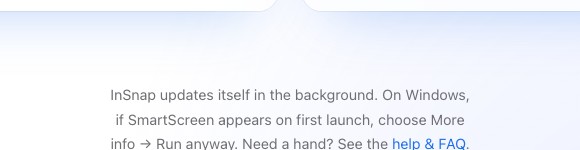
- Installer blocked: on Windows, SmartScreen may warn about an unsigned installer; use More info → Run anyway for the official file.
- App refuses to quit: close capture, recording and editor windows. The updater waits for a clean exit.
- Still stuck: download the latest installer or DMG from the website and install over the old version. Settings and history are preserved.
Version numbers
The About page shows a short version such as 0.1.6. The updater compares build numbers, not the display string, so a re-release with the same short version can still be newer. If support asks for a version, include the number from About, not the file name of the installer.
FAQ
Does updating remove my settings or history?
No. The updater replaces the app bundle or installation folder. Settings, history and the license stay in the user data locations.
Why does the portable Windows build not update itself?
A portable app runs from a folder you control. Replacing its own files while it is running is unsafe, so it checks for a new version and directs you to the download page instead.
Can I turn automatic checks off?
The updater follows the app's automatic-check setting where available. Manual Check for Updates… still works. For a machine that must not update, use a managed deployment rather than blocking the feed at the network level, which would also break manual checks.
More from the blog

How to Add Text to a Screenshot (and Make It Readable)
Add labels, titles and callouts to a screenshot with readable contrast, the right size and clean placement — plus how to edit them later on Mac and Windows.
October 25, 2026
Auto Zoom for Screen Recordings: What It Does and When to Use It
How InSnap's auto zoom follows your clicks in a screen recording, how the strength settings change the result, and when a static recording is better.
October 25, 2026
How to Make a Before-and-After Comparison Image
One image beats two attachments: capture both states at the same size, stitch them side by side, label them, and send a comparison the reader can scan.
October 25, 2026