 InSnap
Filename Template Variables: Name Screenshots Automatically
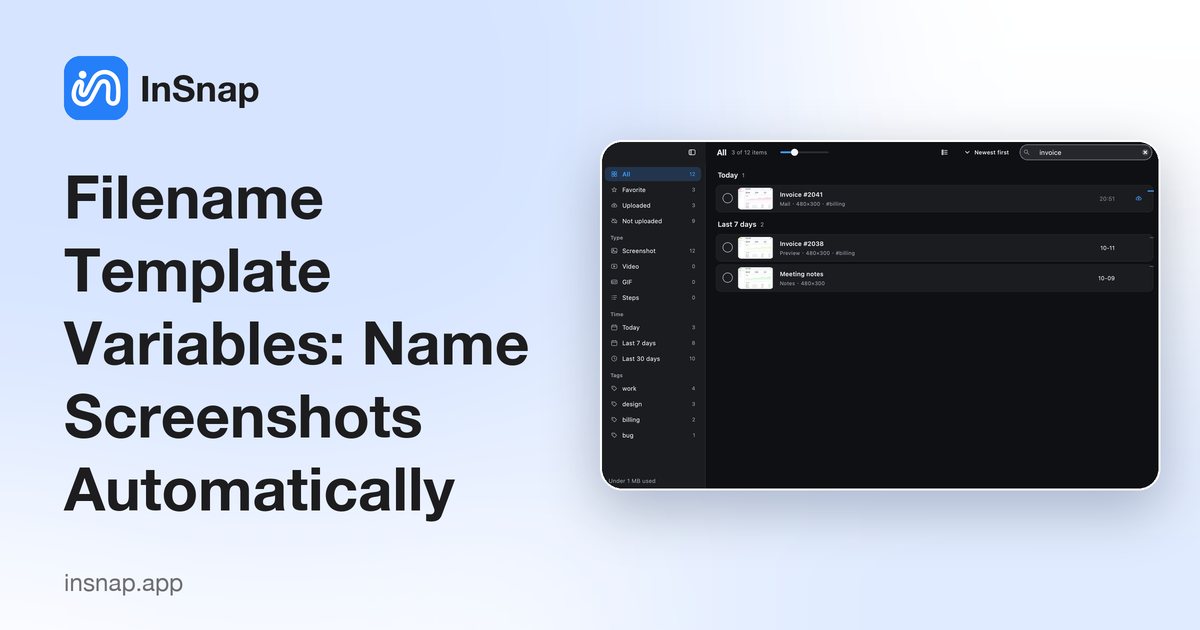
Window title, app name, date, counter and random suffix: how InSnap's filename template works, what the preview shows, and patterns that stay sortable.
Typing a filename for every screenshot defeats the point of a fast capture. InSnap's filename template builds the name for you from variables and date tokens, and the preview under the field shows exactly what the next save will be called.
Where the template lives
Open Settings › Save and find Filename format. The field accepts plain text plus two kinds of placeholders:
- Variables in double braces, such as
{{window}}or{{index}}. - Date/time tokens in the same braces, using the standard date format syntax.
A live Preview below the field renders the current template with real values, so you can see the result before saving anything. It updates as you type, which makes a malformed template visible before the first save.

The useful variables
| Variable | Value |
|---|---|
{{app}} | The application that was in front |
{{window}} | The window title at the selection, if available |
{{random}} | A short random string |
{{index}} | An incrementing counter |
{{yyyy}}, {{MM}}, {{dd}} | Date parts |
{{HH}}, {{mm}}, {{ss}} | Time parts |
The exact set is shown by the Insert variable menu next to the field. The counter is the one to understand: it increments after a successful save, not when you open the dialog, so a cancelled save does not burn a number.
Patterns that stay sortable
A good filename is sortable, searchable and unique. Three patterns cover most needs:
| Pattern | Example | Good for |
|---|---|---|
| Date first | {{yyyy}}-{{MM}}-{{dd}} {{HH}}.{{mm}}.{{ss}} | Chronological folders |
| App and counter | {{app}}-{{index}} | Per-project screenshots |
| Window and date | {{window}} {{yyyy}}-{{MM}}-{{dd}} | Documentation |
Avoid:
- A template with only a date if you take several screenshots per minute; two saves can collide.
- Characters the filesystem dislikes (
/,:,?,*). InSnap sanitises them, but the result may be less readable than a clean pattern. - Very long window titles. They are useful but can push the name past filesystem limits; put the counter before the title if you need both.

Time zone and Retina suffixes
Two related settings live on the same page:
- Use UTC time in file names switches date tokens to UTC. Useful when screenshots are shared across time zones and the filename should match a server log.
- Add @2x to Retina screenshot names appends a
@2xmarker for captures from a high-density display, so the pixel density is obvious from the name.
Neither changes the image; they only change how the file is named.
A workflow that works
- Pick a pattern with the date first and a counter at the end.
- Check the preview with a real window title.
- Save once and confirm the file appears in the chosen folder.
- If you use several projects, add the app name or a short project prefix rather than creating a folder tree per capture.
If you save to a fixed folder, the Save directly to the location above option skips the save dialog entirely; the template then becomes the only naming step. Keep the template short enough to read in a folder listing.
FAQ
Does the counter increment when I open the save dialog?
No. It increments after a successful save, so cancelling the dialog does not consume a number.
What happens if the template produces a duplicate name?
InSnap avoids overwriting an existing file. If the generated name already exists, it adjusts the name rather than replacing the file, which is why a counter or time token is safer than a bare app name.
Can I use slashes to create folders from the filename?
No. The template is a filename, not a path. Choose the folder in the save location setting; the template only names the file.
More from the blog

How to Add Text to a Screenshot (and Make It Readable)
Add labels, titles and callouts to a screenshot with readable contrast, the right size and clean placement — plus how to edit them later on Mac and Windows.
October 25, 2026
Auto Zoom for Screen Recordings: What It Does and When to Use It
How InSnap's auto zoom follows your clicks in a screen recording, how the strength settings change the result, and when a static recording is better.
October 25, 2026
How to Make a Before-and-After Comparison Image
One image beats two attachments: capture both states at the same size, stitch them side by side, label them, and send a comparison the reader can scan.
October 25, 2026