 InSnap
How to Add Text to a Screenshot (and Make It Readable)

Add labels, titles and callouts to a screenshot with readable contrast, the right size and clean placement — plus how to edit them later on Mac and Windows.
Arrows show where to look; text says what you are looking at. For anything that needs a sentence — "expected: $40, shown: $45", "this button is disabled for this role" — a text callout is faster to write and easier to understand than a pile of shapes.
Here is how to add readable text to a screenshot in InSnap, and how to keep it legible on busy backgrounds.
Add a text box in InSnap
- Press Command-1 on Mac or Ctrl+1 on Windows and drag a box around the area you want to explain.
- Choose Text on the toolbar.
- Click where the first line of text should start. The text lands with its first line at that point, so click exactly where you want the words, not the corner of an invisible box.
- Type. The frame grows as you type, and long lines can wrap onto more lines. Text uses your system input method, so you can type in any language macOS or Windows supports.
- Set the style in the options bar: Standard or Outline, plus font, font size and color.
- Click elsewhere when you are done. Copy, save or pin the result.
Text is drawn at full resolution, so it stays sharp when the screenshot is saved on a Retina display or opened on another machine.
Make it readable in one pass
Four settings do most of the work:
- Use Outline on busy backgrounds. Standard text is a solid fill; it disappears against gradients, photos and dense UI. Outline adds a contrasting stroke around each glyph, so the text survives whatever is behind it. On a clean white page, Standard is calmer.
- Match the size to the screenshot, not to your monitor. Text that looks fine in the overlay can be tiny when the screenshot is pasted into a document at 60% width. When in doubt, go one size up.
- Pick a color that is not already in the image. The default red stands out on most business software. On a red-heavy screenshot, switch to white with Outline or a dark neutral.
- Lower the opacity only when it helps. A semi-transparent color can feel less heavy, but it also reduces contrast. Use it for a secondary note, not for the sentence that carries the point.
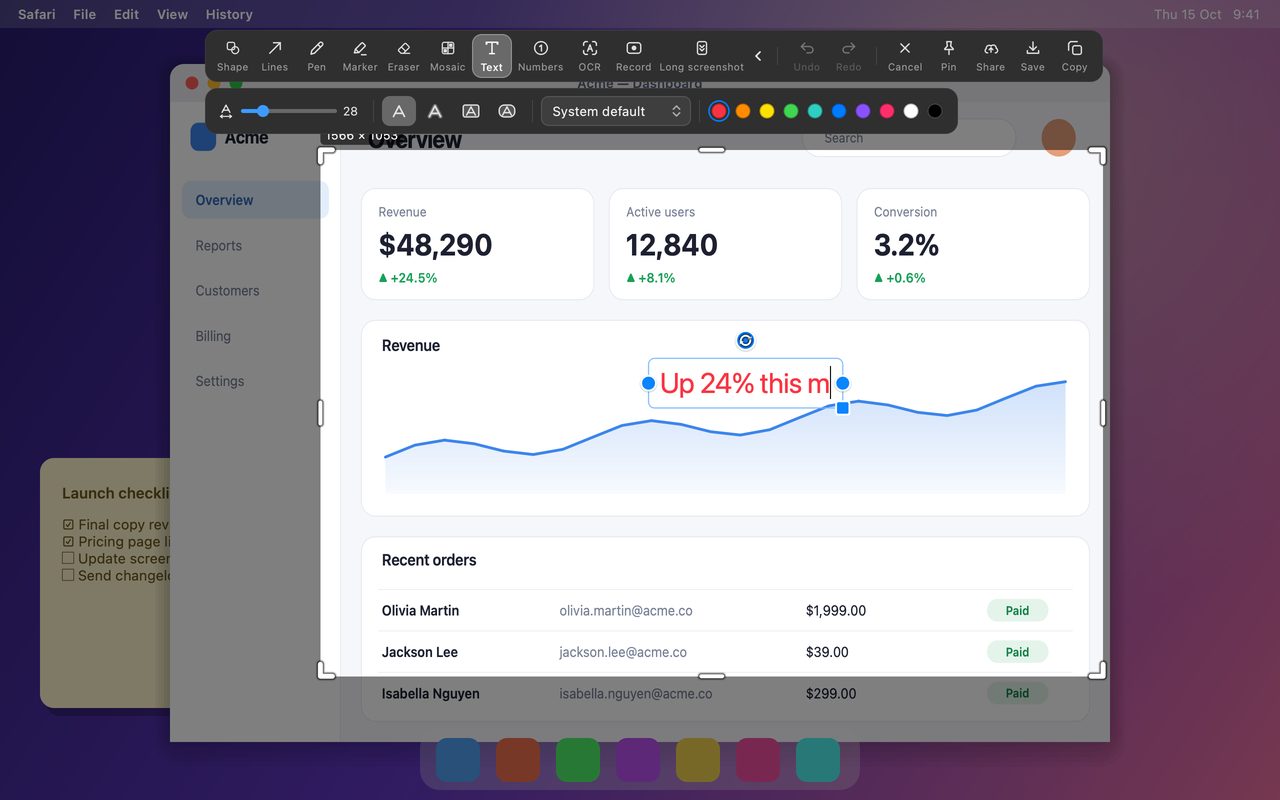
Place the label where the eye already is
Placement matters as much as styling:
- Put the label next to the thing, not in a corner with a long arrow.
- Keep labels short: a verb and a noun usually beat a sentence. Save the full explanation for the message you send with the screenshot.
- Group related labels with one color and leave unrelated notes in another, or skip them.
- If you need more than two or three labels, switch to numbers: click Number on each spot, then explain the numbers below the image. This keeps the screenshot clean and makes the explanation easy to translate.
Edit text later
The most common question about text annotations is what happens after the capture is saved. Two paths:
- Before you finish the capture, select the text again to change its wording, size, font or color. The options bar applies to the selected text, not just new text.
- After saving, InSnap's image editor can add new text or adjust an existing annotation. If the capture is in InSnap's history and its annotations have not been baked into an edited copy, reopening it from history keeps the original annotations editable.
If you expect to revise the wording several times, add the text in the image editor instead of the capture overlay: you can keep both the clean screenshot and the annotated version in the same project.
A quick checklist before you send
| Check | Why |
|---|---|
| Is the text readable at 50% zoom? | Most people view screenshots scaled down |
| Does it cover the thing it describes? | The label should not hide the evidence |
| Is the contrast enough on this background? | Outline or a different color fixes most cases |
| Are there more than three labels? | Switch to numbers |
| Is any text over sensitive content? | Move the label, do not hide the data with it |
FAQ
Can I change the font or size after typing?
Yes. Select the text again and use the options bar — changing the font size, font or color updates the selected text immediately, and you can keep typing after the change.
How do I make text readable on a photo or a busy screenshot?
Switch the style to Outline, which draws a contrasting stroke around the letters, and choose a size one step larger than you think you need. A white or black outline works on most backgrounds.
Does the text stay sharp when I save the screenshot?
Yes. Text is rendered into the image at the screenshot's full resolution, so it stays crisp on Retina displays and when the file is opened on another screen.
More from the blog

Auto Zoom for Screen Recordings: What It Does and When to Use It
How InSnap's auto zoom follows your clicks in a screen recording, how the strength settings change the result, and when a static recording is better.
October 25, 2026
How to Make a Before-and-After Comparison Image
One image beats two attachments: capture both states at the same size, stitch them side by side, label them, and send a comparison the reader can scan.
October 25, 2026
How to Get Better OCR Results From a Screenshot
Text recognition is only as good as the pixels you give it. Crop tightly, keep the resolution, avoid skew and busy backgrounds, and know the language limits.
October 25, 2026