 InSnap
How to Organize Screenshots So You Can Actually Find Them Later
Screenshots pile up on the Desktop and in the clipboard. Simple habits — naming, folders, tags and searchable history — that make old shots easy to find.
Screenshots are notes you take without thinking, and that is exactly why they are so hard to find later. The fix is not a more elaborate folder tree. It is a small set of habits plus one searchable place where every capture lands by default.
Stop letting everything land on the Desktop
A screenshot you cannot find is the same as one you never took. Give captures a predictable home:
- macOS: press Shift-Command-5, open Options › Save to, and choose a folder other than Desktop. Changing it in the Screenshot app persists for future captures.
- Windows: the Snipping Tool saves to your Pictures folder, usually under Screenshots, and Windows + PrtScn does the same. Point your capture tool at a dedicated folder if you want them elsewhere.
- InSnap: Settings › Save lets you save straight to a fixed folder with a filename pattern, so you never pick a location by hand.
A folder called Screenshots with month subfolders is enough. The goal is to know where a capture went without searching.
Name screenshots by the question they answer
A file called Screenshot 2026-10-25 at 14.22.10.png tells you nothing in a search box. A filename that includes the app, the window or the purpose is findable months later.
In InSnap's Save settings you can build the filename from variables such as the window title, the app name, a date, a counter and a random suffix. A pattern like the app name plus a counter gives you Acme-orders-014.png instead of a timestamp you will never remember.
If renaming each file sounds like work, do it only for the captures you expect to reuse — a folder of two dozen well-named screenshots beats a folder of four hundred anonymous ones.
Keep a history you can search, not just a folder
Folders answer "where is it". They do not answer "which screenshot had the error message in it". That needs search inside the images.
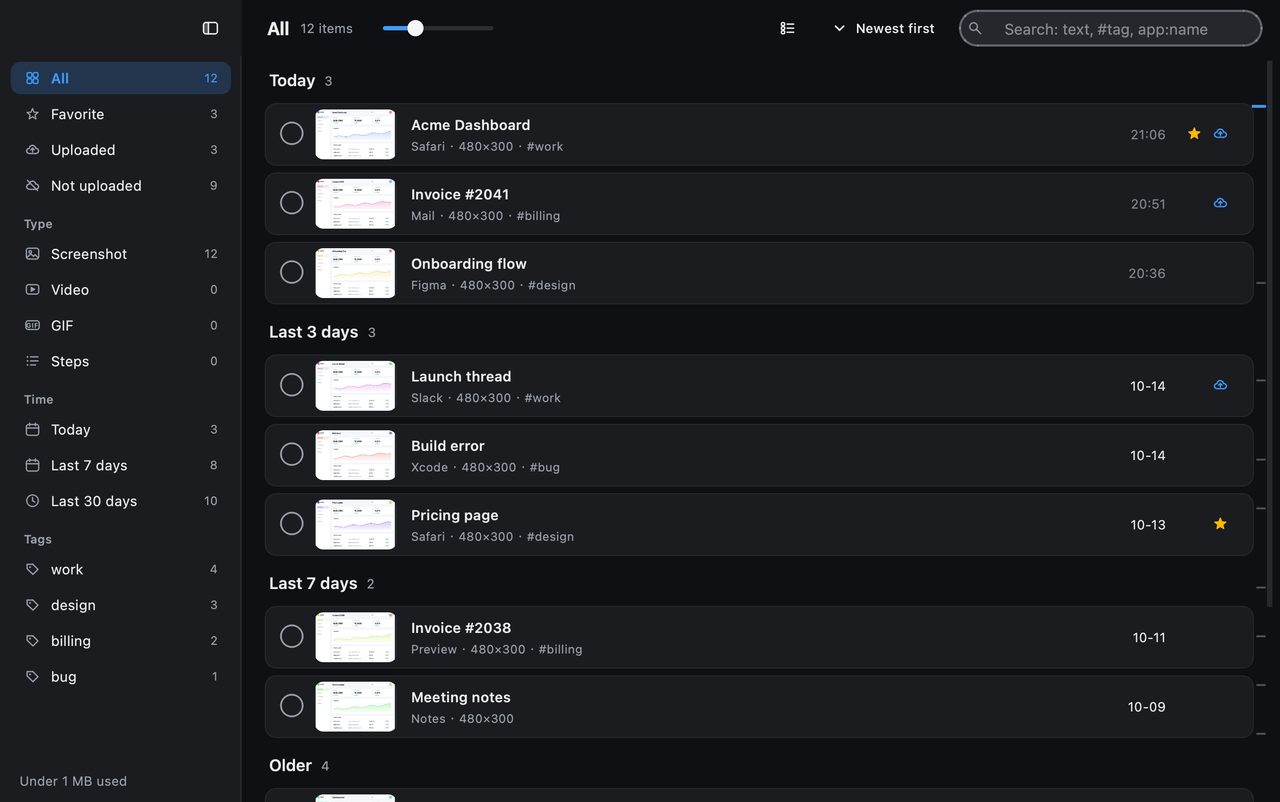
InSnap keeps a local capture history when Keep capture history is enabled in Settings. Each entry stores the full-screen image, the annotations and a thumbnail, and the history page can search the text inside images using on-device OCR. That means you can type an error code, a customer name or a button label you remember seeing, and find the capture even if the file name is useless.
Four habits make that history work harder:
- Tag the captures you will revisit. Add a tag such as
#ticket-4821or#release-0.6, then search#ticket-4821. - Favorite the reference shots — brand colors, account IDs, settings screens — so they survive cleanup.
- Use app filters. Searching
app:Terminalnarrows results to captures taken in one application. - Search by text, not by memory. If you remember the words "payment declined", search them; the OCR index finds the screenshot even when you do not remember when you took it.
Text indexing runs on your machine. The recognized text stays in the local history database; nothing is uploaded.
Prune on a schedule, not on a whim
A history that never shrinks eventually becomes too slow to browse and too risky to keep. InSnap's history settings can remove old captures after a set number of days or when the folder passes a size limit, while keeping favorites and tagged items. That asymmetry is the point: everything survives by default for a while, and the things you marked survive indefinitely.
Do a five-minute pass once a week:
- Delete the screenshots that were only ever a temporary clipboard.
- Tag anything tied to an open task or ticket.
- Favorite the handful you will use again.
- Skim the last week's grid for anything sensitive you should not keep.
A simple rule set
| If the screenshot is… | Keep it as… |
|---|---|
| A quick answer you will paste once | Clipboard only, do not save |
| Evidence for an open task | Tagged with a task or ticket ID |
| A reference you will open again | Favorited |
| Part of a document or guide | Saved to the project folder with a real name |
| Sensitive | Not kept, or hidden before saving |
FAQ
Where do screenshots go by default on Mac and Windows?
On macOS they land on the Desktop unless you change the save location in the Screenshot app's Options. On Windows, the Snipping Tool saves to Pictures, usually in a Screenshots folder. InSnap can save to a folder you choose, with a filename pattern.
Can I search the text inside my screenshots?
Yes, in InSnap's screenshot history. Text indexing runs locally and covers Chinese, English and Latin-script languages well; Japanese kana, Korean and Russian are not reliably recognized. Nothing leaves your machine.
Do I need a cloud subscription to organize screenshots?
No. History, search, tags and favorites are local and free. InSnap Cloud is only for sharing links, and the two are independent.
More from the blog

How to Add Text to a Screenshot (and Make It Readable)
Add labels, titles and callouts to a screenshot with readable contrast, the right size and clean placement — plus how to edit them later on Mac and Windows.
October 25, 2026
Auto Zoom for Screen Recordings: What It Does and When to Use It
How InSnap's auto zoom follows your clicks in a screen recording, how the strength settings change the result, and when a static recording is better.
October 25, 2026
How to Make a Before-and-After Comparison Image
One image beats two attachments: capture both states at the same size, stitch them side by side, label them, and send a comparison the reader can scan.
October 25, 2026