 InSnap
How to Take Screenshots of Dark-Mode Apps That Stay Readable
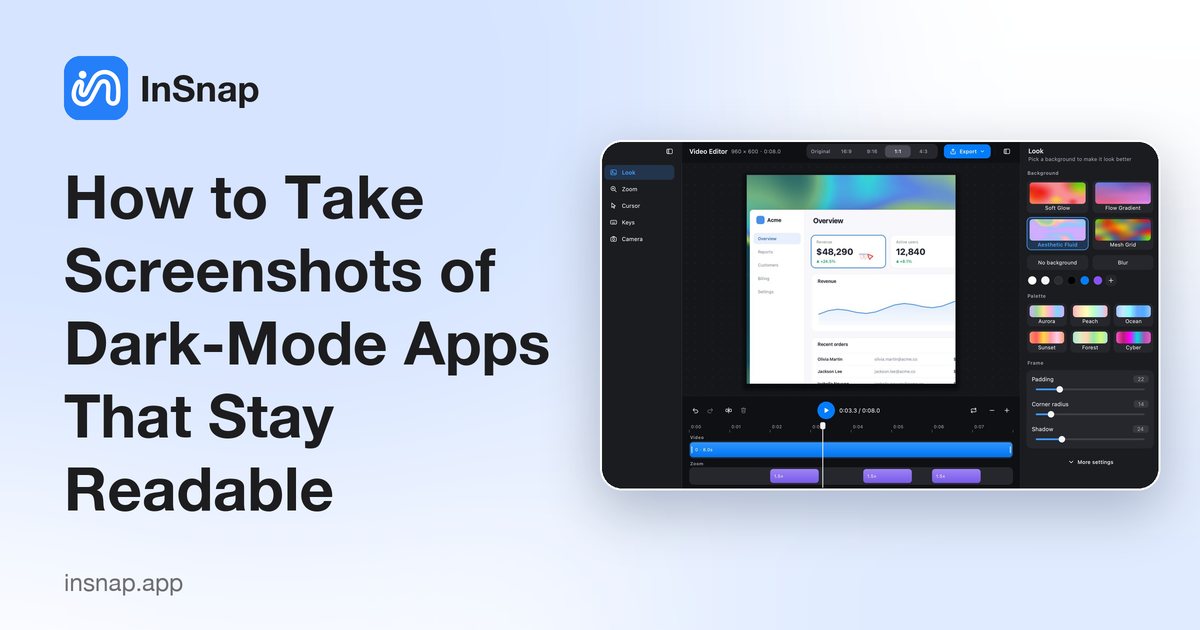
Dark interfaces punish careless markup: thin strokes vanish, colors clash and text callouts disappear. Practical settings for screenshots that survive a dark theme.
Dark-mode interfaces look crisp on screen and turn into mud in documentation. Thin gray borders disappear on a white page, a red annotation blends into a dark red UI, and a screenshot pasted into a bright slide deck looks like a black hole. A few choices fix most of it.
Annotate for the background you have
The default annotation palette is tuned for light interfaces. On a dark UI, invert the logic:
- Use light colors for strokes: white, the light blue, or a bright green. Dark red and dark blue disappear into a dark background.
- Use the Outline text style, not Standard. Outline draws a contrasting stroke around each glyph, so a white label survives both a dark card and a light patch.
- Increase thickness by one step. A 2px line that reads fine on white looks thin against #1c1c1e.
- Avoid translucent highlights over dark text. A marker at low opacity over light-on-dark text reduces contrast further; highlight the row background or use a shape instead.
If you annotate the same app regularly, save the colors you settle on in the palette so every screenshot matches.
Make the frame work with the image
A dark screenshot on a white document page needs a boundary; otherwise the edges disappear and the image looks like a floating rectangle of void.
- Crop tightly so the dark area is clearly the subject.
- Add a light backdrop in the image editor (Pro) when the screenshot goes into a document or a slide. A light gray or white frame separates the image from the page and stops the "black hole" effect.
- Add a subtle corner radius and shadow in the same panel; on dark screenshots, the shadow does more work than on light ones.
- Keep the aspect ratio consistent across a set of screenshots, especially for slides.
Choose the right moment to capture
Dark UIs often have transient states that change the contrast: hover highlights, focus rings, loading skeletons. Capture the state that carries the information, not the one that happens to be under the pointer.
- Move the pointer away from the element you are documenting, unless the cursor is part of the point.
- Wait for animations to settle; a screenshot of a half-faded toast is useless.
- If a tooltip is the subject, capture it while it is open; the frozen frame keeps it.
Mark up with shapes before text
On dark interfaces, text callouts compete with the UI's own labels. Prefer:
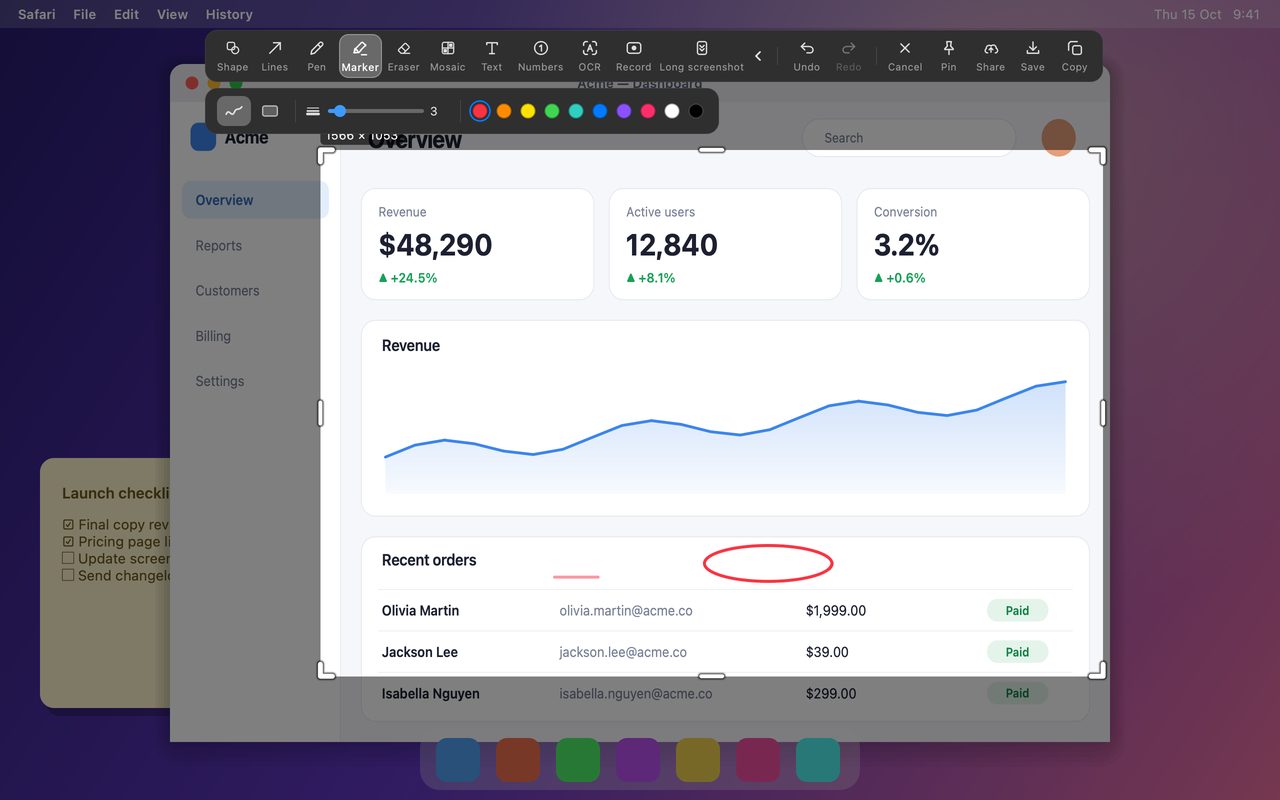
- A shape outline in a bright color around a card or a row.
- A number next to the element, with the explanation below the image.
- A spotlight (Pro) to dim the rest of a busy dark screen; it increases contrast without changing the app's palette.
- A magnifier (Pro) for a tiny status icon that is the point of the screenshot.
Use text when a sentence is genuinely needed, and keep it outside the busiest part of the image.
Check the result where it will be read
A screenshot that looks good in the capture overlay can fail in its destination:
- In a chat app's light theme, a dark screenshot may need a border to avoid blending with the message background.
- In a dark-theme wiki, a light screenshot is the one that glows; keep a consistent treatment per document rather than per screenshot.
- In print, dark backgrounds consume ink and hide thin lines; use the backdrop treatment or invert only for print.
The safest default for mixed destinations is a light backdrop with a small padding, a consistent radius and a soft shadow.
A short checklist
| Check | Why |
|---|---|
| Are strokes light enough? | Dark palette hides dark colors |
| Is text in Outline style? | It survives busy backgrounds |
| Is the image framed? | Dark edges vanish on white pages |
| Is the state the final one? | No half-faded toasts or spinners |
| Is the cursor out of the way? | It competes with the UI |
| Is the treatment consistent? | A set should look like a set |
FAQ
Why do my annotations disappear on dark screenshots?
Dark red, dark blue and black strokes have almost no contrast against a dark interface. Switch to white or a bright accent, use the Outline text style and increase the line width by one step.
Should I invert a dark screenshot for documents?
Usually not; inverted UI looks unfamiliar and colors stop matching the app. Put the screenshot on a light backdrop with padding and a border instead, which separates it from the page without changing its colors.
Do I need Pro for backdrops?
Yes, image backgrounds are a Pro feature. Cropping, annotating and pinning the screenshot are free; the backdrop and frame controls are part of Pro.
More from the blog

How to Add Text to a Screenshot (and Make It Readable)
Add labels, titles and callouts to a screenshot with readable contrast, the right size and clean placement — plus how to edit them later on Mac and Windows.
October 25, 2026
Auto Zoom for Screen Recordings: What It Does and When to Use It
How InSnap's auto zoom follows your clicks in a screen recording, how the strength settings change the result, and when a static recording is better.
October 25, 2026
How to Make a Before-and-After Comparison Image
One image beats two attachments: capture both states at the same size, stitch them side by side, label them, and send a comparison the reader can scan.
October 25, 2026