 InSnap
How to Measure Colors and Spacing From a Screenshot
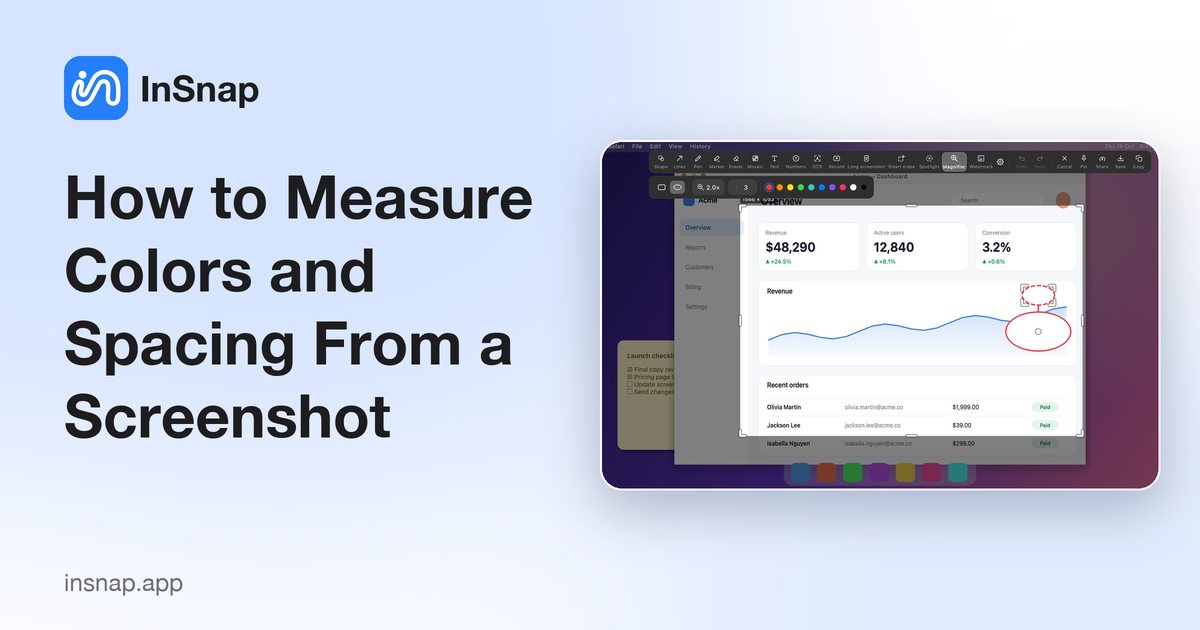
Check a hex value, a 1px border or the exact gap between two elements without opening a design tool. The magnifier, color picker and selection size do the work.
A screenshot is often the only source of truth you have: a bug report from a customer, a competitor's UI, a design that shipped differently from the mockup. Reading exact colors and distances from it is a small skill, and InSnap puts the tools in the capture overlay where the image already is.
Pick the color under the pointer
In InSnap, enable the color picker in Settings › Screenshot, then take a capture. As you move over the frozen image, the color panel shows the value under the pointer.
- Shift switches between RGB and HEX.
- C copies the current value to the clipboard.
- The sample comes from the frozen screenshot, not from the live screen, so the value does not change if a video or animation is playing underneath.
That last point matters for design QA: you are measuring the pixels that were captured, which is exactly what the file contains.
Read a single pixel with the magnifier
The magnifier shows a zoomed grid around the pointer, with the center pixel marked. Use it when the question is not "what color is this area" but "what is happening at this exact pixel":
- Is that a 1px border or a shadow?
- Is the divider one pixel or two?
- Is the icon aligned with the text baseline?
- Is the corner radius uniform on all four corners?
At normal zoom, these details disappear into anti-aliasing. The pixel grid makes them countable.
Measure spacing with a selection
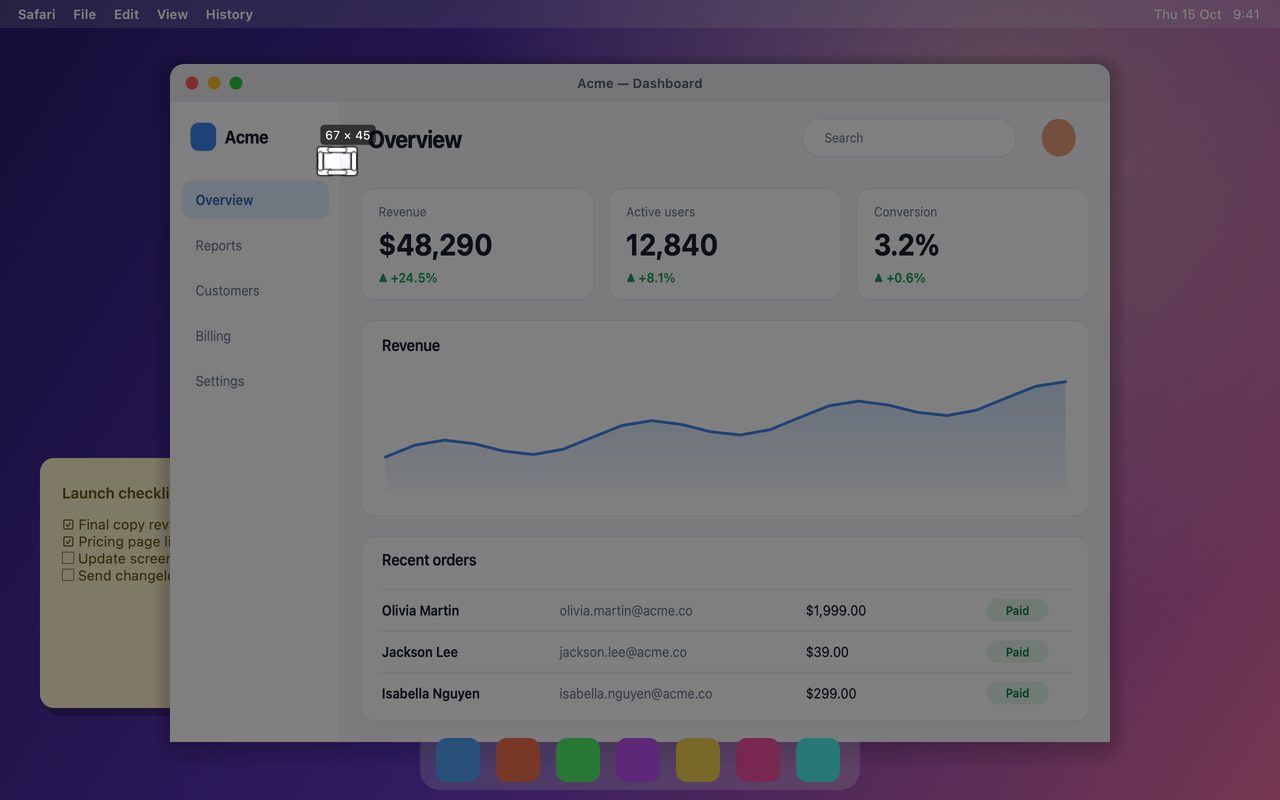
There is no ruler tool, but the selection is a ruler. Drag a box across the gap you want to measure and read the size label:
- Start the capture and drag from the edge of one element to the edge of the next.
- Read the width or height in the size label. It reports physical pixels, which is what the file contains.
- Press Esc to cancel, or copy the selection if you also need the image.
Two practical notes:
- Measure the gap, not the whole element. A selection from the left edge of one button to the left edge of the next gives you the pitch; subtract the button width if you need the gap.
- Mind the display scale. On a Retina screen, 20 physical pixels is 10 points. If the design spec is in points, divide by the scale factor; the screenshot is always in pixels.
A short design-QA checklist
| Question | Tool |
|---|---|
| What is the exact hex value? | Color picker, Shift for HEX, C to copy |
| Is the border 1px? | Magnifier |
| Is the gap 8 or 12 pixels? | Selection size label |
| Are the corners aligned? | Magnifier |
| Is the text the expected color? | Color picker over a glyph |
When a screenshot is not enough
Pixels tell you what rendered, not why. If a color looks wrong, check the display profile and the app's theme before filing a bug; if a gap looks off, confirm the zoom level of the page. A screenshot taken at 90% browser zoom will report sizes that do not match the CSS.
For a comparison, capture the two states separately and pin both: the pinned windows stay above the app, so you can switch between the mockup and the implementation without losing your place.
FAQ
Can I copy the color value directly?
Yes. Enable the color picker, hover the pixel, press Shift to choose RGB or HEX, then press C. The value goes to the clipboard, ready to paste into a ticket or a design file.
How do I measure a gap in points rather than pixels?
Read the selection size in physical pixels and divide by the display scale: 2 on a Retina display, 1 on a standard display, or the value shown in the system's display settings for a scaled mode.
Does the color picker read the live screen or the screenshot?
The screenshot. The capture is frozen when you press the hotkey, and the picker samples those pixels, so the value matches the file you save or share.
More from the blog

How to Add Text to a Screenshot (and Make It Readable)
Add labels, titles and callouts to a screenshot with readable contrast, the right size and clean placement — plus how to edit them later on Mac and Windows.
October 25, 2026
Auto Zoom for Screen Recordings: What It Does and When to Use It
How InSnap's auto zoom follows your clicks in a screen recording, how the strength settings change the result, and when a static recording is better.
October 25, 2026
How to Make a Before-and-After Comparison Image
One image beats two attachments: capture both states at the same size, stitch them side by side, label them, and send a comparison the reader can scan.
October 25, 2026