 InSnap
How to Change InSnap's Screenshot Hotkey

The default Command-1 is convenient until it collides with a browser tab. How to rebind capture and pin shortcuts, read conflict warnings, and keep both hands free.
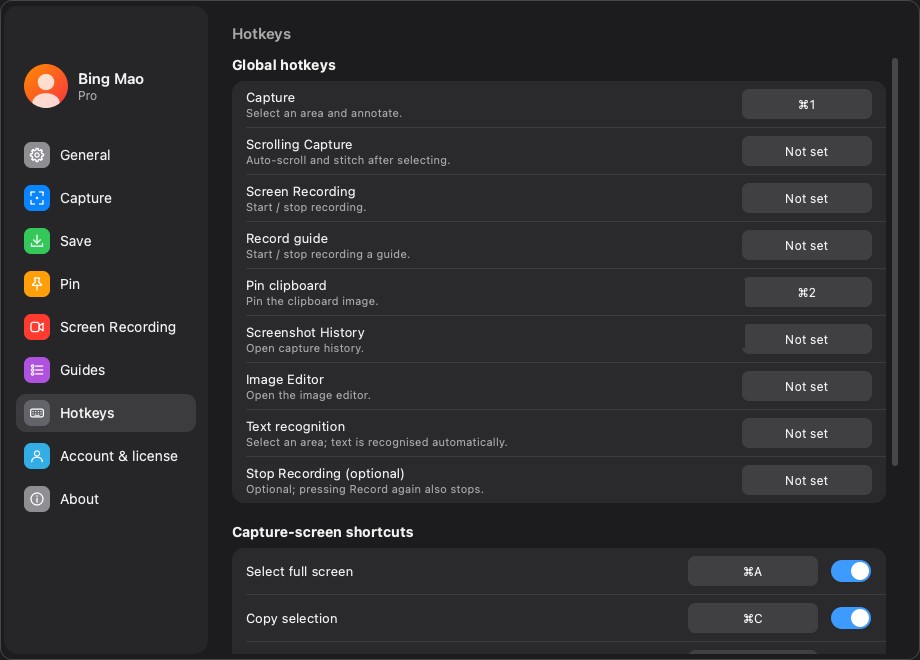
InSnap ships with two global shortcuts: Capture on Command-1 (Ctrl+1 on Windows) and Pin clipboard on Command-2 (Ctrl+2). Everything else is unassigned until you choose a combination. Changing them takes a few seconds, and it is worth doing if the defaults collide with the shortcuts you use all day.
Open the hotkey page
Go to Settings › Hotkeys. The Global hotkeys list contains every action that can be triggered while another app is in front:
- Capture — select an area and annotate.
- Scrolling Capture — auto-scroll and stitch after selecting.
- Screen Recording — start and stop recording.
- Record guide — start and stop a guide recording.
- Pin clipboard — pin the clipboard image.
- Screenshot History — open the capture history.
- Image Editor — open the image editor.
- Text recognition — select an area and recognize its text.
- Stop Recording (optional) — a separate key that also stops a recording.
Rebind one action
- Click the shortcut field on the row you want to change.
- Press the combination you want. Modifiers plus a letter, number or function key are all valid.
- Confirm that the row shows the new combination instead of an error.
- Test it while another app is in front; that is the situation a global hotkey is for.
A row that reads Not set is intentionally inactive. To disable a hotkey, clear it rather than assigning a combination you will forget.
A good test is to switch to another app, press the new combination, and confirm that the capture overlay opens on the display under the pointer. If it opens on the wrong screen, the shortcut is fine; move the pointer and try again.

Read the conflict warnings
Two warnings can appear next to a row:
- This shortcut is already used by another app means the system would not give InSnap the combination. Pick another one.
- Conflicts with “…” means two InSnap actions share the same combination. One of them will never fire; change one.
Fix conflicts before you assume a hotkey is broken. A conflicting action is the most common reason a shortcut appears to do nothing.
Choose combinations you can afford to lose
A global hotkey intercepts the combination everywhere: when InSnap is running, the other app no longer receives it.
- Command-1 is also the first-tab shortcut in many browsers.
- Command-2 is often the second tab.
- Command-Shift-… combinations collide less often, but some apps use them for their own commands.
- Function keys are a good home for tools you use occasionally.
If you capture dozens of times a day, keep the default and accept that browser tab switching changes. If you capture occasionally, move the shortcut to something with an extra modifier and leave the common combinations alone.
Global versus in-capture shortcuts
The same page has a second section, Capture-screen shortcuts, which only applies while the capture overlay is open: select the full screen and copy the selection. These do not steal keys from other apps because they work only inside the overlay.
That distinction matters when troubleshooting. If the capture window opens but copying does nothing, the global hotkey is fine; look at the capture-screen shortcut instead.
FAQ
Why does Command-1 switch browser tabs instead of opening InSnap?
Either the Capture hotkey was changed or disabled, InSnap is not running, or another app owns the combination. Open Settings › Hotkeys and check the row for an error message.
Do I have to restart InSnap after changing a hotkey?
No. The new combination is registered immediately and the old one is released. Restart only if you are diagnosing a conflict with another app.
Can I use the same combination for two InSnap actions?
No. The second row shows a conflict warning and one action will not fire. Give each action a distinct combination.
More from the blog

How to Add Text to a Screenshot (and Make It Readable)
Add labels, titles and callouts to a screenshot with readable contrast, the right size and clean placement — plus how to edit them later on Mac and Windows.
October 25, 2026
Auto Zoom for Screen Recordings: What It Does and When to Use It
How InSnap's auto zoom follows your clicks in a screen recording, how the strength settings change the result, and when a static recording is better.
October 25, 2026
How to Make a Before-and-After Comparison Image
One image beats two attachments: capture both states at the same size, stitch them side by side, label them, and send a comparison the reader can scan.
October 25, 2026