 InSnap
How to Choose a Screenshot Tool for Mac and Windows
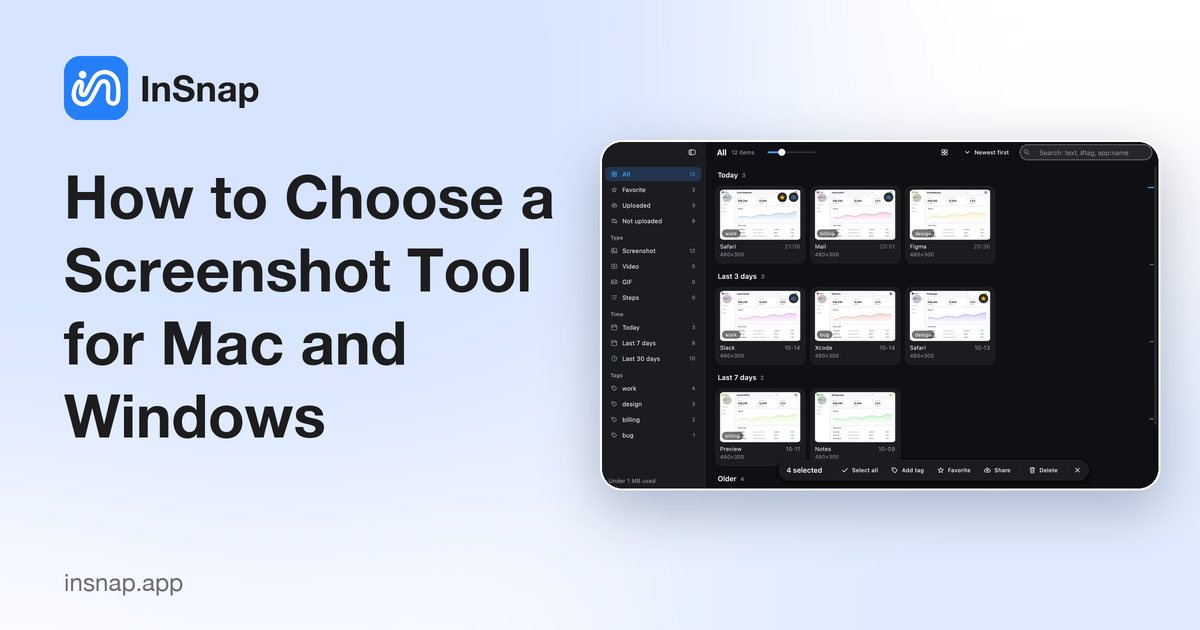
A practical checklist for picking a screenshot tool that fits how you work, with an honest look at built-in tools, single-platform apps and InSnap.
Most people start with the screenshot tool that came with the computer, then switch after the third time they needed to annotate, pin or capture a long page. The right choice depends less on a feature count than on two questions: which systems you work on, and what you do with a screenshot after you take it.
Short answer: if you only capture now and then, the built-in tools are enough. If you annotate, pin, share or record regularly — and especially if you work on both Mac and Windows — a dedicated tool usually pays for itself within a week.
Start with what your system already does
- macOS: Shift-Command-3, 4 and 5 cover full-screen, area and window captures, and Shift-Command-5 also records the screen with optional microphone audio.
- Windows: the Snipping Tool in Windows 11 handles rectangular, free-form, window and full-screen snips; Xbox Game Bar records app windows.
These tools keep improving, and for occasional use they are all you need. Their limits show up when you need repeatable output: annotate properly, keep a history you can search, extract text, or use the same hotkeys on a work Mac and a home PC.
Decide by workflow, not by feature lists
Feature tables are hard to compare across products, because "annotation" can mean a red arrow or a full editor. Ask instead what you do after pressing the shortcut. A screenshot tool saves time when it covers that step without opening another app.
| If your screenshots usually end up… | Look for |
|---|---|
| In Slack, email or a bug tracker | Fast selection, arrows, text, blur for sensitive details |
| As a reference beside your work | Pin-to-screen, always-on-top windows you can move and resize |
| As text you need to copy | OCR that runs on your machine and works on the languages you actually see |
| As a long page or a chat thread | Scrolling capture that stitches frames automatically |
| As a tutorial or a demo | Screen recording with audio, cursor highlights and zooms |
The platform question: Mac-only, Windows-only, or both
This is where a generic "best apps" list usually breaks down. Many popular screenshot tools are exclusive to one system, so a recommendation that fits a Mac user may not fit the same person on a Windows laptop at work.
- At the time of writing, CleanShot X and Shottr are Mac apps.
- ShareX is Windows-only and open source; Greenshot is mainly a Windows tool.
- Snipaste ships for Windows, macOS and Linux, with the Linux build being the newest.
Platform support changes, so confirm it on the vendor's site before buying — a license for a system you later leave is money lost. If you use both macOS and Windows, pick a tool with native builds for both instead of running one through emulation: global hotkeys, screen capture permissions and multi-monitor behavior all depend on native APIs.
What to check before you pay
- Where the work happens. OCR, redaction and editing that run locally still work offline and in regulated environments; cloud-only processing sends your screenshots somewhere else. Read the privacy notes, not just the feature list.
- The price model. A one-time purchase versus a subscription matters more for a tool you may keep for five years. Check what updates are included and how many devices the license covers.
- Export formats. PDF, Word, PowerPoint or HTML output matters if you write documentation; otherwise it is noise.
- The parts you use daily. A hotkey you can set yourself, a history you can search and an annotation toolbar that does not fight you are worth more than another effect.
Where InSnap fits
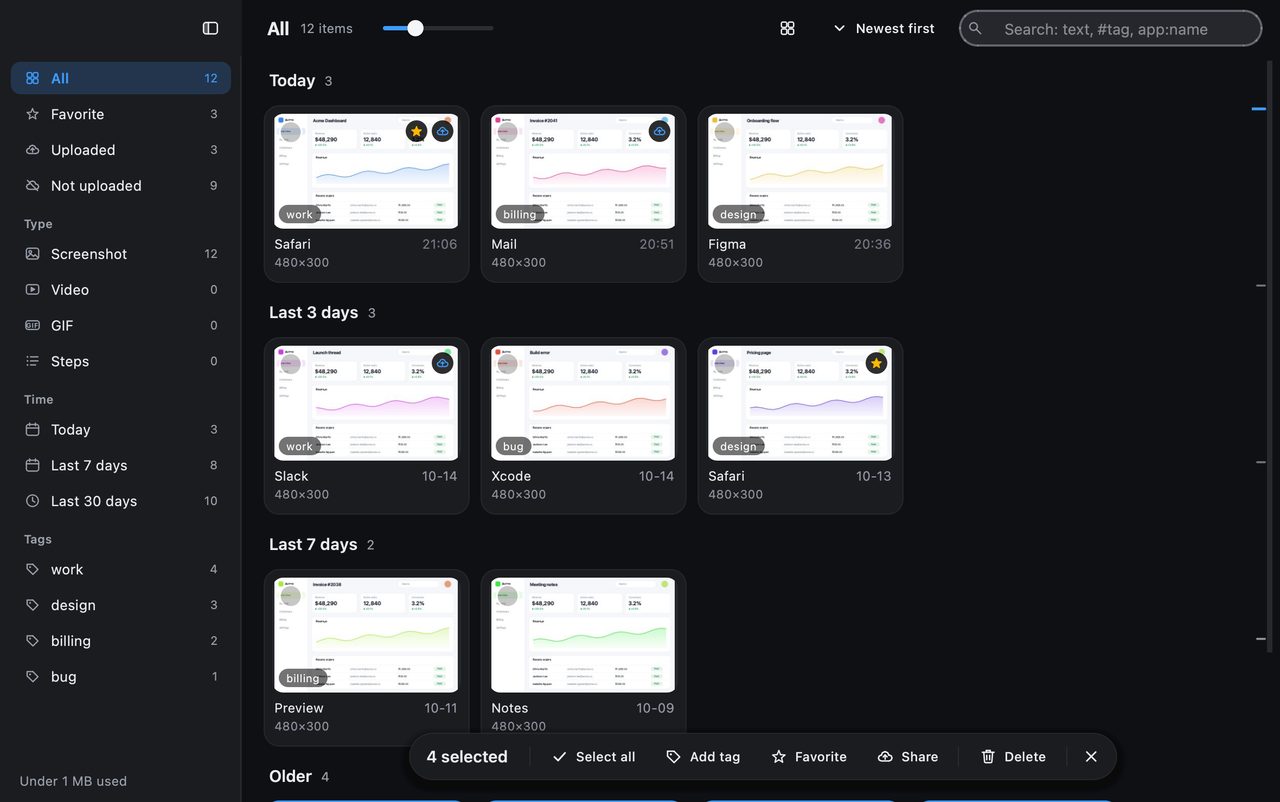
InSnap is a screenshot and recording tool for macOS 14.4+ and Windows 10+ (there is no Linux build) built around that workflow: capture with window and UI-element detection, annotate, pin, OCR, scrolling capture, recording and step-by-step guides — one app, the same hotkeys on both systems.
The free version covers capture, annotation, pinning, OCR and basic screen recording to MP4. Pro is a one-time purchase ($15, up to three devices, future updates included, activation without an account) and adds Smart Erase, scrolling capture, GIF recording, video editing with auto zoom, guides, backdrops, stitching, magnifier, spotlight and watermark. Cloud storage with expiring, password-protected share links is a separate optional subscription ($2.99 per month or $29 per year for 50 GB).
A few honest limits: OCR runs locally and reads Chinese, English and Latin-script languages well, but not Japanese kana, Korean or Russian. Smart Erase is a local algorithm rather than an AI model — it works best on smooth or interface backgrounds and can struggle when the subject and background are close in color. And if you need Linux, InSnap is not the tool for you.
FAQ
Is the built-in screenshot tool enough?
For occasional captures, yes. Switch when you repeatedly annotate, pin, extract text or record, or when you want the same shortcuts on Mac and Windows.
Do I need a paid screenshot app?
Only if the free tier stops at something you use every day. Compare what each paid tier adds: some apps put OCR or scrolling capture behind the paid version, others keep those free.
Can one tool cover both Mac and Windows?
Only if it has native builds for both. Many well-known screenshot tools are exclusive to one system, so check before you standardize a team on one.
Does InSnap work offline?
Yes. Capture, annotation, OCR, Smart Erase and recording all run on your machine. Files leave the computer only when you upload them to InSnap Cloud, which is optional.
More from the blog

How to Add Text to a Screenshot (and Make It Readable)
Add labels, titles and callouts to a screenshot with readable contrast, the right size and clean placement — plus how to edit them later on Mac and Windows.
October 25, 2026
Auto Zoom for Screen Recordings: What It Does and When to Use It
How InSnap's auto zoom follows your clicks in a screen recording, how the strength settings change the result, and when a static recording is better.
October 25, 2026
How to Make a Before-and-After Comparison Image
One image beats two attachments: capture both states at the same size, stitch them side by side, label them, and send a comparison the reader can scan.
October 25, 2026