 InSnap
How to Record a Product Demo Video That Looks Professional
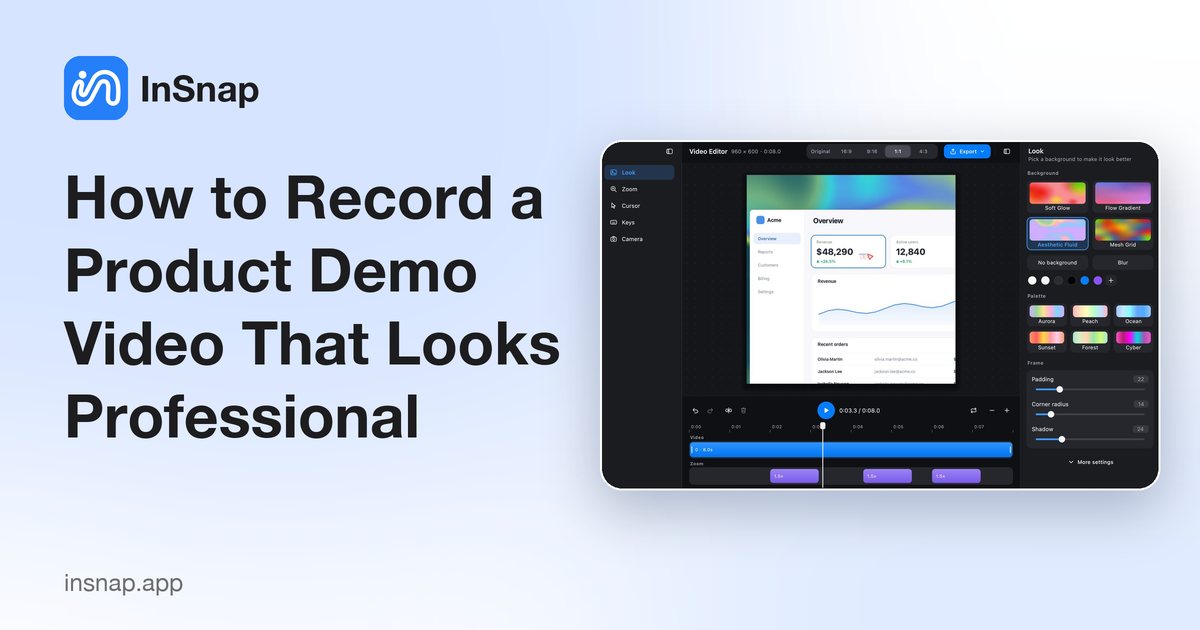
Plan the click path, record only the app window, add auto zoom that follows the click, frame the video for each channel, and export a polished demo.
A demo video looks professional when nothing on screen is accidental: no stray windows, no dead time, no squinting at tiny text. Plan the click path, capture only the app window, and add polish afterwards in an editor instead of trying to get it perfect live.
InSnap's Record & Edit records your screen and opens the take in an editor where you can add auto zoom, cursor and key effects, a camera picture-in-picture, a background and a canvas ratio, then export to MP4 or GIF. Here is the order that matters.
Plan the click path before you record
Write down the exact sequence of clicks your demo needs, then rehearse it once without recording. A demo is easy to follow when every click leads somewhere a viewer can see: open one menu, make one change, show the result.
Prepare the data ahead of time — a fresh document, a test account, a realistic example — so you never type while recording. Close unrelated windows, turn off notifications, and hide anything viewers should not read. A short demo that finishes beats a long one that wanders.
Record only the app window
Press the capture hotkey (Command-1 on Mac, Ctrl+1 on Windows) and drag the region you want to record. Keep it tight around the app window rather than capturing the whole screen: text stays legible when the video is scaled down, and the viewer stays focused on the product.
Click Record and choose Record & Edit. In the panel, turn on Clicks and Keys if the demo is instructional, and Camera for a picture-in-picture of yourself. Basic recording to MP4 is free; Record & Edit keeps those effects out of the footage and opens the editor.
On macOS, grant Screen Recording the first time (System Settings › Privacy & Security), plus Input Monitoring for the click and key effects. Restart InSnap after granting Screen Recording.
Add auto zoom that follows the click
In the editor, the fastest way to make a take feel produced is auto zoom. In the Zoom panel, Auto zoom generates segments where you click and follows the cursor, so the part that matters fills the frame when the viewer needs it.
Use Analyze to generate segments from the recording, then adjust Zoom strength if the movement feels too strong. You can also split the timeline and drag on the Zoom lane to add a segment by hand where the automatic pass missed something. Auto zoom is part of InSnap Pro.
The Cursor panel sets a cursor style and click effects, which helps when the system pointer disappears against a light interface. Cursor styles are also Pro.
Frame it for each channel
The same demo usually goes to several places, and each channel wants a different shape. In the Background panel, pick a backdrop — solid color, gradient, blur, a photo or a generated background — and tune padding, corner radius and shadow so the window sits cleanly in frame instead of floating on black.
Set the canvas ratio to match the destination: 16:9 for a website or landscape player, 9:16 for vertical feeds, 1:1 for square posts, or keep the recording's Original ratio. Export a separate file per ratio rather than cropping by hand. The editor's backdrop and cursor are Pro.
If the demo benefits from a face cam, the editor composes the camera as a picture-in-picture you position by dragging it in the preview. Camera picture-in-picture is Pro.
Export settings that survive compression
When the video looks right, open Export Settings and pick the quality that matches where it will be watched: higher keeps text sharp after a site re-encodes the file, lower makes a smaller file for quick sharing.
If you leave the recording unedited — no zoom, background, cursor or cuts — the highest quality option saves the original footage without re-encoding, so the export is lossless and quick. Add any of those effects and the editor re-encodes instead. High-quality export is part of Pro.
Export Video for an MP4, the right choice for a demo of any length. Export GIF only for a short loop you want to drop into a chat or a documentation page; a GIF grows quickly and suits a few seconds better than a full walkthrough. GIF export is also in Pro.
FAQ
How do I record a product demo of just one app?
Press the capture hotkey, drag tightly around the app window, then click Record and choose Record & Edit. Close unrelated windows first so they never appear in the frames.
Does InSnap zoom in automatically during a demo recording?
Yes, in the editor. Auto zoom generates segments at your clicks and follows the cursor. Use Analyze to create them, then adjust the strength or add segments by hand. Auto zoom requires Pro.
Can I export a product demo as a GIF?
Yes. Choose Record GIF at capture time, or Export GIF once the video is ready. GIF export is part of Pro and suits short loops better than long walkthroughs.
Is recording a product demo free in InSnap?
Recording to MP4 is free. Pro, a one-time $15 purchase, adds auto zoom, camera picture-in-picture, the editor's cursor and background, and GIF and high-quality export.
More from the blog

How to Add Text to a Screenshot (and Make It Readable)
Add labels, titles and callouts to a screenshot with readable contrast, the right size and clean placement — plus how to edit them later on Mac and Windows.
October 25, 2026
Auto Zoom for Screen Recordings: What It Does and When to Use It
How InSnap's auto zoom follows your clicks in a screen recording, how the strength settings change the result, and when a static recording is better.
October 25, 2026
How to Make a Before-and-After Comparison Image
One image beats two attachments: capture both states at the same size, stitch them side by side, label them, and send a comparison the reader can scan.
October 25, 2026