 InSnap
Screen Recording Defaults: Audio, Clicks and Quality
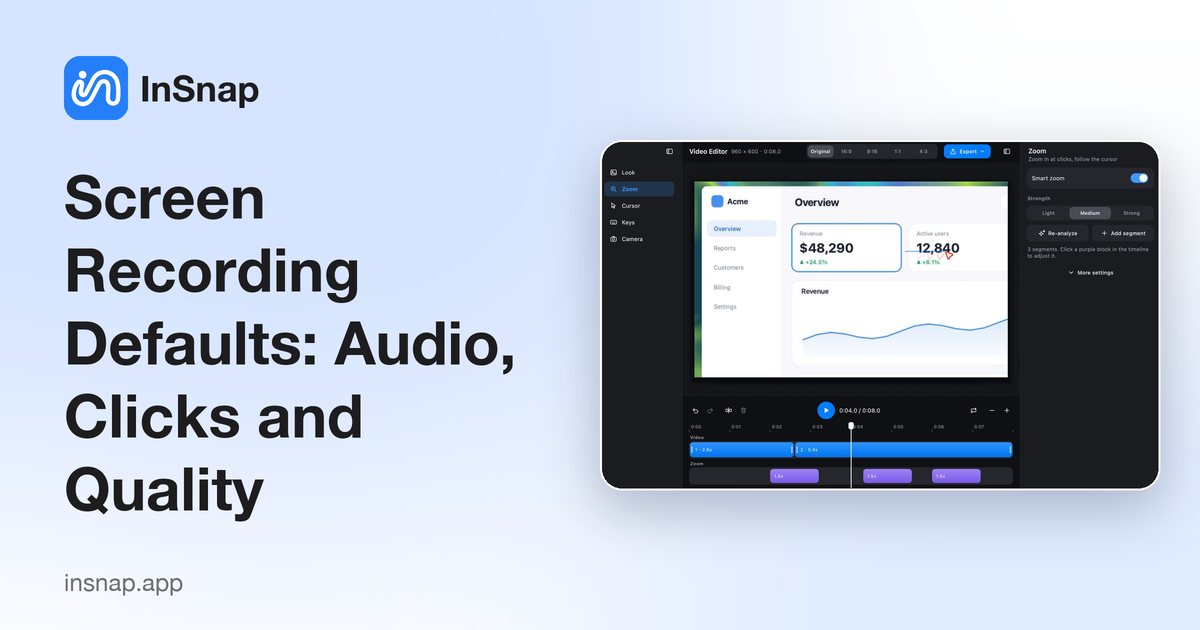
System audio, click effects, key hints and high-quality recording are defaults for the recording panel, not global switches. What each one changes before you record.
The recording panel has its own switches, but it opens with the values you set in Settings › Screen Recording. Understanding the defaults saves a click every time you record, and explains why a recording sometimes has audio you did not expect.
The four defaults
| Setting | Default | What it changes |
|---|---|---|
| Record system audio | Off | Captures what the machine plays |
| Click effect | On | Draws a ripple at each click |
| Key pressed keys | Off | Shows pressed keys on screen |
| High-quality recording | Off | Raises the bitrate and file size |
They apply to new recordings. Changing them does not affect a recording already in progress.
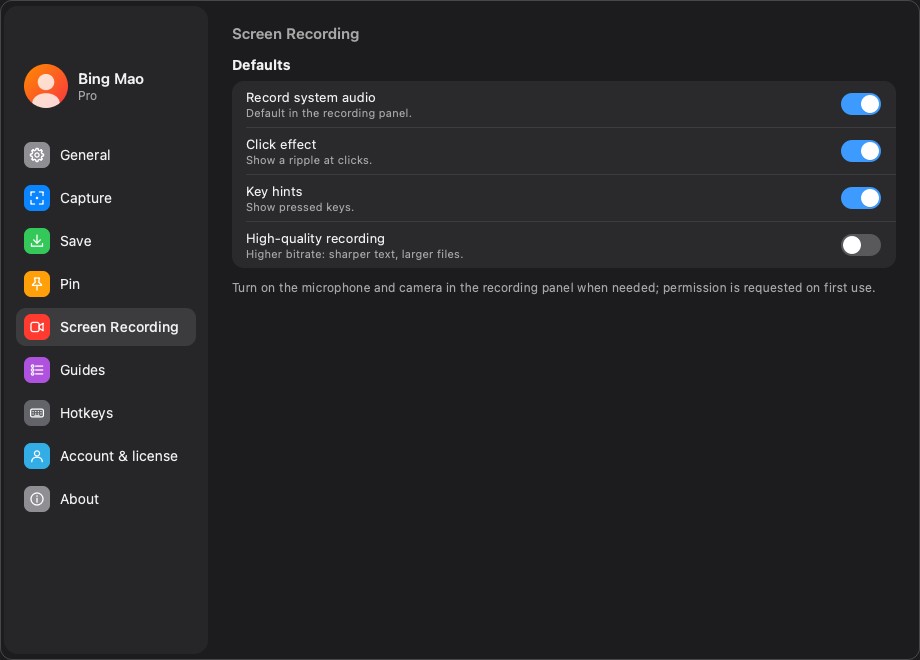
System audio
System audio is what the computer plays: a video, a call, a notification sound. It is off by default because many recordings only need a voice or no sound at all.
- On for demos where the app's sound matters, or when recording a video that already has audio.
- Off for tutorials where your microphone is the only useful track.
- On macOS, system audio is captured through the same screen-capture pipeline as the video; on Windows it uses the system's loopback capture. Neither needs a virtual audio device.
If the recording is silent, check this switch first. It is the most common reason a recording has picture but no system sound.
Click and key effects
Click effect draws a small ripple at each click. It is on by default because it makes a recording easier to follow, especially when the pointer is small.
Key pressed keys shows the keys you press on screen. It is off by default because it can expose passwords, shortcuts and internal commands. Turn it on for tutorials where the keystrokes are the point, and keep it off for anything that may be shared outside the team.
Both effects need Input Monitoring permission; without it, the video records but the effects do not appear.
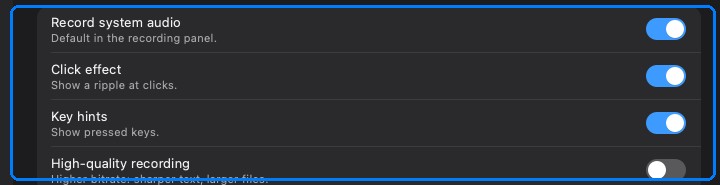
High-quality recording
This raises the recording bitrate, which keeps text and UI edges sharper and makes the file larger. It is off by default so a quick recording stays easy to share.
- On for text-heavy UI, code, or footage that will be edited and exported again.
- Off for a short clip that will be watched once in a chat.
The export quality setting is separate: recording quality decides what is captured, export quality decides how it is written out. A high-quality recording exported at low quality still loses detail.
Microphone and camera are not defaults
Microphone and camera are deliberately not pre-enabled. InSnap asks for permission the first time you enable them in the panel, which keeps the permission prompt in context.
- If you decline, the rest of the recording still works.
- If you accepted once and want to change it, use the permission card or the system privacy settings.
A practical setup
| You record… | System audio | Clicks | Keys | High quality |
|---|---|---|---|---|
| A tutorial with voice | Off | On | Off | On |
| A demo with app sound | On | On | Off | On |
| A bug reproduction | Off | On | Off | Off |
| A keyboard-driven walkthrough | Off | On | On | On |
| Anything with secrets on screen | Off | Off | Off | Off |
FAQ
Why is my recording silent?
The most likely cause is Record system audio being off. If you expected your voice, check that Mic was enabled in the panel and that Microphone permission is granted.
Do click and key effects require permission?
Yes. Both rely on Input Monitoring. Without it, the recording still works but the effects are missing.
Does high-quality recording affect export quality?
They are separate. High quality raises the captured bitrate; the export dialog decides the output bitrate or passthrough. For the sharpest result, use both.
More from the blog

How to Add Text to a Screenshot (and Make It Readable)
Add labels, titles and callouts to a screenshot with readable contrast, the right size and clean placement — plus how to edit them later on Mac and Windows.
October 25, 2026
Auto Zoom for Screen Recordings: What It Does and When to Use It
How InSnap's auto zoom follows your clicks in a screen recording, how the strength settings change the result, and when a static recording is better.
October 25, 2026
How to Make a Before-and-After Comparison Image
One image beats two attachments: capture both states at the same size, stitch them side by side, label them, and send a comparison the reader can scan.
October 25, 2026