 InSnap
InSnap Screenshot History: Filters, Search and Shortcuts
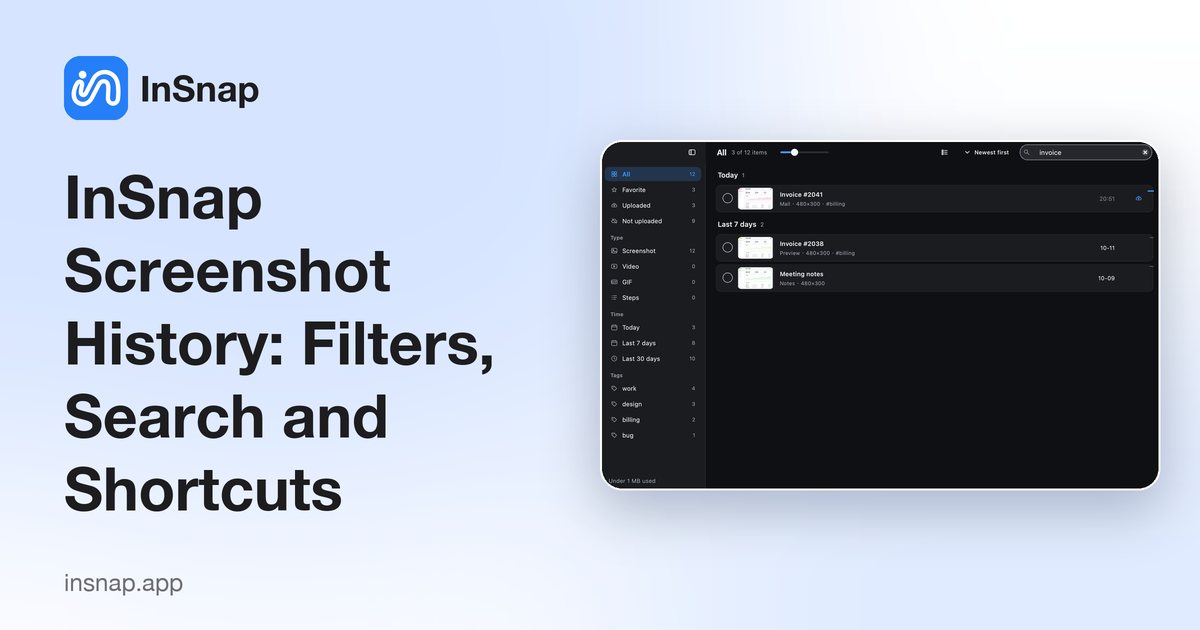
A reference to the screenshot history: every sidebar filter, the search syntax, layouts, batch actions and the shortcuts that get you around it faster.
InSnap's screenshot history is a local library of every capture, with its annotations, source app, tags and the text inside the image. This page is the reference: what each control does, how to search, and the shortcuts worth memorizing.
Opening the history
- Hotkey: assign one in Settings › Hotkeys (Screenshot History). It is unset by default.
- Menu: choose Screenshot History… from the InSnap menu.
- During a capture: press
,or.to step through recent captures without leaving the overlay.
The history window is a single instance: pressing the hotkey again brings it to the front.
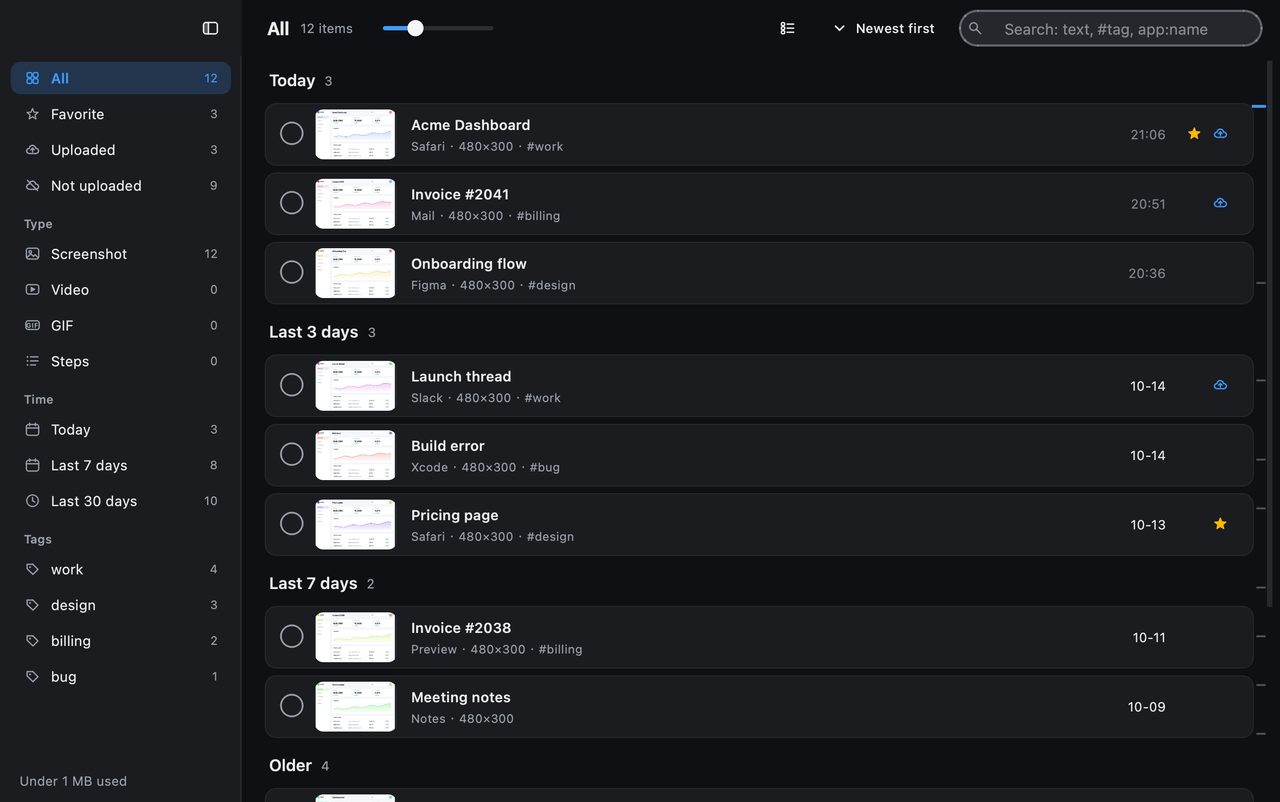
The sidebar filters
| Group | Options | Notes |
|---|---|---|
| All | All captures | The default view |
| Favorites | Starred captures | Favorites are never pruned |
| Uploads | Uploaded / Not uploaded | Cloud state, when signed in |
| Type | Screenshot, Video, GIF, Steps | Media records have no original screenshot file |
| Time | Today, Last 7 days, Last 30 days | Based on the capture time, or edit time for edited records |
| Tags | Your tags with counts | Click to filter; right-click to rename or delete |
Filters combine: for example, Favorites + Last 7 days + a tag shows only starred, recent, tagged captures.
Search syntax
Type in the search field at the top:
| Query | Finds |
|---|---|
payment declined | Captures whose OCR text, note, tags, app, window title or filename contains the words |
#invoice | Captures tagged invoice |
app:Safari | Captures taken in Safari |
is:fav | Favorites |
is:uploaded / is:local | Uploaded to Cloud / not uploaded |
is:image / is:video / is:gif / is:steps | By media type |
Words are combined with AND: app:Terminal #bug finds captures from Terminal tagged bug. Text search relies on the local OCR index; if it is off in Settings, only the metadata is searchable.
Layouts and thumbnails
The toolbar above the grid switches between three layouts:
- Grid — cards, best for visual scanning.
- Rows — justified rows that fill the width, best for mixed aspect ratios.
- List — one line per capture with title, app, size and time.
The thumbnail slider changes the tile size in grid and rows. The choice is remembered per window size; there is no per-folder setting.
Selecting and batch actions
- Click the circle on a card to select it.
- ⌘-click / Ctrl-click adds or removes a capture; Shift-click selects a range.
- ⌘A / Ctrl+A selects everything in the current filter.
- With one or more selected, a floating bar appears: Select all, Add tag, Favorite, Share, Delete, Clear selection.
Batch share uploads one capture at a time and stops on the first failure or cancellation.
The detail view
Click a capture to open it. The left side is the image with zoom and pan; the right side is the info panel:
- App icon, app name and time; favorite star.
- Source URL, when recorded and enabled.
- Note and tags.
- Basic info: app, window, size, share status, saved location.
- Text in the image, with a copy button.
- Upload history, when the capture was shared.
- Delete, at the bottom of the panel.
Arrow keys move to the previous or next capture; Esc returns to the grid.
Storage, retention and privacy
- Everything is stored locally in the app's data folder; nothing is uploaded unless you explicitly share.
- Keep capture history must be on for captures to be recorded.
- Retention can remove old captures by age or total size; favorites and tagged captures are kept.
- Deleting a capture removes its index entry, thumbnail and original file; media records keep user-saved video files outside the history folder.
FAQ
Why is a capture missing from the history?
Check that Keep capture history is on. Copying, saving, pinning and uploading are recorded; if the setting was off at the time, the capture was never saved. Deleted captures are also gone permanently.
Can I search text inside screenshots?
Yes, if text indexing is enabled in Settings. The OCR runs locally and covers Chinese, English and Latin-script languages well; Japanese kana, Korean and Russian are not reliably recognized.
Does clearing the history delete files I saved elsewhere?
No. It removes the history record, thumbnail and the original capture stored by InSnap. Files you saved with Save, and videos or GIFs you exported, are untouched.
More from the blog

How to Add Text to a Screenshot (and Make It Readable)
Add labels, titles and callouts to a screenshot with readable contrast, the right size and clean placement — plus how to edit them later on Mac and Windows.
October 25, 2026
Auto Zoom for Screen Recordings: What It Does and When to Use It
How InSnap's auto zoom follows your clicks in a screen recording, how the strength settings change the result, and when a static recording is better.
October 25, 2026
How to Make a Before-and-After Comparison Image
One image beats two attachments: capture both states at the same size, stitch them side by side, label them, and send a comparison the reader can scan.
October 25, 2026