 InSnap
How to Use Screenshots in a Code Review or Pull Request
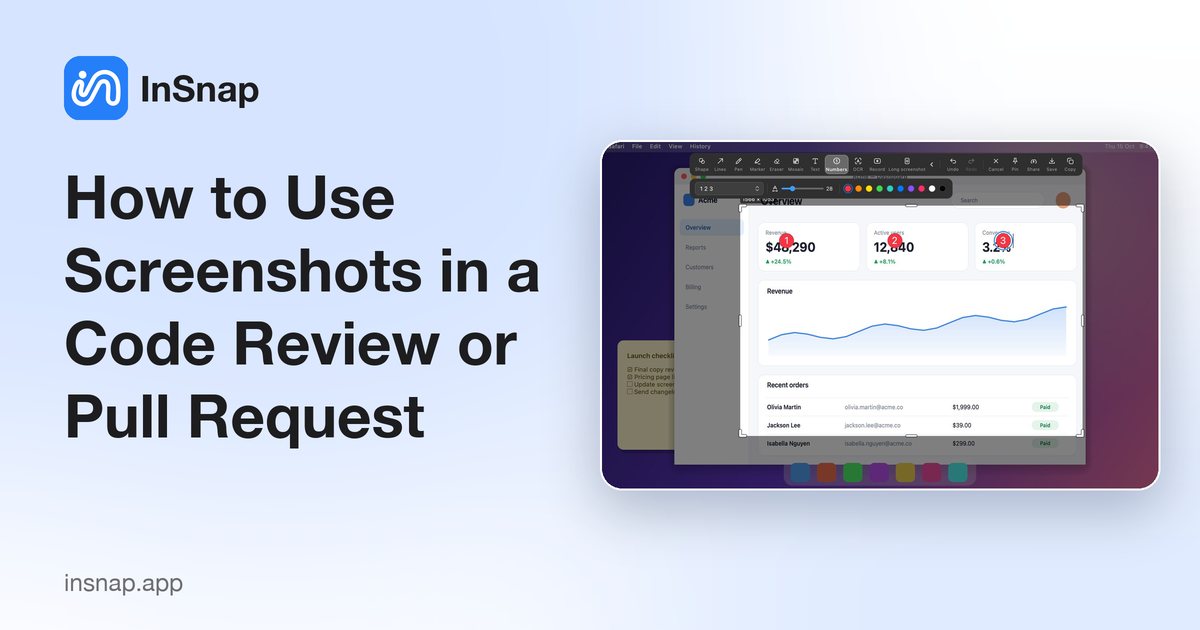
UI changes are hard to review as a diff alone. A small screenshot set — before and after, annotated, with the state that matters — makes a pull request reviewable.
A pull request that changes a button's behavior, a form's validation or a loading state is difficult to judge from a diff. Reviewers end up checking out the branch, rebuilding, and hunting for the screen you meant. A small, well-made screenshot set removes that work.
Capture before and after
For any visible change, capture the same screen twice:
- On the base branch, capture the affected area.
- On your branch, capture the identical area at the same window size and zoom.
- Keep both captures; do not crop one tighter than the other.
Matching the viewport, browser zoom and window size is what makes the comparison meaningful. If the layout is responsive, capture the widths that matter (for example, 1280 and 390) and label them.
Annotate only the difference
The reviewer needs to know where to look, not a full tour:
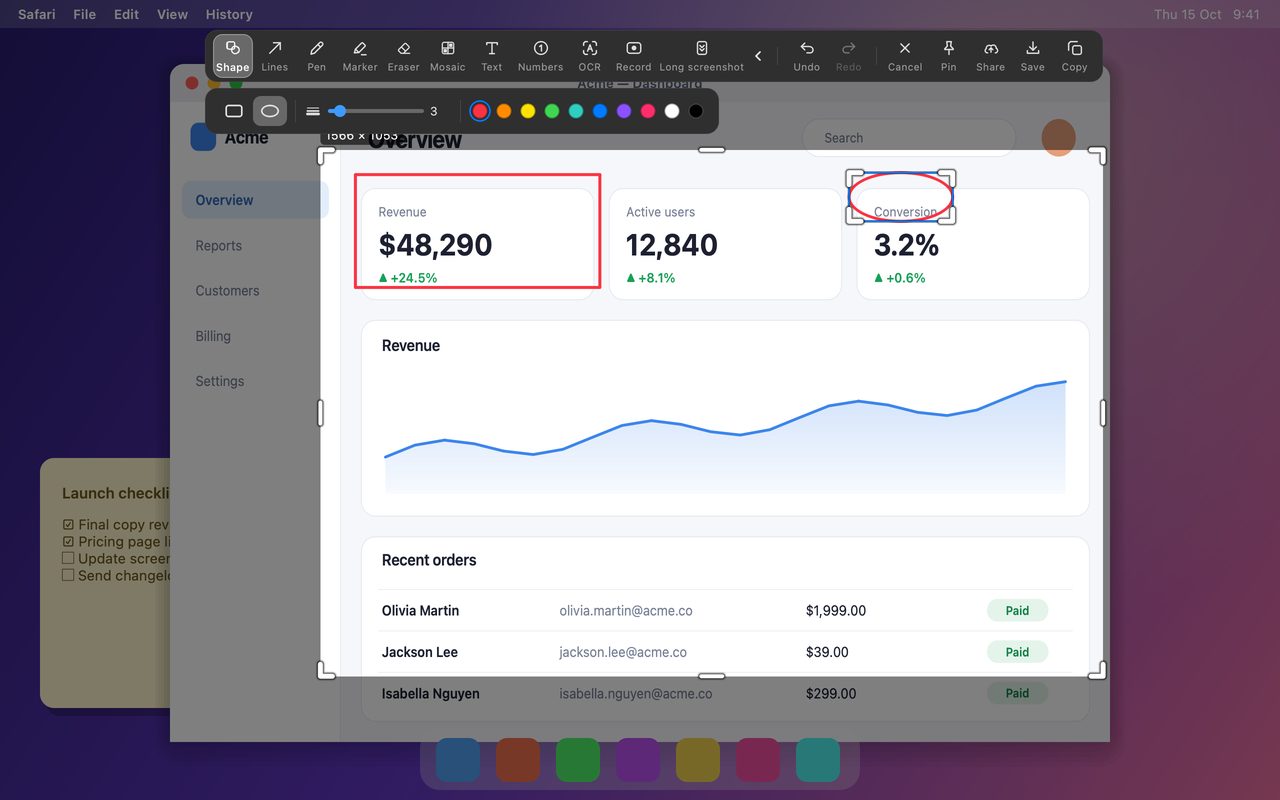
- Numbers for multiple changes in one screenshot: 1 is the new empty state, 2 is the error message.
- Shapes to outline the area that changed.
- Text for the expected behavior, kept short.
- Mosaic or blur for anything private: customer names, emails, tokens, internal URLs.
Do not annotate the whole screen. If the change is one control, one arrow and one sentence are enough.
Record the interaction when a still is not enough
Some changes only make sense in motion: a dropdown that used to close too early, a spinner that now resolves, a drag interaction. Record 10–20 seconds with Quick Record, then attach the MP4 or, for an inline-friendly review, a GIF (Pro).
- Show the failing behavior first, then the fixed behavior, in one clip if possible.
- Turn off the microphone unless narration adds something; a silent clip autoplays safely.
- Keep the clip short enough to watch twice.
Put the evidence in the pull request
A predictable structure saves the reviewer time:
- What changed in one sentence.
- Before / after images, side by side or stacked in the same order every time.
- How to reproduce the state in the screenshot, if it is not the default screen.
- What to check — the one or two things that could regress.
- Environment, if it matters: OS, browser, display scale.
Attach images directly to the pull request rather than linking to a personal drive. If you use a share link, remember that it may expire or require a password; for code review, an attachment is usually better.
Keep the set small
Reviewers skim. Three focused screenshots get read; fifteen get scrolled past.
- One pair per visible change.
- Crop out browser chrome and unrelated panels.
- Compress or resize images that are only there for context; keep full resolution for pixel-level changes.
- Delete the screenshots that repeat the same state from a slightly different angle.
A pre-submit checklist
| Check | Why |
|---|---|
| Same viewport and zoom in before/after | Otherwise the comparison is invalid |
| One change per image | Easier to discuss and resolve |
| Annotations point at the change | No hunting |
| Private data hidden | Pull requests are often visible to more people than expected |
| Clip only where motion matters | Short and watchable |
| Attachments, not personal links | Reviewers should not need an account |
FAQ
Should I attach screenshots or a screen recording?
Stills for states, a short clip for interactions. A 10–20 second recording is enough to show a transition; anything longer is usually skipped.
How do I hide customer data in a review screenshot?
Use Mosaic with a strong setting for names and IDs, a solid cover for secrets, or crop the region out. Blur is weaker than mosaic and should not be used for anything sensitive.
Do I need Pro to make review screenshots?
No for capture, annotation, numbering, mosaic and basic MP4 recording. GIF export, Smart Erase and the video editor effects are Pro features, but a still set plus an MP4 covers most reviews for free.
More from the blog

How to Add Text to a Screenshot (and Make It Readable)
Add labels, titles and callouts to a screenshot with readable contrast, the right size and clean placement — plus how to edit them later on Mac and Windows.
October 25, 2026
Auto Zoom for Screen Recordings: What It Does and When to Use It
How InSnap's auto zoom follows your clicks in a screen recording, how the strength settings change the result, and when a static recording is better.
October 25, 2026
How to Make a Before-and-After Comparison Image
One image beats two attachments: capture both states at the same size, stitch them side by side, label them, and send a comparison the reader can scan.
October 25, 2026