 InSnap
Spotlight and Magnifier: Highlight a Detail Without Covering It
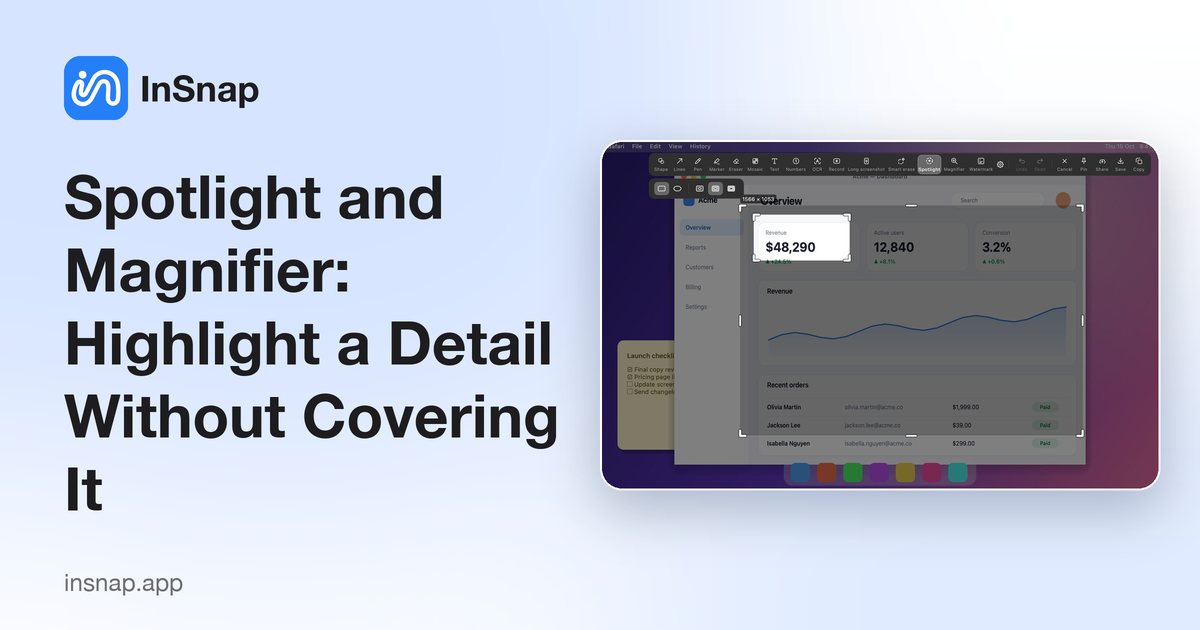
Two InSnap Pro tools that point without painting over the evidence: Spotlight dims everything around an area, Magnifier shows a zoomed lens. When to use each.
Most annotation tools add something on top of the screenshot. That is fine until the detail you need to point at is exactly where the tool lands: the arrow tip covers the cursor state, the rectangle outline hides the edge of the button. Spotlight and Magnifier solve the opposite problem — they change how the rest of the image reads instead of drawing over the target.
Both are part of InSnap Pro, and both are used in the capture overlay, before the image is copied or saved.
Spotlight: dim everything except the area
A spotlight is a region — a rectangle or an ellipse — that stays at full brightness while the rest of the screenshot is dimmed. The effect is the visual equivalent of stage lighting: the eye goes straight to the lit area, and nothing is drawn on top of it.
Typical uses:
- A single button or field in an otherwise dense settings page.
- The one row that changed in a table of similar rows.
- A before and after comparison, where two spotlights highlight the two areas to compare.
- Making a screenshot presentation-friendly without adding arrows that will look wrong if the layout changes.
The dim level is adjustable in the style options, so you can make the difference subtle for a design review or strong for a walkthrough. Several spotlights on the same screenshot combine into one lit area, so you can highlight a group of related controls.
Magnifier: a lens on the actual pixels
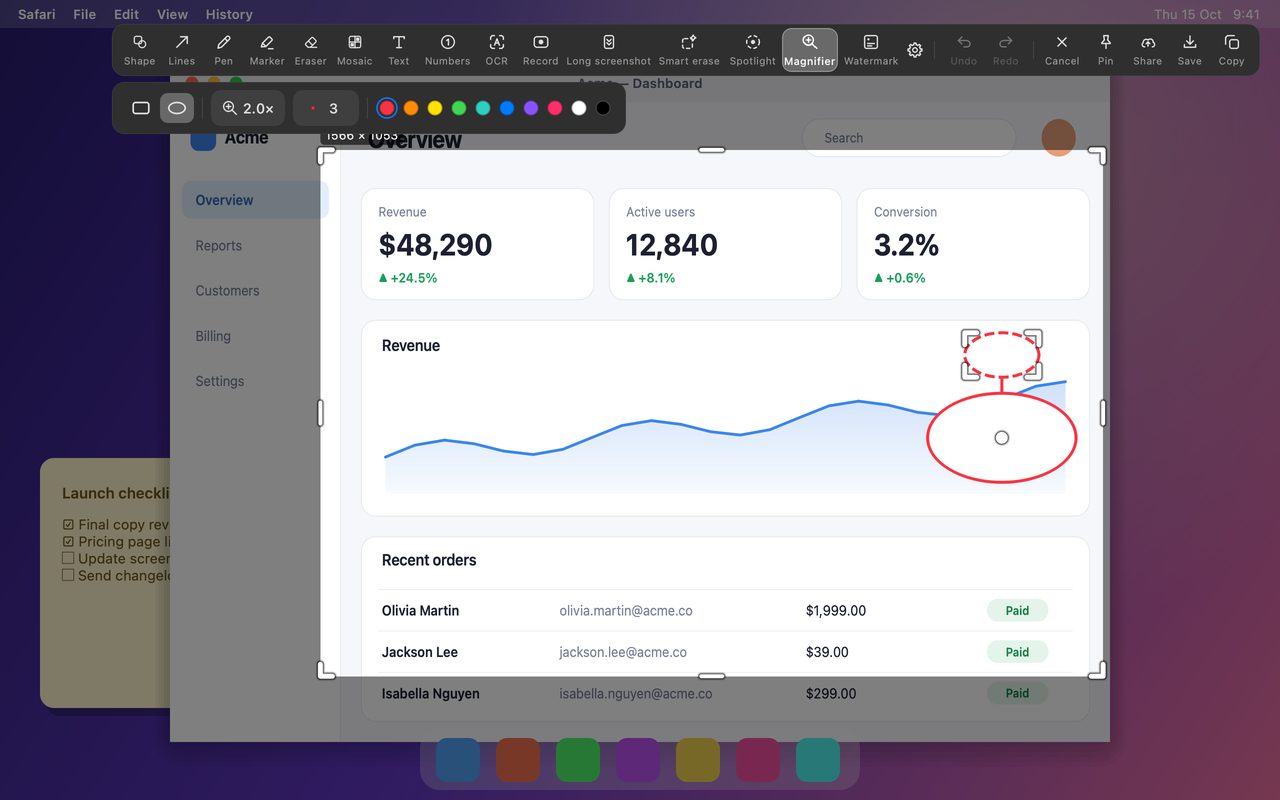
The magnifier shows an enlarged copy of the area under it, taken from the original screenshot rather than from the annotated version. That distinction matters: annotations, dimming and other shapes are not baked into the lens content, so what you see is the real pixel detail.
It is the right tool when the point is not "look here" but "look closely":
- A tiny status icon — connected, synced, muted — that is only a few pixels wide.
- A one-character difference in an ID, version number or code snippet.
- A pixel-level design detail: alignment, a hairline border, a color that is slightly off.
- Showing that a control is greyed out, when the grey is too subtle to see at page size.
The zoom level is adjustable, and the lens can be moved and resized like any other shape, so you can park it next to the detail instead of on top of it.
Which tool for which job
| You want to… | Use |
|---|---|
| Show the order of actions | Number |
| Point from a label to part of the screen | Arrow or Line |
| Group or outline an area | Shape |
| Emphasize text you are reading | Marker |
| Focus attention in a busy screen | Spotlight |
| Prove a tiny detail exists | Magnifier |
| Remove something from the image | Smart Erase (Pro) |
The common mistake is using an arrow for everything. An arrow is for direction and sequence. When there is no direction to show, a spotlight or a magnifier usually communicates faster and leaves the evidence visible.
How to use them
- Press Command-1 on Mac or Ctrl+1 on Windows and drag a selection.
- Open the expanded tools with the ‹ arrow at the start of the toolbar.
- Choose Spotlight or Magnifier.
- Drag over the area. For spotlight, adjust the dim level in the style options; for magnifier, scroll to change the zoom.
- Move or resize the shape until it sits where it explains the most. Copy, save or pin when done.
Both tools are Pro features and unlock with the same one-time purchase, $15, which covers up to three devices and includes future updates. Everything is computed on your machine; no part of the image is uploaded.
FAQ
Are Spotlight and Magnifier free in InSnap?
No. Both are Pro features, covered by the one-time $15 purchase, along with Smart Erase, scrolling capture, GIF recording, image backgrounds and stitching, video editing effects and the full guide editor.
Do the dimming and the zoom appear in the saved image?
Yes. Both are rendered into the exported pixels, so what you copy, save or pin is exactly what you saw in the overlay. They also work in InSnap's image editor.
Can I use more than one spotlight or magnifier on the same screenshot?
Yes. Add as many as the explanation needs. Overlapping spotlights combine into a single lit region, and each shape can be moved or resized before you copy or save.
More from the blog

How to Add Text to a Screenshot (and Make It Readable)
Add labels, titles and callouts to a screenshot with readable contrast, the right size and clean placement — plus how to edit them later on Mac and Windows.
October 25, 2026
Auto Zoom for Screen Recordings: What It Does and When to Use It
How InSnap's auto zoom follows your clicks in a screen recording, how the strength settings change the result, and when a static recording is better.
October 25, 2026
How to Make a Before-and-After Comparison Image
One image beats two attachments: capture both states at the same size, stitch them side by side, label them, and send a comparison the reader can scan.
October 25, 2026