 InSnap
Video Canvas Ratios: Original, 16:9, 9:16 and More
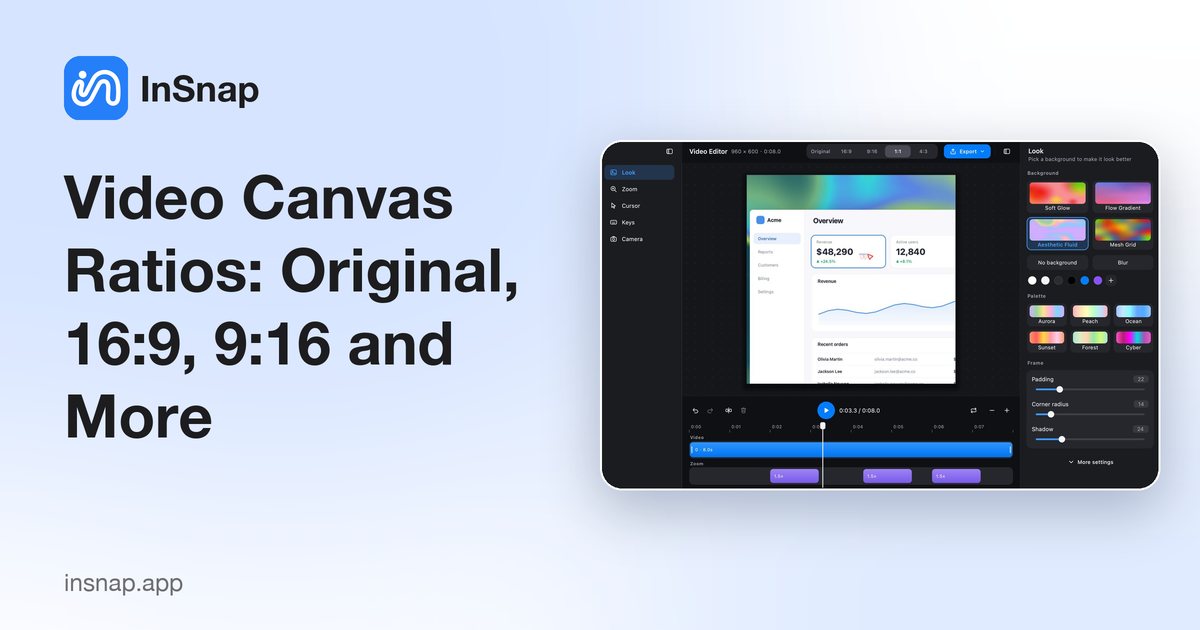
The ratio buttons change the canvas, not the recording. How Original, 16:9, 9:16, 1:1 and 4:3 affect padding, backgrounds and the exported video.
A screen recording arrives with the shape of the window you recorded: a wide monitor, a tall browser, a square dialog. The canvas ratio decides what shape the finished video will have. In InSnap's video editor it is a row of buttons at the top, and changing it never alters the recorded frames — only the frame around them.
What the ratio buttons do
The editor offers five choices:
| Button | Canvas shape | Typical use |
|---|---|---|
| Original | The recording's own shape | Archival, further editing |
| 16:9 | Widescreen | YouTube, most players, slides |
| 9:16 | Vertical | Shorts, stories, phone viewing |
| 1:1 | Square | Social feeds, embeds |
| 4:3 | Classic | Older presentations, some players |
Selecting a ratio changes the canvas immediately; the recording is fitted inside it. The preview, the background panel and the export all use the same canvas.
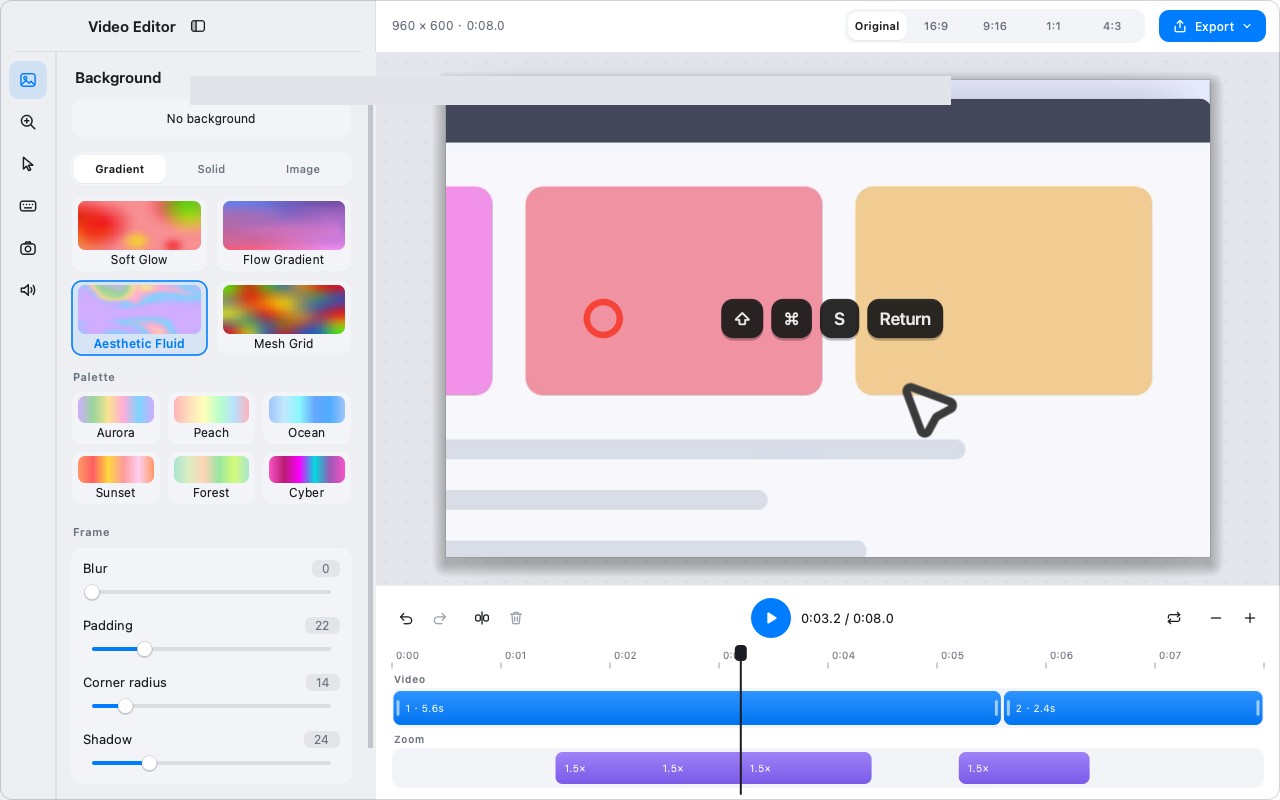
Original keeps the recording's shape
Original means the canvas matches the source video's aspect ratio. There is no letterboxing and no added space, so the video box fills the canvas.
Use it when:
- The recording is going into another editor that will decide the final shape.
- You are exporting an archive and want the original framing.
- The source is already the ratio you need.
The downside is that “original” is whatever the window happened to be. For a polished clip, a preset is usually a better choice.
The four presets
- 16:9 is the safest default for tutorials and demos. It matches most video players, presentation templates and documentation embeds.
- 9:16 is for phone-first destinations. A wide recording will sit in the middle with large empty bands unless you add a background.
- 1:1 works for feed posts and embeds that crop to a square. It is less punishing than 9:16 for a wide recording but still leaves side space.
- 4:3 suits older slide decks and some internal players. It is less common for new content.
The buttons do not crop the recording. If the source is 16:10 and you choose 16:9, the difference is handled by the background and padding, not by cutting pixels off the sides.
Padding, background and the video box
Once the canvas has a shape, three controls decide how the recording sits inside it:
- Padding is the space between the recording and the canvas edge. More padding makes the recording smaller and the background more visible.
- Background fills the canvas outside the video box: a color, a gradient, a photo, a blur or a generated style.
- Corner radius and shadow affect the video box itself, not the canvas.
The important behavior: padding shrinks the video inside the canvas, not the canvas itself. Changing the canvas ratio does not change the exported dimensions of the canvas; it changes its shape, and the video is fitted into it.

Choosing a ratio
| Destination | Ratio | Notes |
|---|---|---|
| YouTube / web player | 16:9 | Matches the player, no black bars |
| Phone / Shorts / Stories | 9:16 | Plan for a background; a wide UI will be small |
| Feed post / embed | 1:1 | Good compromise for UI recordings |
| Old slide deck | 4:3 | Check the template before exporting |
| Archive / another editor | Original | Keeps every pixel in its original frame |
If the recording contains small text, a narrow vertical canvas makes it harder to read. Either crop to the important area before export, or accept that the viewer will rotate the phone.
Export behavior
The exported video uses the canvas ratio, the background and the padding you see in the preview. The same renderer draws the preview and the export, so there is no separate “export layout” to check.
For a quick sanity check, look at the player you will upload to before choosing. A 9:16 video in a 16:9 player is not wrong, but it is small; a 16:9 video in a vertical feed is even smaller.
FAQ
Does changing the canvas ratio crop my recording?
No. The recording is fitted inside the new canvas. Padding and background fill the remaining space; the source pixels are not cut off.
Which ratio should I use for a tutorial?
16:9 for most tutorials, because it matches common players and slides. Use 9:16 only when the destination is phone-first and you can make the important area readable.
Does the ratio affect the exported resolution?
It changes the canvas shape and, with the background and padding, how the video is fitted. The export uses that canvas rather than the source window shape.
More from the blog

How to Add Text to a Screenshot (and Make It Readable)
Add labels, titles and callouts to a screenshot with readable contrast, the right size and clean placement — plus how to edit them later on Mac and Windows.
October 25, 2026
Auto Zoom for Screen Recordings: What It Does and When to Use It
How InSnap's auto zoom follows your clicks in a screen recording, how the strength settings change the result, and when a static recording is better.
October 25, 2026
How to Make a Before-and-After Comparison Image
One image beats two attachments: capture both states at the same size, stitch them side by side, label them, and send a comparison the reader can scan.
October 25, 2026