 InSnap
How to Write a Bug Report With Screenshots Developers Can Act On
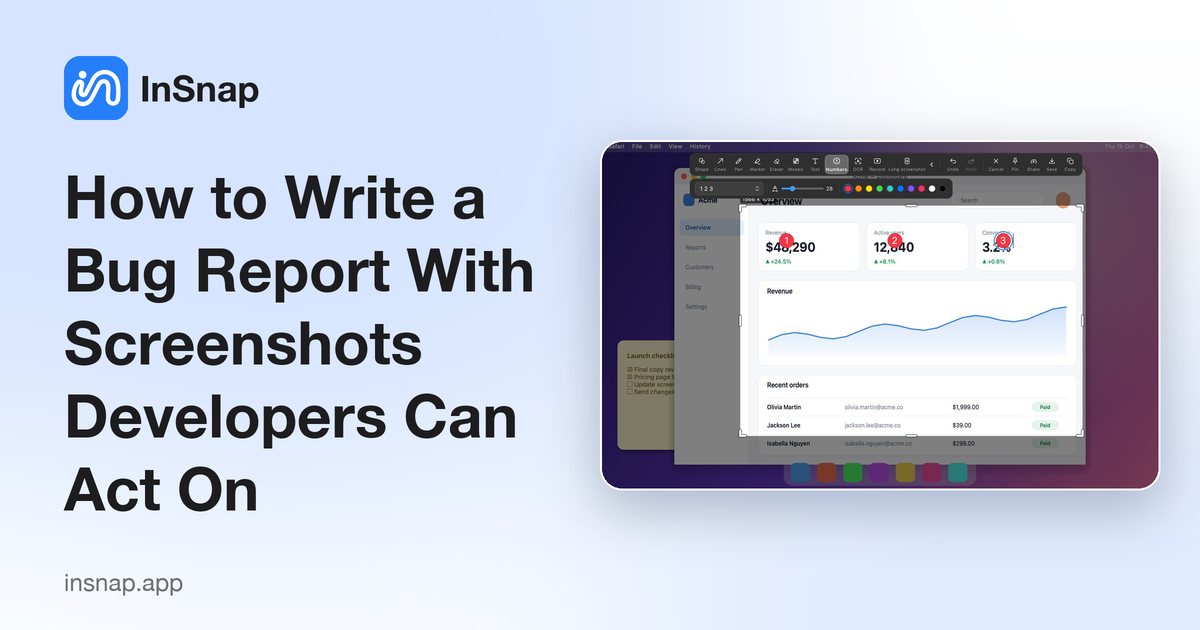
A bug report a developer can act on has the exact steps, a full-window screenshot, the error text and a short recording. A practical guide for QA, support and PMs.
A screenshot alone rarely fixes anything. What gets a bug fixed is a report a developer can replay: the exact steps, what you saw, and what you expected instead. A screenshot makes that visible, but only when it shows enough context, not a tight crop of the error text.
This guide is for QA testers, support teams and product managers. It covers what to capture, how to write replayable steps, how to hide personal data, and when a short recording is the faster answer.
What a useful screenshot shows
Capture the whole window, including the title bar, the toolbar and any open dialog. A crop around the error message hides the app version, the menu that was open and the page you were on, the details a developer needs to reproduce the problem.
For web apps, include the browser console: open the browser's developer tools and switch to the Console tab. If a request failed in the background, the reason is usually printed there and never shown on the page.
Show the exact state: the error text itself, the field that rejected your input, the menu you had open. Do not retype the message from memory; copy it from the screen.
Mark the spot instead of describing it. A ring, an arrow or a number takes a developer straight to the problem.
InSnap makes this quick: press ⌘1 on a Mac or Ctrl+1 on Windows, hover over the window you want, and click. The selection snaps to the window and, over many apps, to the button under the cursor. Annotate with Shape, Line, Text and Number, then copy the result. While you write, copy it and press ⌘2 or Ctrl+2 to pin it on top of your editor.
Write steps a developer can replay
- Start from a known state. "Signed out, new browser tab, no extensions" tells the developer what to reset.
- One action per step, using the labels on screen: "Click Save", "Choose Export › PDF". Do not paraphrase.
- Record what happened and what you expected. "The dialog closed without saving" is actionable; "it did not work" is not.
- List the environment: the OS version, the app version, and whether the bug happens every time or only sometimes.
- Put the screenshot next to the step it belongs to. If you took several, number them the same way on screen.
Give the report a title that states the symptom, not a guess at the cause: "Export to PDF never finishes", not "the exporter is broken".
Hide personal data before you send
Customer names, email addresses, account numbers, tokens in a URL, faces and private messages do not belong in a bug tracker. Blur or mosaic them before you attach the file, and check the edges of the screen too: browser tabs, notification pop-ups and file paths often leak more than the main window.
InSnap's Mosaic tool includes Blur. To remove something completely, Smart Erase fills the area from the surrounding background; it works well on smooth, gradient and interface backgrounds, but is unreliable on busy photos or when the object's colour is close to the background. Smart Erase is part of Pro; mosaic and blur are free.
All of this happens on your computer. InSnap does not upload a screenshot unless you choose to share it through the optional Cloud subscription.
Attach a short recording when words fall short
Some bugs are a sequence: a drop-down that flickers, a drag that lands in the wrong place, a page that loads and then jumps. A few seconds of video beats a paragraph.
InSnap records a region of the screen with options for system audio, a microphone, the camera, click effects or a keystroke overlay. The click and keystroke overlays are especially useful here: the viewer sees exactly what you pressed. Quick Record saves an MP4, and basic screen recording is free; GIF output and editing such as auto zoom, camera picture-in-picture and original-quality export are Pro.
Keep the clip short and start a step or two before the bug. Even with a recording, include the written steps and a still screenshot: some reviewers read on a phone or cannot play video.
FAQ
What should a bug report include?
The exact steps to reproduce the problem, what happened, what you expected, the app and OS versions, and at least one screenshot of the full window. Add a short recording for anything that moves.
Should I crop a screenshot to just the error message?
No. Keep the whole window. The title bar, the open menu and the surrounding page usually contain the version and state a developer needs. Mark the error with a ring or an arrow instead of cropping it away.
How do I hide personal data in a screenshot?
Blur or mosaic names, emails, tokens and faces before attaching the file, and check the edges of the window for browser tabs and notifications. InSnap edits on your computer and uploads nothing unless you choose to share it.
Is a video better than a screenshot?
They answer different questions. A screenshot shows a state; a video shows a sequence. Use a screenshot with numbered steps for a static problem, and a short recording when the bug involves timing, animation, dragging or flicker.
More from the blog

How to Add Text to a Screenshot (and Make It Readable)
Add labels, titles and callouts to a screenshot with readable contrast, the right size and clean placement — plus how to edit them later on Mac and Windows.
October 25, 2026
Auto Zoom for Screen Recordings: What It Does and When to Use It
How InSnap's auto zoom follows your clicks in a screen recording, how the strength settings change the result, and when a static recording is better.
October 25, 2026
How to Make a Before-and-After Comparison Image
One image beats two attachments: capture both states at the same size, stitch them side by side, label them, and send a comparison the reader can scan.
October 25, 2026