 InSnap
How to Document a Support Session With Screenshots and Short Clips
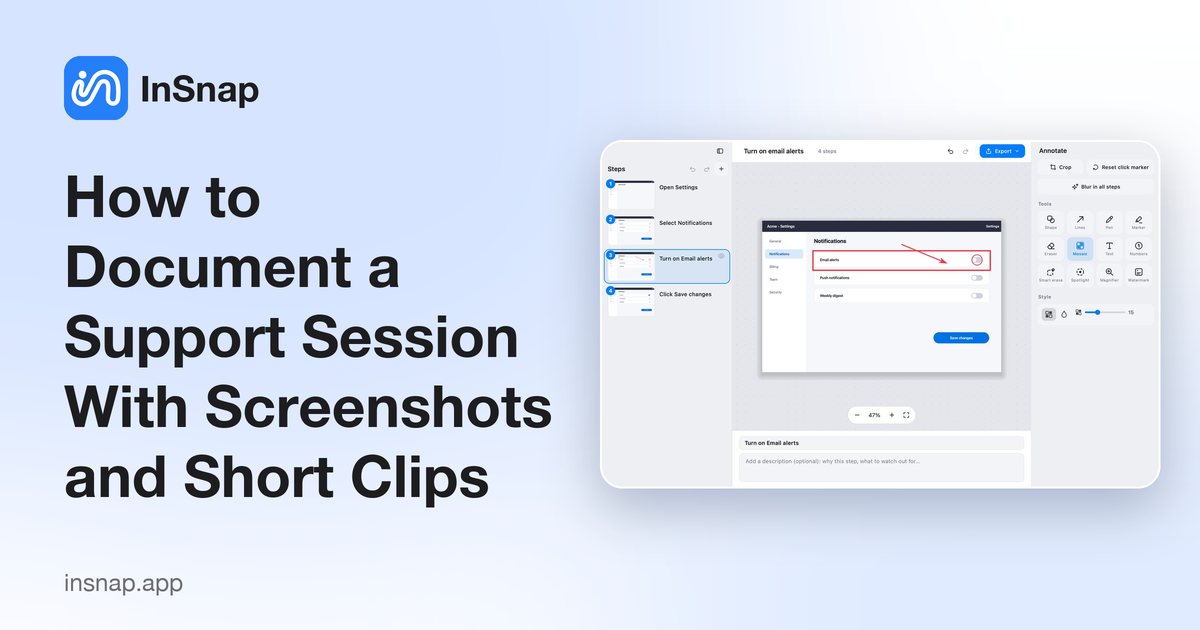
A repeatable way for support teams to capture what went wrong: annotate the state, hide customer data, record a short repro and share a single link.
A good support reply shows the problem instead of describing it. The difference between a reply that resolves a ticket and one that starts a five-message thread is usually one annotated screenshot and, when the issue is about motion, one short recording. This is a repeatable routine for doing that quickly.
Step 1: decide what proves the problem
Before you capture anything, name the one thing the customer should look at: the error banner, the disabled button, the wrong total. If you cannot name it, the screenshot will be a wall of UI and the customer will not know where to look either.
Two questions decide the format:
- Is the issue about a state or a change? A state — a checkbox that is already ticked, a field with the wrong value — is best shown in a still.
- Does it depend on timing? A spinner that never resolves, a menu that closes too fast, an animation that flickers — that needs a few seconds of video.
Step 2: capture and annotate in one pass
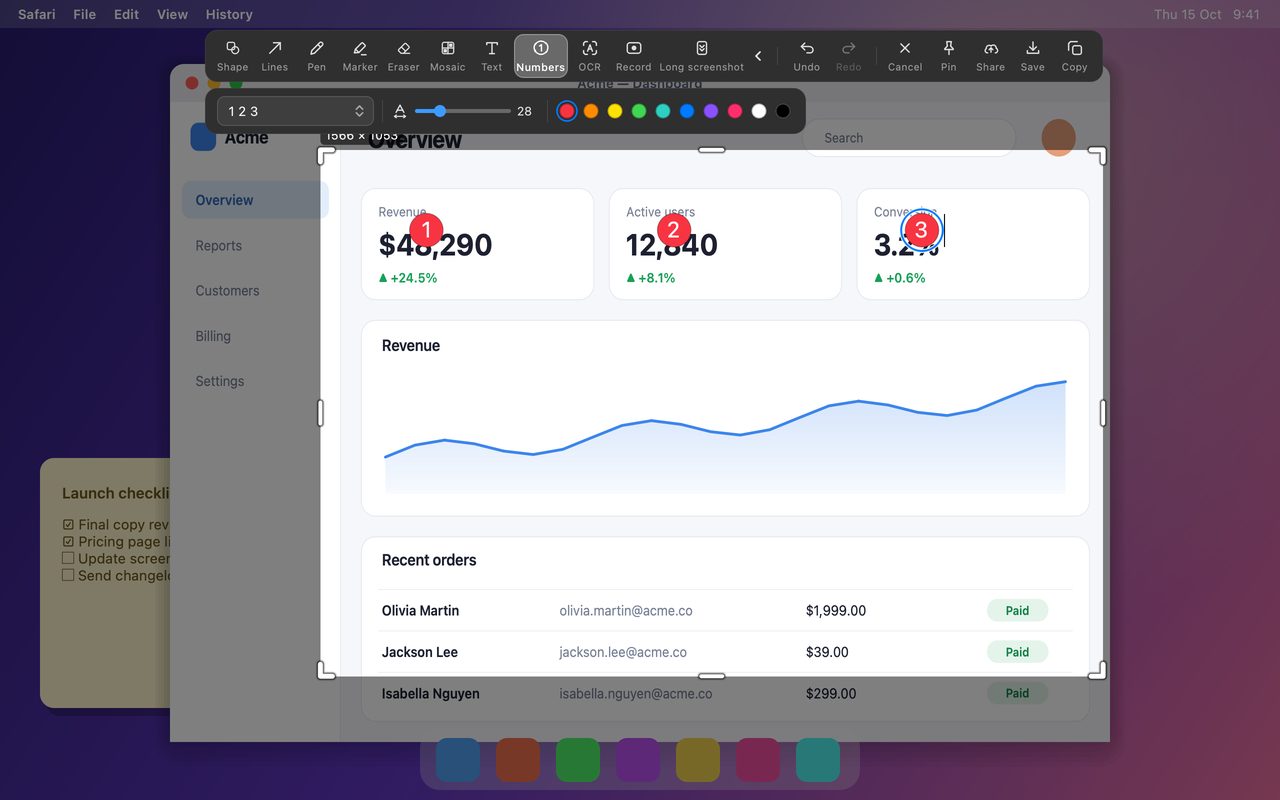
With InSnap you do not save first and annotate later; the capture opens with the annotation tools already on screen.
- Press Command-1 on Mac or Ctrl+1 on Windows and drag a box around the relevant area.
- Choose Number on the toolbar and click the spots in the order the customer should look at them. Numbers survive translation and languages better than arrows with text.
- Add Text where a number is not enough, and Shape to outline a field or button.
- Copy or save the result. Annotations are rendered into the exported pixels, so what you send is what the customer sees.
A useful discipline: no more than three numbers per screenshot. If you need six, you probably need two screenshots, or a recording.
Step 3: hide customer data before anything leaves your screen
Support screenshots routinely contain names, email addresses, account numbers and internal IDs. Hide them on the image itself, not by asking the customer to ignore them.
- Mosaic with a strong setting for names and numbers. It reads as redacted at a glance.
- Blur is softer and weaker; use it only for low-risk details.
- A solid cover — a filled shape in an opaque color — for anything you would not want forwarded: passwords, tokens, card numbers. Better still, crop it out of the capture.
- Check the corners. Window titles, browser tabs, bookmarks and notification pop-ups leak more than the area you were focused on.
If you are producing a multi-step guide rather than a single reply, InSnap's guide editor can blur the same area across every step at once (Pro), which is faster and less error-prone than fixing each step by hand.
Step 4: record a short repro only when it helps
When a still cannot show the problem, record 15–30 seconds. Longer clips do not get watched. In InSnap, choose Record on the capture toolbar and pick Quick Record so the clip goes straight to a file without an editing step.
Turn on System audio if the sound is part of the bug, and Mic only if you are narrating. Both are optional, and a silent clip is often better for a support thread because it autoplays safely in a browser.
For a GitHub issue or an internal ticket, a GIF is sometimes easier to embed than a video (Pro). For a customer, a normal MP4 is more compatible with email clients and phones.
Step 5: write the reply around the evidence
Lead with the answer, then attach the evidence:
- One sentence that states what is happening.
- The numbered screenshot or the clip.
- A short list of what you need from the customer, if anything.
If the customer must send something back, be specific: "a screenshot of the screen after you click Save" is better than "more details". Ask them to hide anything personal before sending.
Step 6: keep the thread findable
A ticket that took twenty minutes to untangle should not need that work again next week.
- Tag the capture with the ticket ID in InSnap's history, so the next agent can find it by searching.
- Favorite the screenshots that document a known issue.
- Use the history's text search when you half-remember the error message.
- If you need to share with someone outside the ticket, InSnap Cloud can turn a capture into a link with an expiry date and an optional password. The link opens in a browser; the recipient does not need an InSnap account.
Cloud is an optional subscription and is not required for anything above — the local workflow works without it.
FAQ
Should a support reply use screenshots or a screen recording?
Both, for different jobs. Use a still for a state the customer should compare against, and a 15–30 second clip only when timing is the problem. Avoid long recordings; they rarely get watched.
How do I hide customer data in a support screenshot?
Use Mosaic with a strong setting for names and numbers, a solid opaque cover for passwords and tokens, or crop the region out entirely. Check window titles, tabs and notifications as well as the main area.
Do customers need an InSnap account to view a shared link?
No. A Cloud share link opens in a normal browser. The link can have an expiry date and an optional password, and the Cloud subscription is separate from InSnap Pro.
More from the blog

How to Add Text to a Screenshot (and Make It Readable)
Add labels, titles and callouts to a screenshot with readable contrast, the right size and clean placement — plus how to edit them later on Mac and Windows.
October 25, 2026
Auto Zoom for Screen Recordings: What It Does and When to Use It
How InSnap's auto zoom follows your clicks in a screen recording, how the strength settings change the result, and when a static recording is better.
October 25, 2026
How to Make a Before-and-After Comparison Image
One image beats two attachments: capture both states at the same size, stitch them side by side, label them, and send a comparison the reader can scan.
October 25, 2026