 InSnap
How to Remove an Annotation or Undo a Mistake on a Screenshot
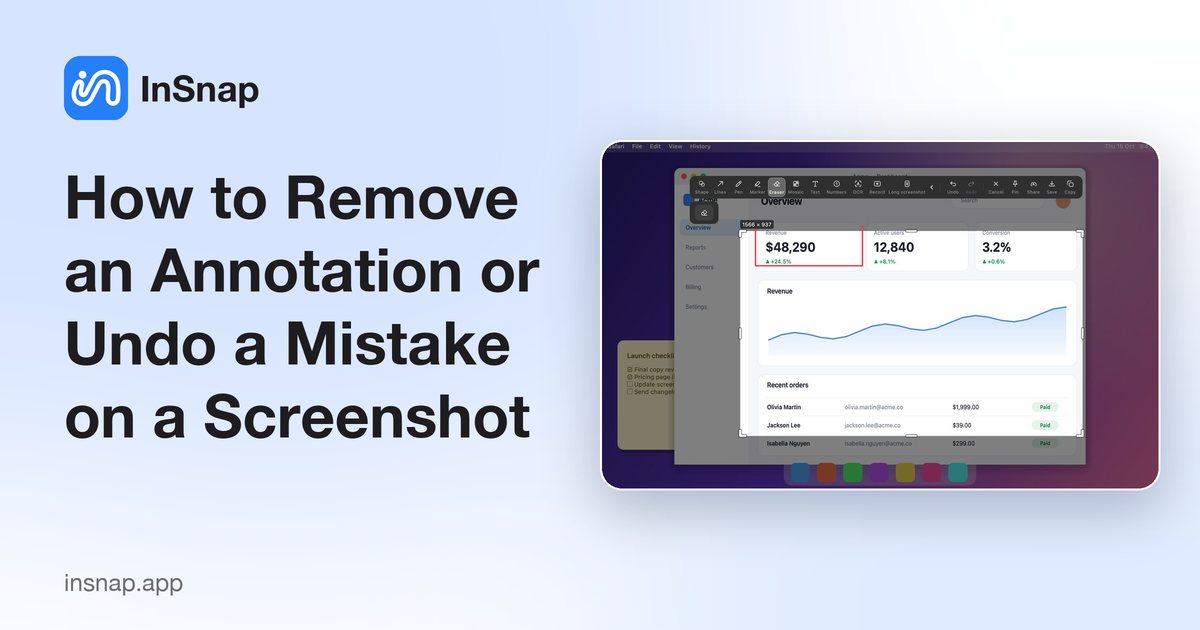
Annotations are a separate layer: undo a stroke, erase part of a shape, or delete a selected arrow without touching the screenshot underneath.
A stray arrow, a number in the wrong place, a highlight that lands on the wrong row: annotation mistakes are normal, and fixing them should take one action. In InSnap, annotations are a layer on top of the screenshot, so removing one never damages the captured image.
Annotations are a layer
Everything you draw — shapes, arrows, text, numbers, highlights, mosaic — is stored as an object on top of the frozen screenshot. That has two consequences:
- Removing an annotation leaves the pixels underneath exactly as they were.
- The annotations stay editable until you copy, save, pin or upload. After that, they are rendered into the output file.
So the first rule is simple: fix the annotation before you output the image.
Undo and redo
For the most recent action, undo is the fastest fix.
- Use Undo on the toolbar, or the standard shortcut: Command-Z on Mac, Ctrl+Z on Windows.
- Redo sits next to it, for when undo went one step too far.
- Undo covers drawing, moving, resizing, color and width changes, and text edits. Repeated undo walks back through the session.
If you are not sure what the last action was, undo once and look. It is faster than hunting for the wrong shape and deleting it.
Erase part of a drawing
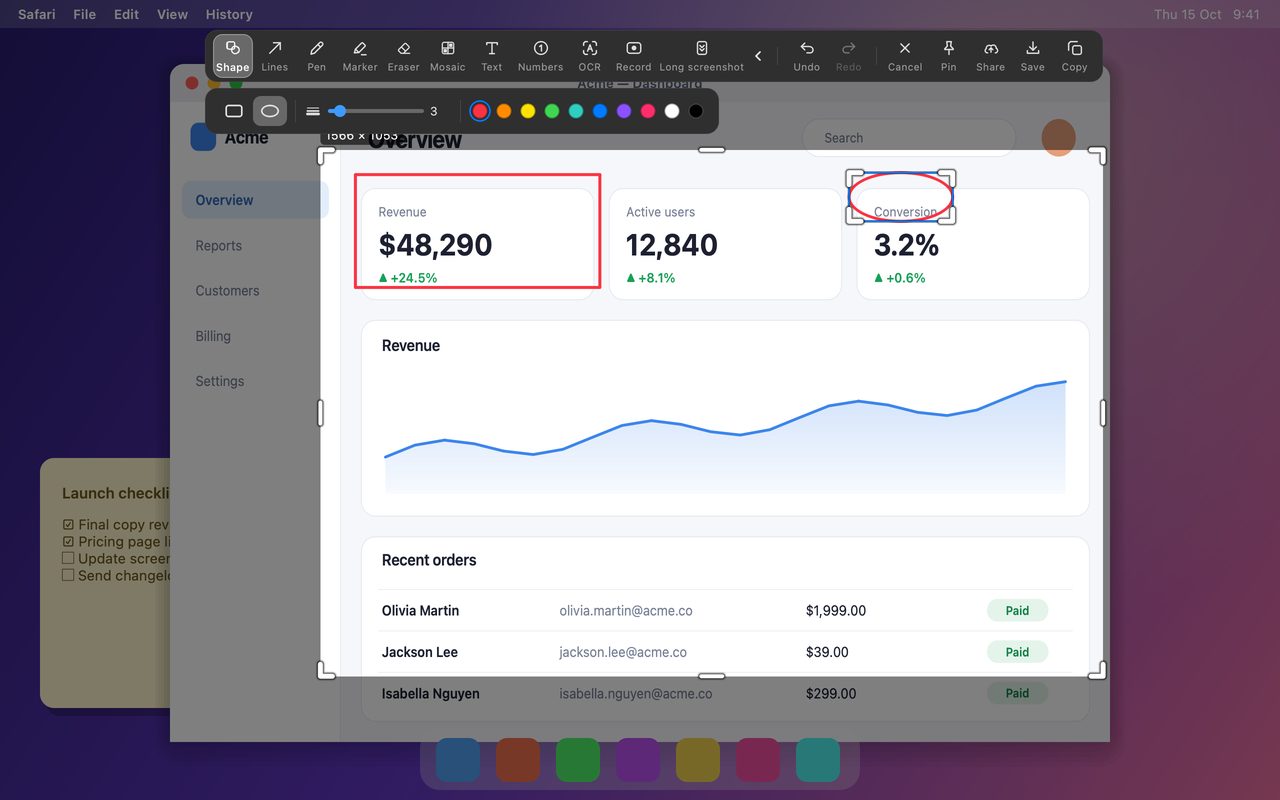
When only a piece of an annotation is wrong — a highlight that runs past the word, an arrow tail that crosses something important — use the Eraser:
- Choose Eraser on the toolbar.
- Drag over the part you want gone.
- Release. Only the annotation is affected; the screenshot underneath is untouched.
The eraser works on the annotation layer, not on the captured page. It is not the tool for removing a name or an object from the image itself: that is Smart Erase (Pro), which reconstructs the background.
Delete a whole annotation
When the whole object is wrong, do not erase around it. Select and delete:
- Choose the selection tool, or click the annotation directly to select it.
- Press Delete (or Backspace) to remove the selected object.
- If you delete the wrong one, undo.
This is the cleanest way to remove a text box, a number, a shape or an arrow that should not be there at all. The same applies in InSnap's image editor, where existing annotations can be selected and deleted the same way.
If you already copied or saved
Once the image has been copied, saved, pinned or uploaded, the annotations are baked into the file. You cannot erase them from that copy. Two options remain:
- Keep editing the capture if the session is still open, then output it again.
- Reopen the original if it is in InSnap's screenshot history and has not been edited into a flattened copy; the original capture keeps its annotations editable.
For a screenshot you expect to revise, keep the capture open until the markup is final. For anything important, keep the original image as well as the annotated version.
A short checklist
| Problem | Fix |
|---|---|
| Last stroke was wrong | Undo |
| Undo went too far | Redo |
| Part of a highlight is wrong | Eraser |
| A whole object is wrong | Select, then Delete |
| A real object in the image must go | Smart Erase (Pro) |
| The file is already saved | Reopen the original if available |
FAQ
Does the eraser change the screenshot itself?
No. The Eraser removes annotations you drew. To remove content that exists in the captured image — a name, a badge, a background object — use Smart Erase (Pro), which is a separate tool that reconstructs the area behind the object.
Can I undo a delete?
Yes, with Undo on the toolbar or Command-Z / Ctrl-Z, as long as the capture session is still open. After the image is exported, the file itself cannot be undone.
Does deleting an annotation work in the image editor too?
Yes. In the image editor, click an annotation to select it and press Delete, or use the Eraser for part of a stroke. The editor keeps its own undo history for annotations.
More from the blog

How to Add Text to a Screenshot (and Make It Readable)
Add labels, titles and callouts to a screenshot with readable contrast, the right size and clean placement — plus how to edit them later on Mac and Windows.
October 25, 2026
Auto Zoom for Screen Recordings: What It Does and When to Use It
How InSnap's auto zoom follows your clicks in a screen recording, how the strength settings change the result, and when a static recording is better.
October 25, 2026
How to Make a Before-and-After Comparison Image
One image beats two attachments: capture both states at the same size, stitch them side by side, label them, and send a comparison the reader can scan.
October 25, 2026