 InSnap
How to Review Videos and GIFs in Screenshot History
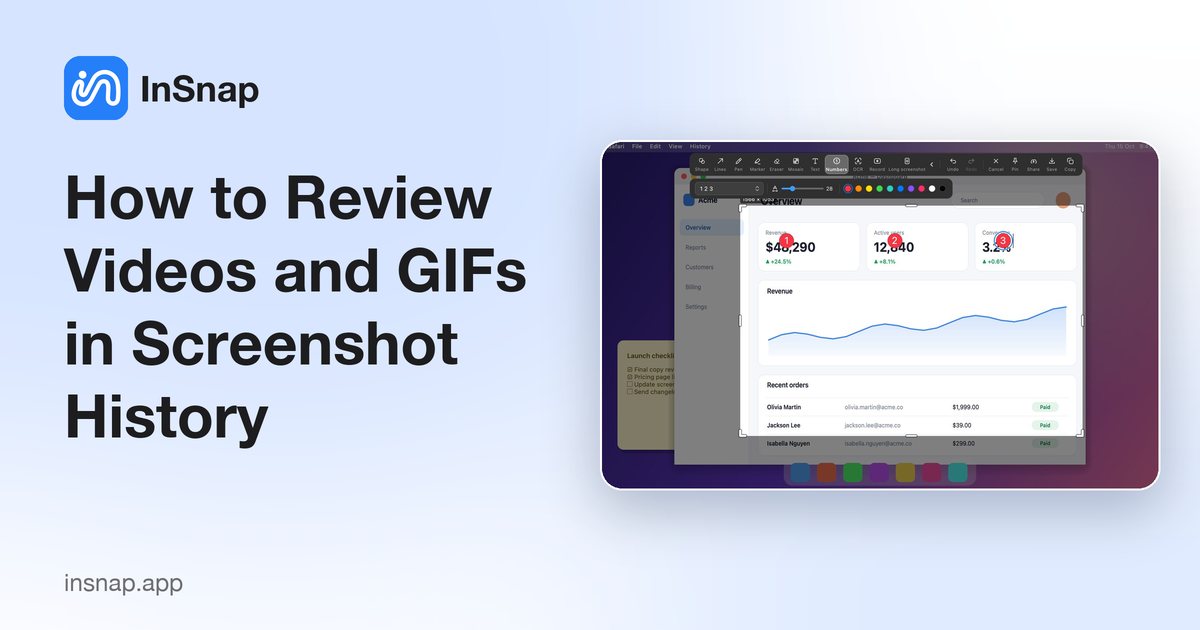
The history is not only screenshots. Videos, GIFs and guides open in the same viewer with playback, file actions and editing — here is what each type can do.
Screenshot history stores more than stills: quick recordings, GIFs and guides land there too. Opening one gives you a preview and a different set of actions from an image. Knowing which buttons appear saves a trip to Finder.
What gets stored
| Type | Stored as | Original image? |
|---|---|---|
| Screenshot | Full-screen PNG + annotations | Yes |
| Video | A link to the MP4 plus a thumbnail | No |
| GIF | A link to the GIF plus a thumbnail | No |
| Guide | A guide folder plus step images | No single image |
Media records point to files that usually live outside the history folder. Deleting the history record removes the thumbnail and the record, not necessarily the video you saved elsewhere.
Open a media record
Click a card in the grid, the rows layout or the list. The viewer uses the same large area as an image preview, with the media player in the middle and the info panel on the right.
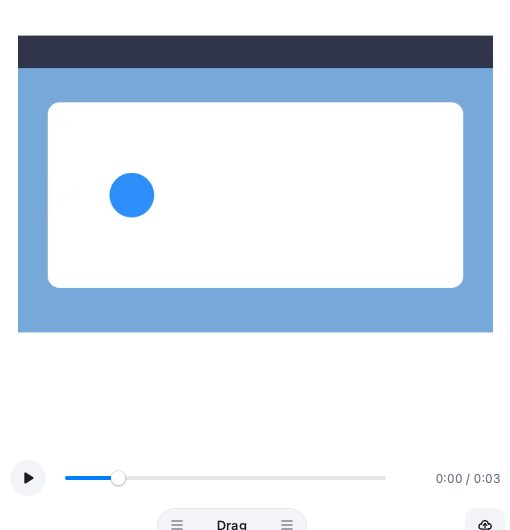
The player has:
- Play/pause, also available with the Space key.
- A progress bar you can drag; the time is shown at both ends.
- Fit-to-window by default; the media is not cropped.
For a GIF, the preview loops automatically and offers a pause and a frame control. For a guide, the viewer shows a read-only vertical list of steps with their images.
Actions that change with the type
| Action | Image | Video | GIF | Guide |
|---|---|---|---|---|
| Edit | Yes | Yes | No | Yes |
| Pin | Yes | No | No | No |
| Copy image | Yes | No | No | No |
| Upload | Yes | Yes | Yes | Yes |
| Drag file out | Yes | Yes | Yes | No |
| Save as / copy file | Yes | Yes | Yes | No |
The differences are deliberate: a video has no single image to pin, and a guide’s source is a folder rather than one file.
Editing from history
- Video: Edit opens the video editor with the recording’s events, cursor settings and camera track. If a project file exists, the previous edit state is restored.
- Guide: Edit opens the guide editor with the steps. The history thumbnail is replaced when you save.
- GIF: there is no editor for an existing GIF; re-record or convert the source video again.
For videos, the history record is the source, not an exported copy: editing and exporting do not create a new history record for each export.
Searching and filtering
The history sidebar has a Type group: Screenshot, Video, GIF and Guides. The search field understands is:video, is:gif and is:steps (or is:guide), so you can narrow to one type before scanning.
Media records also keep their source app, title, date and tags, so app:QuickTime or a tag works the same way as for screenshots.
Keyboard navigation works as it does for images: the arrow keys move to the previous or next record, and Esc returns to the grid. Playback shortcuts stay inside the player so they do not fight with the history navigation.
FAQ
Why can’t I pin a video from the history?
Pinning is an image action. A video has no single frame as its content; open it in the editor, export a frame or take a screenshot if you need a still to pin.
Does deleting a video record delete the video file?
Not necessarily. The record points to a file, often one you saved with Quick Record. Deleting the history record removes the record and thumbnail; check the file’s location before deleting it separately.
Can I play a guide in the viewer?
Yes, as a read-only list of steps with their images. To change the guide, use Edit; the viewer does not allow editing in place.
More from the blog

How to Add Text to a Screenshot (and Make It Readable)
Add labels, titles and callouts to a screenshot with readable contrast, the right size and clean placement — plus how to edit them later on Mac and Windows.
October 25, 2026
Auto Zoom for Screen Recordings: What It Does and When to Use It
How InSnap's auto zoom follows your clicks in a screen recording, how the strength settings change the result, and when a static recording is better.
October 25, 2026
How to Make a Before-and-After Comparison Image
One image beats two attachments: capture both states at the same size, stitch them side by side, label them, and send a comparison the reader can scan.
October 25, 2026