 InSnap
How to Take a Scrolling Screenshot on Mac and Windows
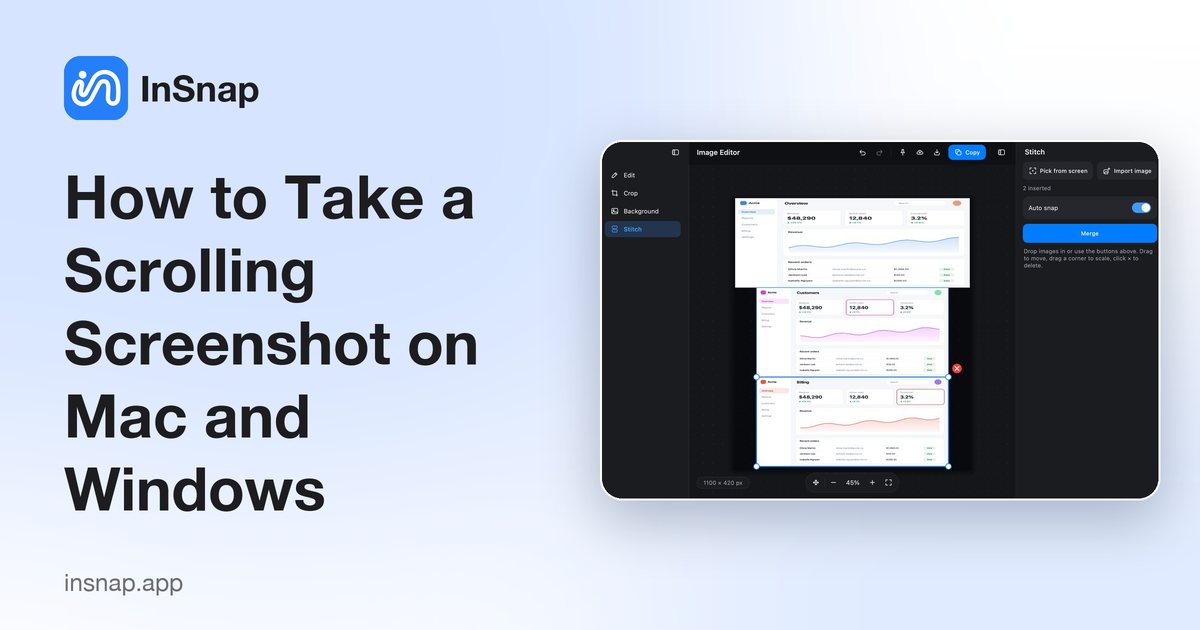
Neither macOS nor Windows has a built-in scrolling screenshot. Here are the practical ways to capture a long page, chat or document as one image on Mac and Windows.
A scrolling screenshot (also called a long screenshot or full-page screenshot) captures content taller than your screen as a single image. It is handy for web pages, chat history, settings screens and long documents. Here is what works on Mac and Windows today.
Does macOS or Windows have a built-in scrolling screenshot?
No. The macOS Screenshot tool (Shift-Command-5) and the Windows Snipping Tool (Windows key + Shift + S) capture only what is visible on screen. For anything longer you need a browser feature or a third-party app.
Option 1: Capture a full web page in your browser
If the content is a web page, the browser can render the whole page for you.
- Chrome and Edge: open DevTools (F12, or Option-Command-I on Mac), press Ctrl+Shift+P (Command-Shift-P on Mac), type "screenshot" and choose Capture full size screenshot. The image is saved to your Downloads folder.
- Firefox: press Ctrl+Shift+S (Command-Shift-S on Mac) and choose Save full page.
This works well for ordinary pages, but not for desktop apps, chat windows, or pages that load more content as you scroll.
Option 2: Use a scrolling-capture tool
For any window or app, a screenshot tool that stitches frames while you scroll is the reliable route. With InSnap:
- Press the capture hotkey (Command-1 on Mac, Ctrl+1 on Windows) and drag a box around the area you want to scroll.
- Click the long screenshot button on the toolbar.
- Scroll the page with your mouse wheel or trackpad. A live preview on the side grows as InSnap stitches each frame.
- Finish, then save, copy, pin or open the result in the editor.
Long screenshots are an InSnap Pro feature (a one-time $15 purchase). Everything else in the capture tool, including annotation, pinning and OCR, is free.
Tips for a clean result
- Scroll steadily. Smooth, moderate scrolling gives the stitching the most overlap to work with.
- Watch for sticky headers. A fixed toolbar that stays on screen can repeat in the result. Select only the scrolling region, below the sticky bar.
- Avoid moving content. Videos, animations and live tickers inside the selected area can leave visible seams.
- Use the editor afterwards. Blur private details with the mosaic tool before you share the image.
FAQ
How do I take a scrolling screenshot on a Mac?
macOS has no built-in option. In a browser you can use the full-page capture in DevTools; for any app or window, use a scrolling-capture tool such as InSnap.
How do I take a scrolling screenshot on Windows 11?
The Snipping Tool does not scroll. In Chrome, Edge or Firefox use the full-page screenshot command, or use a scrolling-capture app for other windows.
Can I take a scrolling screenshot of a chat or an app, not only a web page?
Yes, with a tool that captures a screen region while you scroll. Browser full-page capture only works for web pages.
Is InSnap's scrolling screenshot free?
It is part of InSnap Pro, a one-time $15 purchase with no subscription.
More from the blog

How to Add Text to a Screenshot (and Make It Readable)
Add labels, titles and callouts to a screenshot with readable contrast, the right size and clean placement — plus how to edit them later on Mac and Windows.
October 25, 2026
Auto Zoom for Screen Recordings: What It Does and When to Use It
How InSnap's auto zoom follows your clicks in a screen recording, how the strength settings change the result, and when a static recording is better.
October 25, 2026
How to Make a Before-and-After Comparison Image
One image beats two attachments: capture both states at the same size, stitch them side by side, label them, and send a comparison the reader can scan.
October 25, 2026