 InSnap
Screen Recording Is Black or Silent? Fix It on Mac and Windows
Why screen recordings come out black or with no sound, and how to fix permissions, audio sources, protected video and graphics issues on macOS and Windows.
A recording that plays back as a black rectangle, or with perfectly silent audio, is almost always one of two problems: the capture pipeline was never allowed to see the screen, or it was never told which sound to record. The fix is usually a permission toggle or a source switch, not a reinstall.
First, split the symptom in two
- Black video: the recorder receives empty frames. On macOS this is nearly always a missing screen recording permission. On Windows it is usually protected video, a graphics conflict, or a hidden window.
- Silent video: the picture is fine but there is no audio track, or the track is empty. The recorder was listening to the wrong source, or the microphone was muted or not permitted.
Check both: play the file in a different player, confirm the volume, and look at whether the file even has an audio track. Then work through the matching section below.
Black video on macOS: the permission did not take effect
macOS gates screen capture behind a privacy permission. Until it is granted, a recorder does not fail with an error — it happily produces black frames. Open System Settings › Privacy & Security › Screen Recording (on newer macOS versions the panel is called Screen & System Audio Recording) and make sure the app is listed and switched on.
Three details trip people up:
- Quit the app completely and reopen it. The permission is applied at launch. Closing the window is not enough; use Command-Q or the app's Quit command.
- A toggle that looks on can be stale. Turn it off, turn it back on, and relaunch. If the app was updated recently, remove it from the list with the minus button and add it back.
- Granted but still black? Resetting the permission for that one app usually clears it. In Terminal, run
tccutil reset ScreenCapture <bundle-id>and relaunch. You can find the bundle identifier withosascript -e 'id of app "AppName"'.
If the recording works but one video player area is black — Netflix, Apple TV+ and similar — that is not a permission problem. Those services exclude protected video from every screen recorder by design. The menus around the video still record, which confirms it. Do not try to strip the protection; use the service's own download or playback features instead.
Black video on Windows: protection, GPU or window state
On Windows the usual suspects are different:
- Protected content from streaming apps is black in every recorder. If a screenshot of the same area is also black, the content is protected; if the screenshot is fine but the recording is black, keep reading.
- Browser hardware acceleration can produce black frames for ordinary web pages. Turning hardware acceleration off in the browser's system settings often fixes it.
- Laptops with two graphics chips sometimes let the recorder run on the wrong GPU. Setting the app's graphics preference to the integrated GPU for screen capture is the common fix.
- Exclusive fullscreen games and minimized windows may record as black. Switch the game to borderless windowed mode and keep the window visible.
Silent recordings: choose the right source
In InSnap, the recording panel has separate System and Mic toggles; turn on what you actually want. A few things to check when the file is silent anyway:
- Is System on? It records what the machine plays, not what the microphone hears.
- Did the output device change mid-recording? Switching to Bluetooth headphones can restart the audio stream on macOS. Pick the device first, then record.
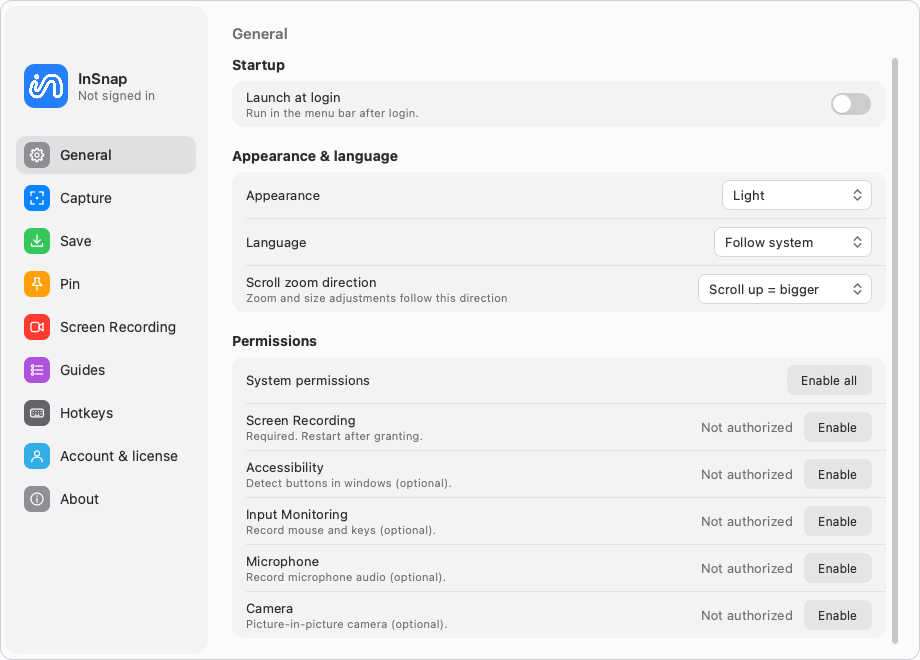
- Is the microphone permitted? On macOS, microphone access is a separate permission; InSnap asks the first time you enable Mic. Check Settings › General › Permissions and grant Microphone if it says not authorized.
- Windows and Stereo Mix: InSnap captures system audio directly, so you do not need to enable Stereo Mix or any "record what you hear" device.
A five-minute check with InSnap
- Grant Screen Recording (macOS) and restart InSnap if you just changed it.
- Press the capture hotkey, drag a region, choose Record on the toolbar.
- In the panel, turn on System audio, and Mic only if you are narrating.
- Record five seconds of a video you own, with sound playing.
- Stop, save, and play the file in another player before recording the long version.
If that clip is clean, the long one will be too.
Quick reference
| Symptom | Most likely cause | Fix |
|---|---|---|
| Whole recording black, macOS | Screen recording permission not applied | Grant it, quit and reopen the app |
| Only a streaming video area black | DRM-protected content | Use the service's own download |
| Black in browser, screenshots work | Hardware acceleration | Disable it in the browser |
| No audio at all | Wrong source toggle | Enable System and/or Mic |
| Mic silent, system audio fine | Microphone permission | Grant Microphone in Settings |
| Audio cuts out halfway | Output device switched | Choose the device before recording |
FAQ
Why is only the video player area black?
Protected streaming content is deliberately excluded from screen capture. The rest of the window records normally. No recorder setting can change that, and the service's own download is the sanctioned way to keep the video.
Do I need to restart the app after enabling screen recording on macOS?
Yes. The permission is read at launch, so a running app keeps producing black frames until you quit it completely — Command-Q, not just closing the window.
Why is my recording silent even though I can hear the sound?
Check the System toggle in the recording panel first. Then confirm the output device did not change during the recording, and that InSnap has Microphone permission if you enabled Mic. On Windows, no Stereo Mix device is needed.
More from the blog

How to Add Text to a Screenshot (and Make It Readable)
Add labels, titles and callouts to a screenshot with readable contrast, the right size and clean placement — plus how to edit them later on Mac and Windows.
October 25, 2026
Auto Zoom for Screen Recordings: What It Does and When to Use It
How InSnap's auto zoom follows your clicks in a screen recording, how the strength settings change the result, and when a static recording is better.
October 25, 2026
How to Make a Before-and-After Comparison Image
One image beats two attachments: capture both states at the same size, stitch them side by side, label them, and send a comparison the reader can scan.
October 25, 2026