 InSnap
How to Turn a Screen Recording Into a Team Runbook
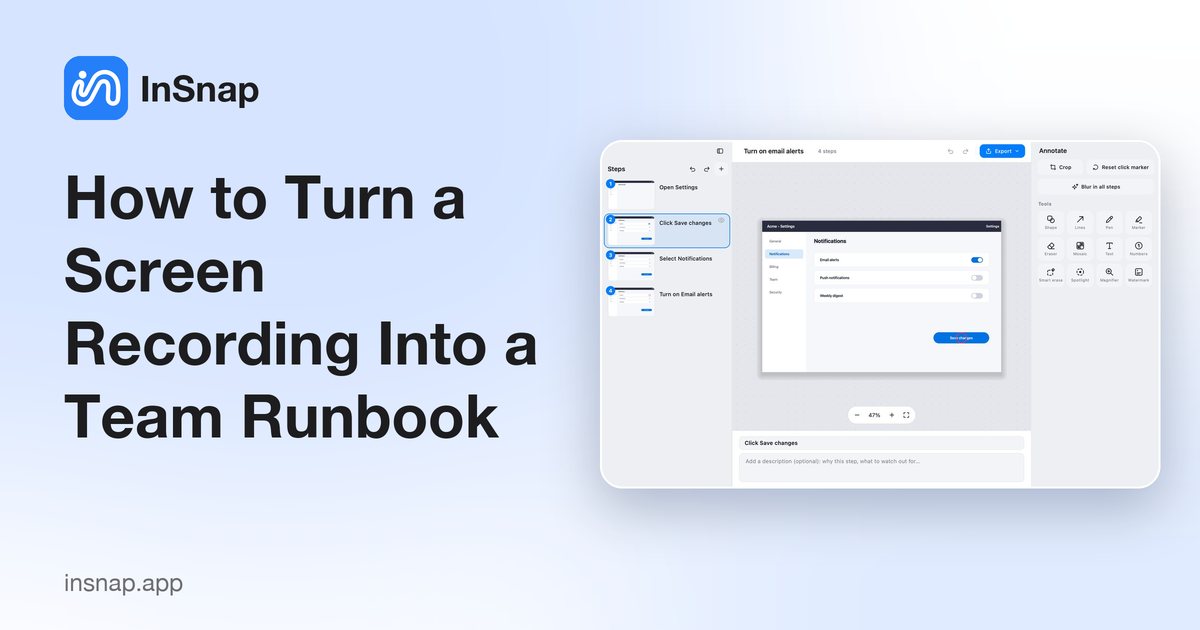
Record the process once, shape it into a guide with clear steps, warnings and sub-steps, then export it where your team already works.
A runbook that lives in someone's head is a single point of failure. The fastest way to get one out of their head is to record them doing the task, then shape the recording into a document the rest of the team can follow. The recording supplies the screenshots; the editing supplies the judgment.
This is the routine for turning one recorded session into a runbook that survives the person who recorded it.
Record the process once
- Choose the scope deliberately. If the task stays in one app, record that app's window. If it moves between a terminal and a browser, use a region or the full screen so no step falls outside the scope.
- Narrate as you go. Say why you are doing each step. You will not use the audio, but hearing the reason while you edit is faster than reconstructing it from memory.
- Do not stop for mistakes. Pause if you need to, or keep going and hide the detour later. Re-recording a clean run usually costs more than hiding two steps.
- Finish the task. A runbook that stops before the verification step teaches people to stop before verifying.
Stop the recording and open the guide editor. You should have a numbered step for every click, with the clicked element as the title.
Shape the structure
The first edit is structural, before any writing:
- Reorder. Drag steps in the list to match the order a new person should follow, which is not always the order you clicked. A detour to check a setting belongs after the main action, not in the middle of it.
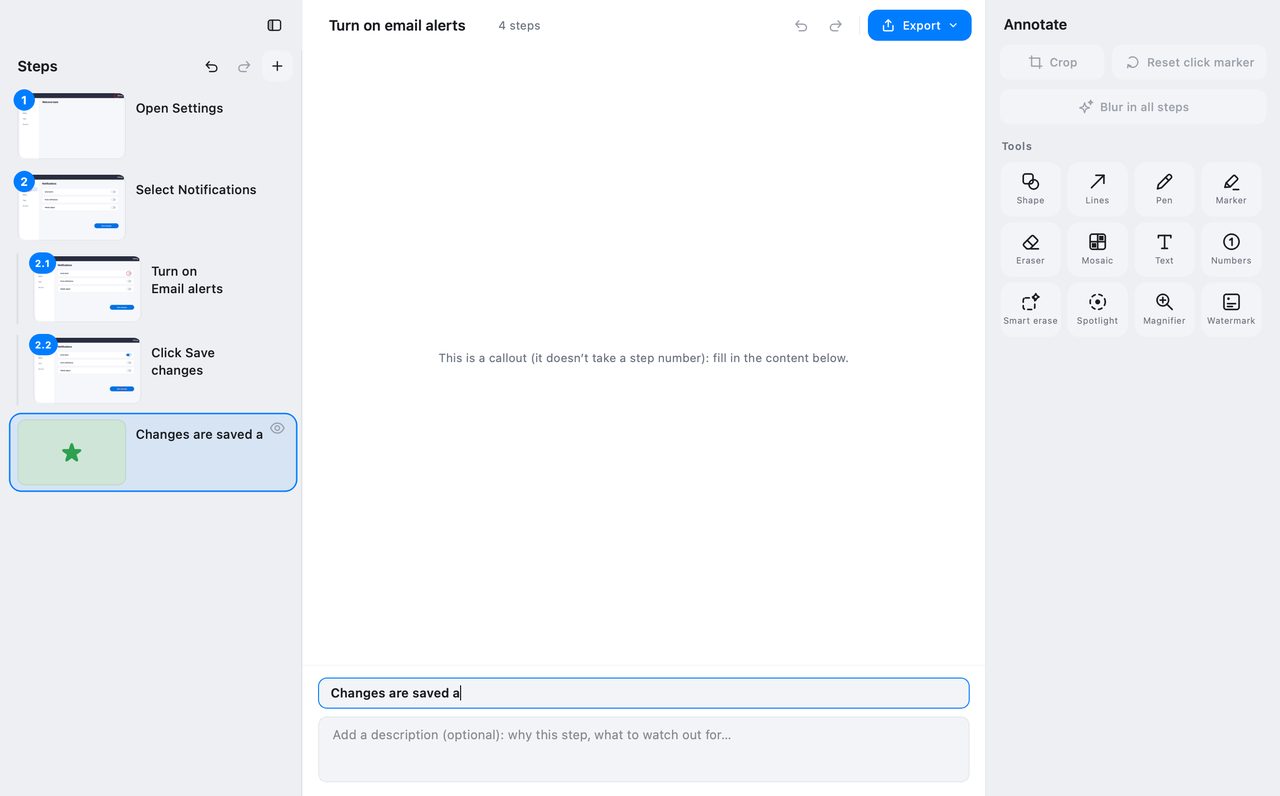
- Make sub-steps. A menu sequence — open a menu, choose a submenu, confirm — reads better as one top-level step with sub-steps than as three flat steps.
- Hide. Remove accidental clicks, notification dismissals and exploratory detours. Hidden steps are skipped in the export and the numbering stays continuous.
- Delete. If a step is wrong and has no useful screenshot, delete it rather than hide it.
Add the knowledge that is not on screen
The screenshots show what to click. They do not show when to stop, what to check, or what goes wrong. That is the part that makes a runbook different from a screenshot folder.
- Rewrite titles as instructions. "Click Publish", not "Publish button".
- Use descriptions for the reason. "This queues the change; it does not go live until the sync runs."
- Use callouts for the traps. A Warning for anything that can break state, a Tip for a faster path, a Note for context that is useful but optional.
- Add a verification step at the end: what the reader should see when it worked, and what to do if it did not.
Redact before it leaves the team
Runbooks are shared. Recordings pick up account names, email addresses, internal URLs and customer data.
- Use Mosaic over names and IDs, and Blur in all steps to apply the same redaction across the guide in one pass.
- Use a solid cover or crop for passwords, tokens and anything that must never leak.
- Check the cover page and the document title too, not only the steps.
Export where the team already works
InSnap's guide editor exports to several formats; pick the one that matches where the runbook will live:
| Destination | Format |
|---|---|
| Wiki or knowledge base | HTML or Markdown |
| Printable binder or PDF library | |
| Word-based review process | Word (.docx) |
| Training slides | PowerPoint (.pptx) |
| LMS course | SCORM 1.2 |
| Backup or custom pipeline | JSON |
The images and formatting are rendered into the export, so the recipient does not need InSnap to read it. Everything is processed on your machine.
Keep it current
A runbook decays. Two habits keep it alive:
- Re-record only the changed section and import those steps into the existing guide, rather than rebuilding the whole document.
- Date the document in the cover or the first step, so readers know how old the screens are.
When the interface changes, the screenshots are the first thing to go stale. A short re-record is cheaper than a runbook nobody trusts.
FAQ
Do I need Pro to build a runbook from a recording?
Guide recording and the guide editor are Pro features, covered by the one-time $15 purchase. Basic screen recording to MP4 is free.
Can I update one section without re-recording everything?
Yes. Record the changed section as a short guide, then use import in the editor to bring its steps into the existing runbook, or re-record only that part and replace the affected steps.
Does the exported runbook require InSnap to open?
No. PDF, Word, PowerPoint, HTML, Markdown, SCORM and JSON are standard formats that open in their usual applications. InSnap is only needed to edit the source guide.
More from the blog

How to Add Text to a Screenshot (and Make It Readable)
Add labels, titles and callouts to a screenshot with readable contrast, the right size and clean placement — plus how to edit them later on Mac and Windows.
October 25, 2026
Auto Zoom for Screen Recordings: What It Does and When to Use It
How InSnap's auto zoom follows your clicks in a screen recording, how the strength settings change the result, and when a static recording is better.
October 25, 2026
How to Make a Before-and-After Comparison Image
One image beats two attachments: capture both states at the same size, stitch them side by side, label them, and send a comparison the reader can scan.
October 25, 2026