 InSnap
Watermark Screenshots Before You Share Them
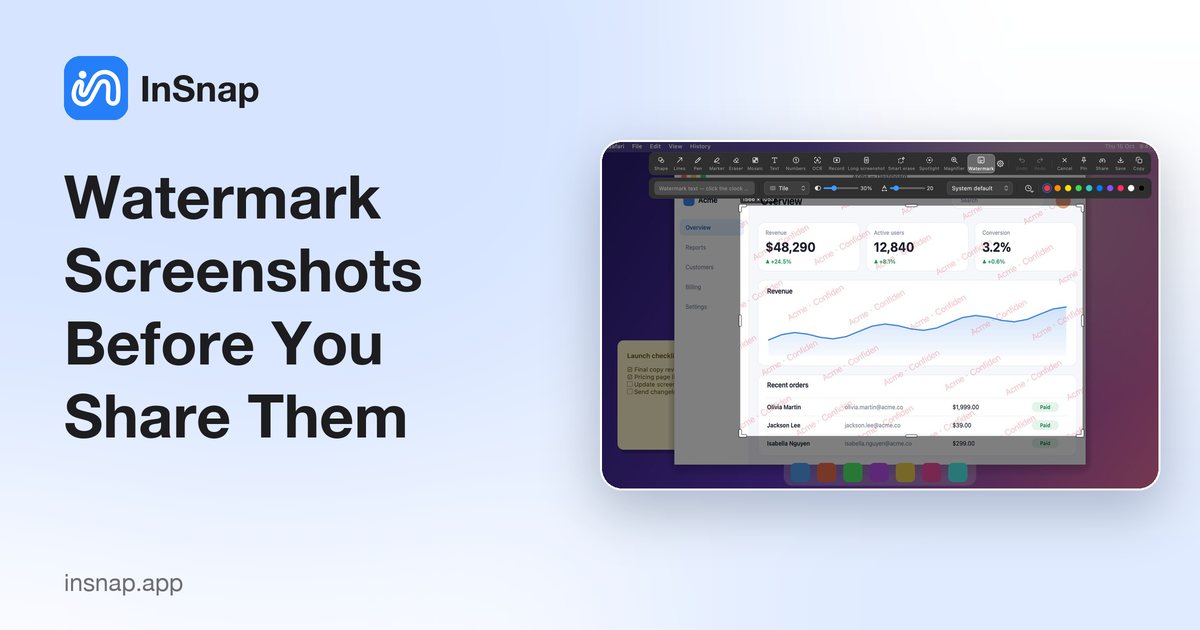
How InSnap's Watermark tool works: text and timestamps, tiled or corner layouts, opacity and size — and what a watermark can and cannot protect.
A watermark is the cheapest way to make a screenshot say where it came from. It will not stop a determined person from cropping it, but it does make casual copying less appealing and attribution automatic. InSnap's Watermark tool is a Pro feature that stamps text or a timestamp across the entire capture, with eight layouts and adjustable opacity.
What the tool does
Turn on Watermark from the expanded toolbar and the options row gives you:
- Text. Anything you type: a company name, "Internal draft", a client name, a ticket ID.
- Time tokens. Click the clock to insert a date, time, or both, so a screenshot carries the moment it was taken. The token stays a token until you finish editing, then it resolves to the actual value.
- Eight layouts. Tile repeats the watermark diagonally across the image. The other seven place a single line in a corner or at an edge: top-left, top-right, bottom-left, bottom-right, top-center, bottom-center, or the middle.
- Opacity and size. Two sliders. Low opacity keeps the image readable and the watermark present; high opacity makes it harder to ignore, and harder to read the screenshot.
- Color and font. Pick a color from the same palette as the other annotation tools, and a font from the system list.
The watermark is applied to the whole image, not to a movable shape. You cannot drag one instance around; you choose a layout and it covers the frame.
Where a watermark actually helps
- Drafts and client previews. "Draft" or "Confidential" in the background sets expectations before anyone reads the content.
- Internal documentation. A team or project name makes it obvious where a screenshot came from when it is pasted into a chat or a ticket.
- Public screenshots. A tiled watermark with a site or handle makes re-posts carry the source, even when the caption is lost.
- Timestamped evidence. A corner timestamp is useful for bug reports and support threads where "when" matters.
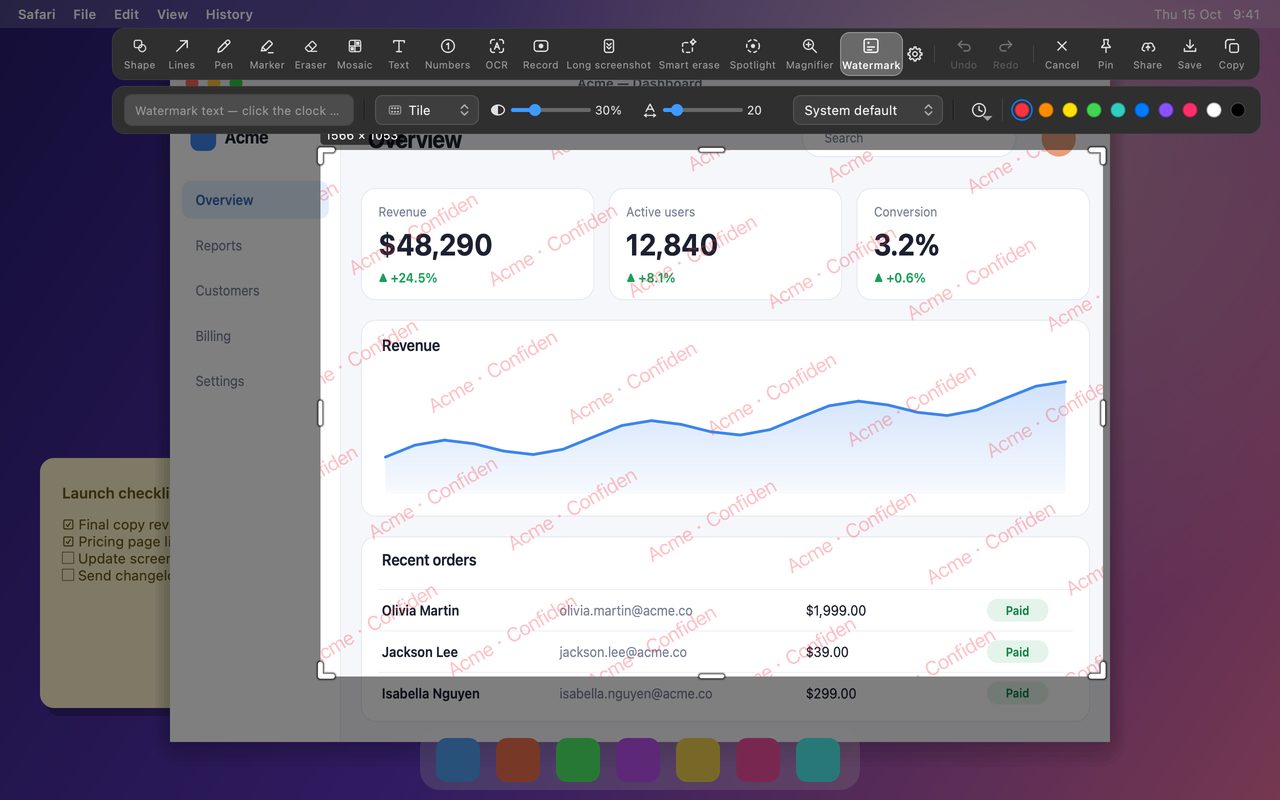
Add one in four steps
- Capture the region you want with Command-1 on Mac or Ctrl+1 on Windows.
- Open the expanded tools with the ‹ arrow and choose Watermark.
- Type the text, or click the clock to insert a date or time. Choose a layout: Tile for full coverage, a corner for a discreet mark.
- Adjust opacity and size, then copy, save or pin. The watermark is rendered into the exported pixels.
A practical default: Tile at 20–30% opacity for "Confidential", a single bottom-right line at higher opacity for an author name, and a corner timestamp for support evidence.
What a watermark does not do
A watermark is attribution and a mild deterrent, not protection.
- It does not prevent screenshots, copying or cropping.
- It does not hide sensitive data. If a password, an email address or a customer name is visible, redact or crop it; a watermark over it changes nothing.
- It is not a license or DRM system. Treat it as a label, not a lock.
If the goal is to stop a specific detail from being read, use Mosaic or Blur with a strong setting, or a solid cover. For anything that must never leak, crop it out before sharing.
FAQ
Is the Watermark tool free?
No. Watermark is a Pro feature, included in the one-time $15 purchase along with Smart Erase, Spotlight, Magnifier, scrolling capture, GIF recording, image backgrounds and stitching, and the full guide editor.
Does the watermark appear in the saved file?
Yes. It is rendered into the exported pixels, so the copied, saved or pinned image contains exactly what you saw in the overlay. If you change the text or layout, do it before you output the image.
Can I remove a watermark after saving?
Not from the exported image; it is part of the pixels. Keep the capture session open until the watermark is right, or keep the original screenshot separately if you may need a clean version later.
More from the blog

How to Add Text to a Screenshot (and Make It Readable)
Add labels, titles and callouts to a screenshot with readable contrast, the right size and clean placement — plus how to edit them later on Mac and Windows.
October 25, 2026
Auto Zoom for Screen Recordings: What It Does and When to Use It
How InSnap's auto zoom follows your clicks in a screen recording, how the strength settings change the result, and when a static recording is better.
October 25, 2026
How to Make a Before-and-After Comparison Image
One image beats two attachments: capture both states at the same size, stitch them side by side, label them, and send a comparison the reader can scan.
October 25, 2026