 InSnap
How to Prepare Screenshots for a Slide Deck
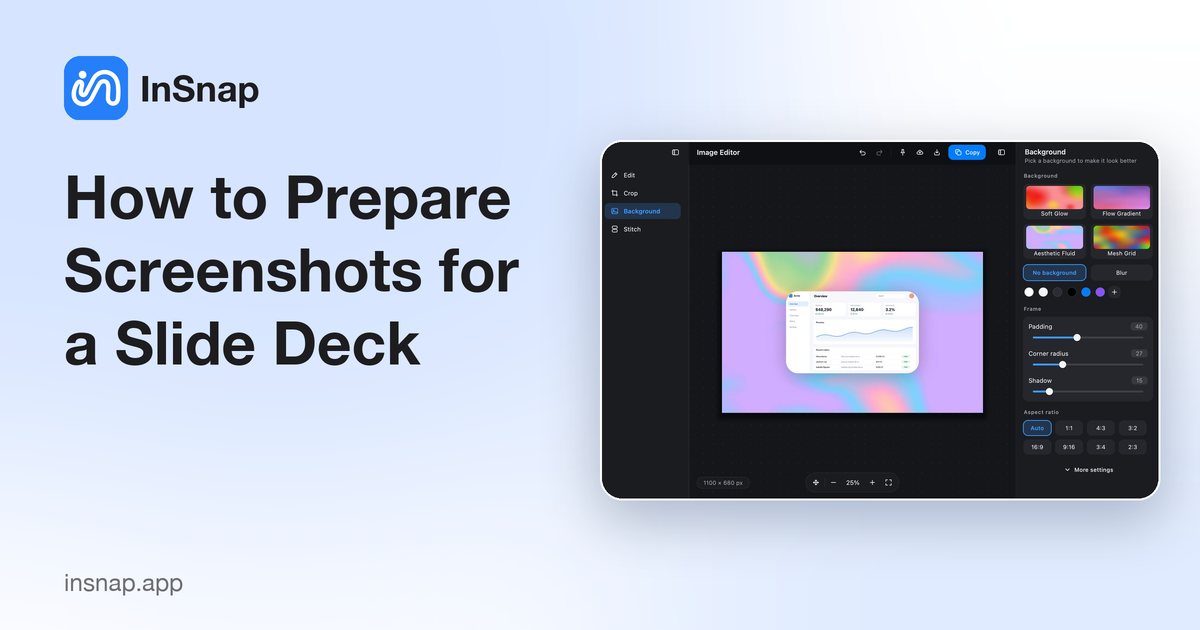
Make screenshots that hold up on a projector: crop the noise, give every image the same backdrop and frame, and choose a slide-friendly aspect ratio.
A screenshot that looks fine in a chat window can fall apart on a projector. Text turns to gray mush, window borders and desktop clutter compete with the point, and a deck full of mismatched crops looks improvised. The fix is a short, repeatable preparation routine — crop, frame, size, export — that takes a minute per image.
Start with the cleanest capture
Capture only the window you need, not the whole desktop. In InSnap, hover over a window and let the automatic detection box it, or drag a region around the relevant area. A clean capture saves work later: fewer tabs, fewer notifications, fewer things to crop out.
If a detail from the page background matters, keep it. If not, crop it away in the next step. The goal is that the viewer's eye has only one place to go.
Crop to the part that matters
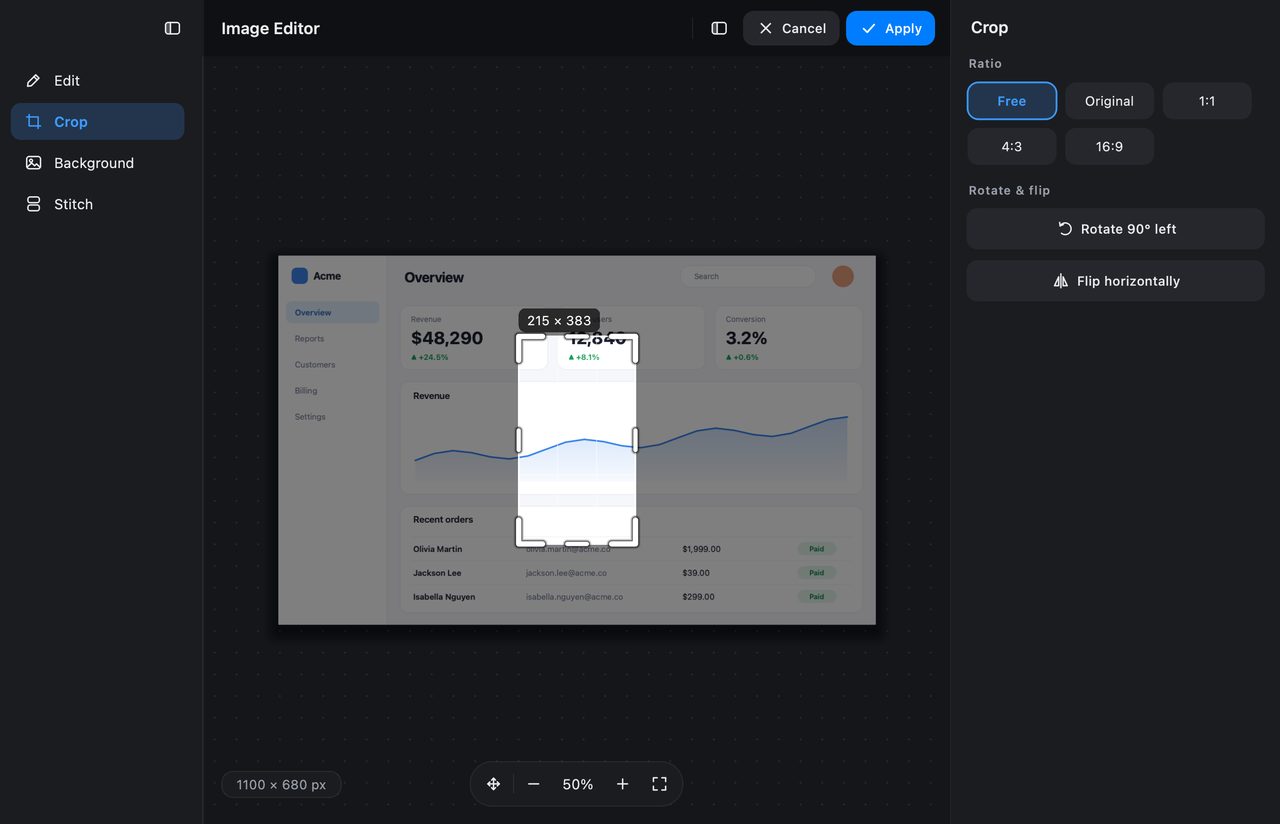
Open the capture in InSnap's image editor and choose Crop. Remove the browser chrome, the empty margins, and any second window that is not part of the story. Straighten tilted photos of a screen while you are there.
A useful rule for slides: crop so the important control or number occupies at least a third of the image width. If it is smaller than that, the projector will make it smaller still.
Give every screenshot the same frame
Consistency is what makes a deck look designed rather than assembled. In the editor's Background section you can put the screenshot on a backdrop and control the frame around it:
- Backdrop. A solid color, a gradient, a photo, a blur of the screenshot itself, or one of the generated styles.
- Padding. The space between the image and the edge of the canvas. Pick one value and keep it for the whole deck.
- Corner radius and shadow. A slight radius and a soft shadow separate the screenshot from the backdrop without looking heavy.
- Position and aspect ratio. Center the image, or set a fixed ratio such as 16:9 so every slide matches.
The same treatment across ten screenshots reads as a system. Ten different treatments read as ten unrelated images.
Size text for the back row
Annotations need to survive projection. Two adjustments matter:
- Draw annotations larger than feels natural. A 14-point label that is readable on a laptop becomes a gray line in a conference room. Increase the font size and the stroke width before exporting.
- Avoid fine details. Hairlines, 1-pixel borders and small icons disappear. If the point is a tiny difference, crop tighter or add a Magnifier (Pro) instead of hoping the audience leans in.
Backgrounds are a Pro feature; basic cropping, rotating and annotating are free.
Export consistently
- Use the same output size for every slide image. InSnap can scale Retina captures to 1x on copy and save if you want smaller files; keep that choice consistent across the deck.
- Prefer PNG for UI screenshots with text and sharp edges; JPEG is fine for photos or when the deck file size matters.
- Copy, save or pin from the same point in the workflow so every image has the annotations baked in the same way.
- Name the files by slide number or topic, so replacing one later is easy.
A five-minute checklist
| Check | Why |
|---|---|
| Is the window the only subject? | Less clutter, larger text |
| Is the crop tight but not clipped? | Nothing important lost, nothing wasted |
| Is the backdrop the same on every slide? | Reads as one deck |
| Is the aspect ratio the deck's ratio? | No letterboxing in the slide tool |
| Are annotations readable at 50% zoom? | The back row sees roughly that |
| Is the file format right? | PNG for UI, JPEG for photos |
FAQ
Do I need Pro to prepare screenshots for slides?
No for cropping, rotating and annotating. Backdrops (solid, gradient, photo, blur or generated) and the framing controls are Pro features covered by the one-time $15 purchase.
What aspect ratio should screenshots use in a deck?
Match the deck: 16:9 for most modern presentations, 4:3 for older templates. InSnap's background panel can set the canvas ratio, so the exported image arrives already shaped for the slide.
Should slide screenshots be 1x or Retina?
For projection, the native resolution is plenty and keeps the deck smaller. If the deck will be zoomed on screen or printed, keep the Retina resolution. Whichever you choose, use it for every image in the deck.
More from the blog

How to Add Text to a Screenshot (and Make It Readable)
Add labels, titles and callouts to a screenshot with readable contrast, the right size and clean placement — plus how to edit them later on Mac and Windows.
October 25, 2026
Auto Zoom for Screen Recordings: What It Does and When to Use It
How InSnap's auto zoom follows your clicks in a screen recording, how the strength settings change the result, and when a static recording is better.
October 25, 2026
How to Make a Before-and-After Comparison Image
One image beats two attachments: capture both states at the same size, stitch them side by side, label them, and send a comparison the reader can scan.
October 25, 2026