 InSnap
How to Take a Screenshot on a Second Monitor
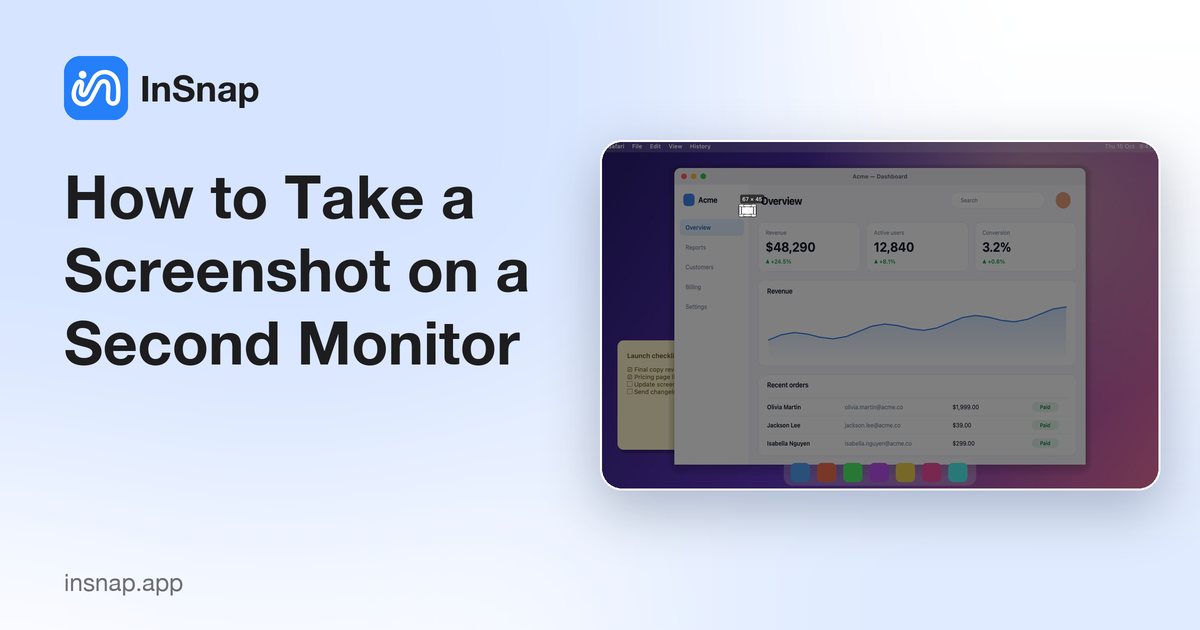
Capturing on a second display is easy once the app knows which screen you mean. How multi-monitor capture works, including mixed Retina and low-DPI displays.
On a multi-monitor setup, the first question is not "how do I capture?" but "which screen is it capturing?" InSnap answers that with the pointer: the capture interface opens on the display the cursor is on. Move the mouse first, then press the shortcut.
Move the pointer first
- Move the pointer onto the display you want to capture.
- Press the capture hotkey — Command-1 on Mac, Ctrl+1 on Windows.
- Drag the selection on that display, annotate, and copy, save or pin.
That is the whole technique. The selection, the toolbar and the magnifier appear on the screen under the pointer, so you can work on the second monitor without dragging anything across.
What InSnap does with multiple displays
InSnap captures all connected displays at the moment you press the hotkey, so the frozen image is consistent, but it only puts the interactive overlay on one of them: the display under the cursor. The other screens stay usable.
This is a deliberate trade-off. Covering every display gives you the freedom to drag a selection across two screens, but it also freezes everything you can see. Capturing on one display keeps the rest of the desktop available — you can check a reference on the other screen while annotating.
Mixed Retina and low-DPI displays
A laptop at 2x next to a 1x monitor is a normal setup, and screenshots need to respect the difference:
- The output uses physical pixels. A selection on a Retina display is exported at twice the logical size, with the detail intact. On a 1x display, the same logical area produces half as many pixels.
- The size label shows physical pixels, not points, so you can see exactly what the file will contain.
- Annotations stay consistent because they are drawn in logical coordinates and scaled to the output, so the same stroke looks the same on both screens.
If a screenshot from the second monitor looks smaller than expected, it is usually a 1x display — the file is correct, the screen simply has fewer pixels per inch.
When the wrong screen opens
If the overlay appears on the wrong display:
- Check where the pointer is. It may be on the edge of the other screen, or on a display you forgot was connected.
- Check the cursor after waking the machine. A sleeping display can take a moment to be recognised; move the pointer across both screens and try again.
- Check display arrangement in the system settings if the pointer lands on a screen that is not where you expect physically.
If the pointer is not on any display (for example, at a corner between two monitors), InSnap falls back to the primary display.
Things that do not work across displays
- One selection spanning two screens. The overlay lives on one display, so a selection cannot start on one monitor and end on the other. Capture each screen separately.
- Dragging the toolbar to another monitor. The toolbar belongs to the overlay and stays on the capture display.
- Annotating while the other screen scrolls. The capture is frozen; the other display is live. That is useful for reference, not for capturing both at once.
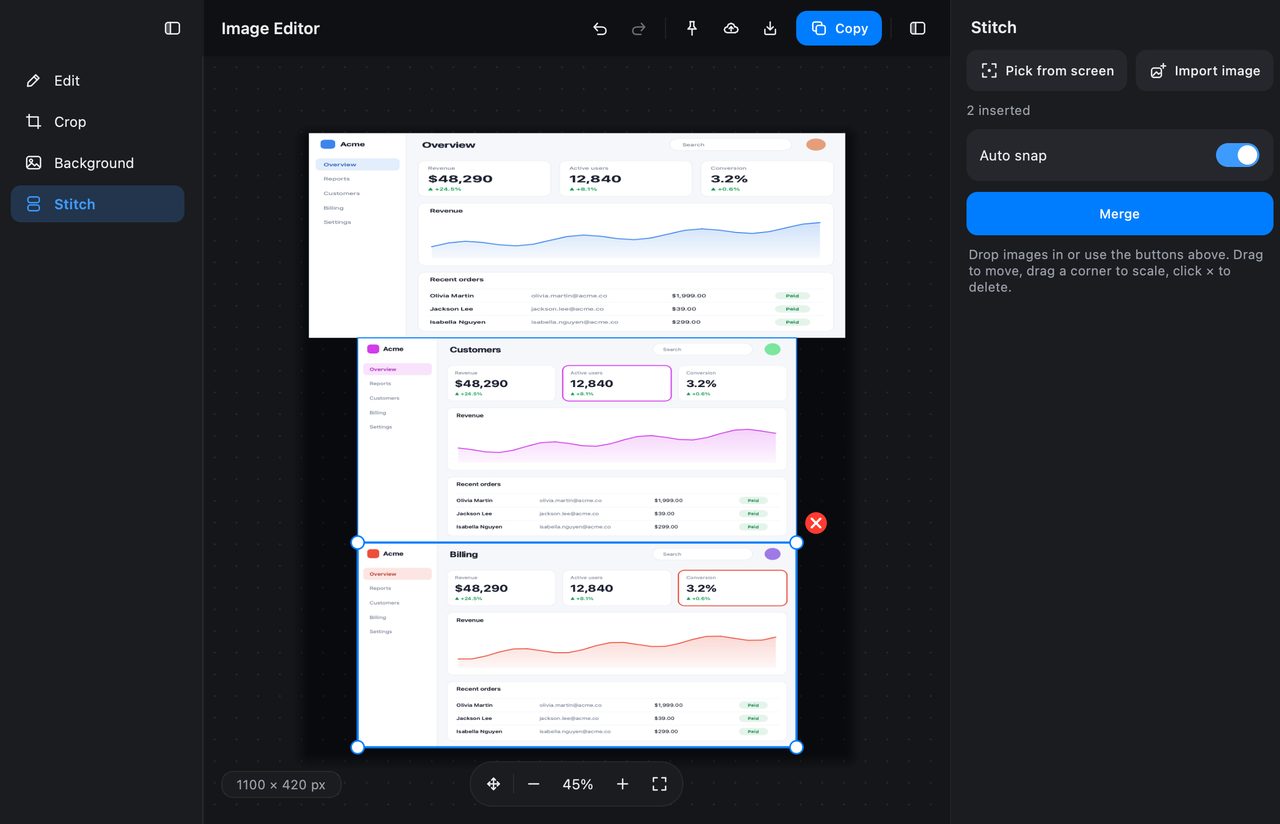
For a comparison shot, capture both screens separately and place the images side by side in the image editor's stitch panel.
FAQ
Why does the capture open on my laptop screen instead of the external monitor?
The overlay follows the pointer. Move the mouse onto the external display before pressing the capture shortcut, and it will open there.
Can I select an area that spans two monitors?
No. The interactive overlay is placed on one display only, so the selection is limited to that screen. Capture the two areas separately and combine them in the image editor if needed.
Are Retina and non-Retina displays handled differently?
Yes, in the right way: output is in physical pixels, so a Retina capture has twice the pixel density of a 1x capture of the same logical area. The size label always reports the physical size of the file.
More from the blog

How to Add Text to a Screenshot (and Make It Readable)
Add labels, titles and callouts to a screenshot with readable contrast, the right size and clean placement — plus how to edit them later on Mac and Windows.
October 25, 2026
Auto Zoom for Screen Recordings: What It Does and When to Use It
How InSnap's auto zoom follows your clicks in a screen recording, how the strength settings change the result, and when a static recording is better.
October 25, 2026
How to Make a Before-and-After Comparison Image
One image beats two attachments: capture both states at the same size, stitch them side by side, label them, and send a comparison the reader can scan.
October 25, 2026