 InSnap
How to Take Screenshots With the Mouse Cursor Visible
When the pointer is the point: turn on the cursor in captures, keep it out of the way when it is not, and position it deliberately before you capture.
Most screenshots are cleaner without the pointer. Sometimes the pointer is the whole point: showing where to click, proving which control was hovered, or documenting a cursor state in a tutorial. InSnap can include it, but the setting is off by default.
When the cursor matters
- Tutorials and guides where the reader needs to know exactly where to click.
- Bug reports where the problem appears only on hover, or where the pointer covers part of the UI.
- Design feedback about cursor states: pointer, text caret, resize handles, grab and grabbing.
- Support replies where "click this" is ambiguous without a pointer.
For everything else, leave it out. A cursor in a screenshot of a settings page adds nothing and can cover the label you are trying to show.
Turn it on
- Open Settings › Screenshot.
- Find Include the mouse pointer in screenshots and switch it on.
- Take a new capture. The setting applies to captures made after the change; existing files are untouched.
There is no per-capture toggle in the overlay, so decide before you start: either the whole session includes the pointer, or none of it does. If you only need one screenshot with the cursor, capture that one first, then switch the setting off again.
Position the pointer deliberately
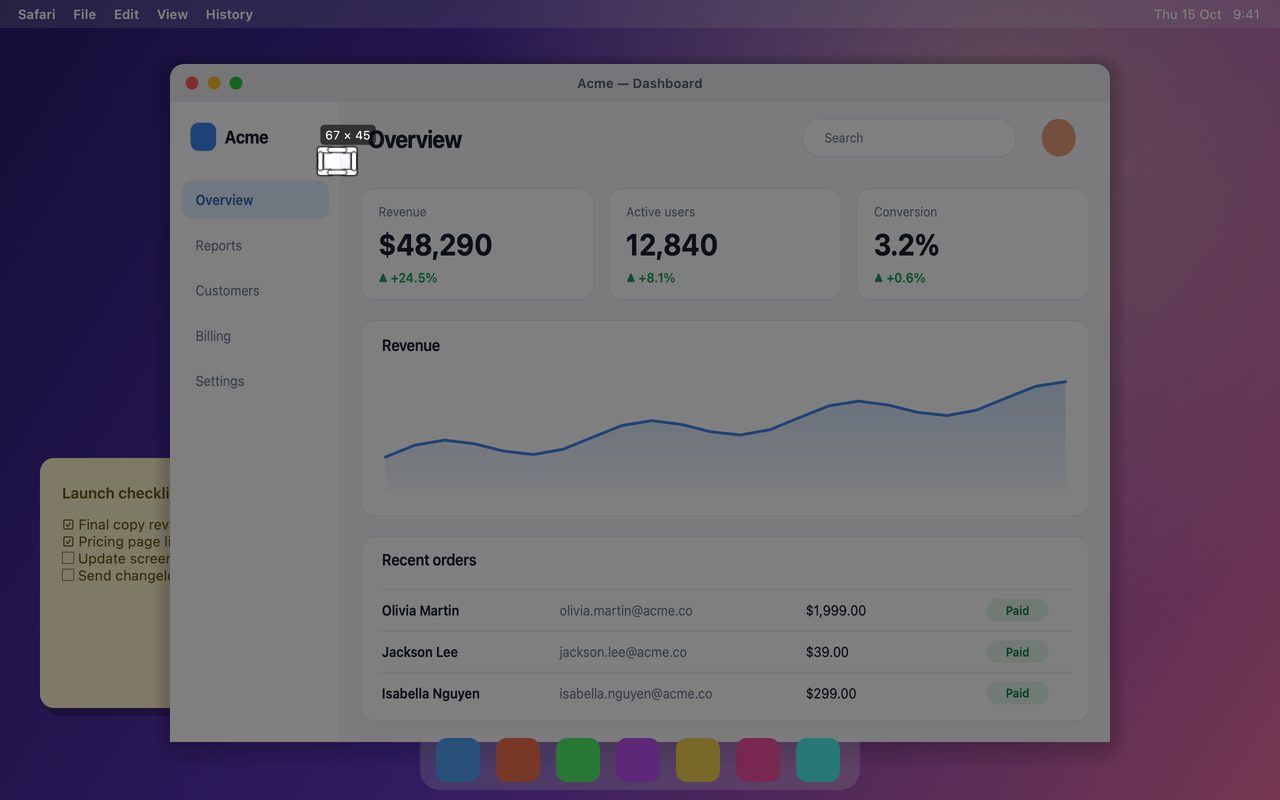
The screen freezes the moment you press the hotkey, so the pointer is captured exactly where it was at that instant. That gives you full control and also a chance to ruin the shot.
- Hover the control you are talking about, not the middle of the page.
- Point at the edge of a label, not over its text, if the pointer would hide the words.
- Keep the pointer inside the selection. A cursor outside the captured area will not appear in the output.
- Use the system cursor size you actually use. If you have enlarged the pointer for accessibility, it will be captured at that size, which is usually the right thing for a tutorial.
A useful trick: compose the shot with the pointer in place, press the hotkey, and look at the frozen frame before you start annotating. If the pointer is in the wrong spot, press Esc and try again rather than annotating around it.
Cursor in screenshots versus recordings
The two are configured separately:
- Screenshots use the Include the mouse pointer in screenshots setting described above.
- Recordings capture the pointer as part of the video, and Quick Record can also burn in click ripples and keystrokes. Record & Edit records the events and renders the cursor and effects in the editor.
That means turning the pointer off for screenshots does not affect recordings, and the cursor style or size can differ between the two if you change system settings in between.
When the cursor will not appear
Even with the setting on, a pointer may be missing from the file if:
- It was outside the selected region when the screen froze.
- The captured app hides the cursor in that state (some video players and games do).
- The pointer was on another display — only the display under the cursor is captured interactively, so a pointer parked on a second screen will not be in a capture of the first.
If the pointer is essential to the point, check the frozen frame before saving; it is much easier to retake the shot than to add a fake cursor afterwards.
A short checklist
| Check | Why |
|---|---|
| Is the setting on for this capture? | It is off by default |
| Is the pointer inside the selection? | Outside means it will not appear |
| Is it covering important text? | Move it to the edge |
| Is the cursor state the one you mean? | Hover, caret and resize states differ |
| Is the pointer size what readers expect? | Accessibility sizing is captured as-is |
FAQ
Is the cursor included by default?
No. Include the mouse pointer in screenshots is off by default in Settings › Screenshot. Turn it on for the captures that need it.
Can I include the cursor in only one screenshot?
Not with a per-shot toggle. Turn the setting on, take that capture, then turn it off again; the setting applies to captures made while it is on.
Does this setting affect screen recordings?
No. Recordings capture the pointer as part of the video and have their own click and keystroke effects. The screenshot setting only applies to still captures.
More from the blog

How to Add Text to a Screenshot (and Make It Readable)
Add labels, titles and callouts to a screenshot with readable contrast, the right size and clean placement — plus how to edit them later on Mac and Windows.
October 25, 2026
Auto Zoom for Screen Recordings: What It Does and When to Use It
How InSnap's auto zoom follows your clicks in a screen recording, how the strength settings change the result, and when a static recording is better.
October 25, 2026
How to Make a Before-and-After Comparison Image
One image beats two attachments: capture both states at the same size, stitch them side by side, label them, and send a comparison the reader can scan.
October 25, 2026