 InSnap
How to Send Feedback From InSnap (and What Gets Attached)
The in-app feedback form, the support page and what environment information is included. How to send a useful report without leaking screenshots or logs you did not choose.
Feedback is most useful when it arrives with enough context to reproduce the problem and no more data than you intended to share. InSnap has two entry points: the in-app form and the website support page. Both let you choose what is attached.
Open the form
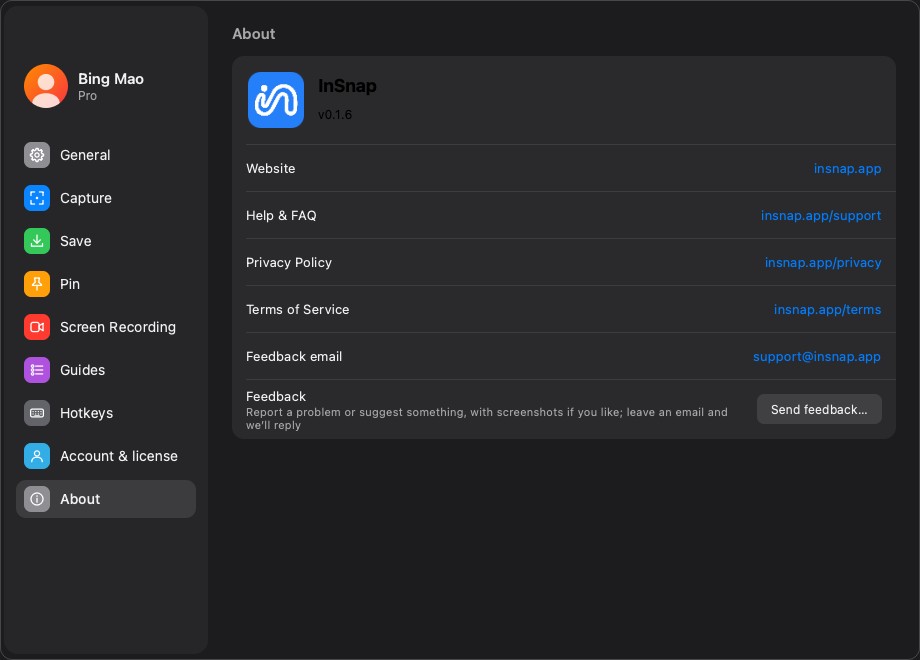
- In the app: Settings › About → Send feedback…, or the same item in the menu bar/tray menu.
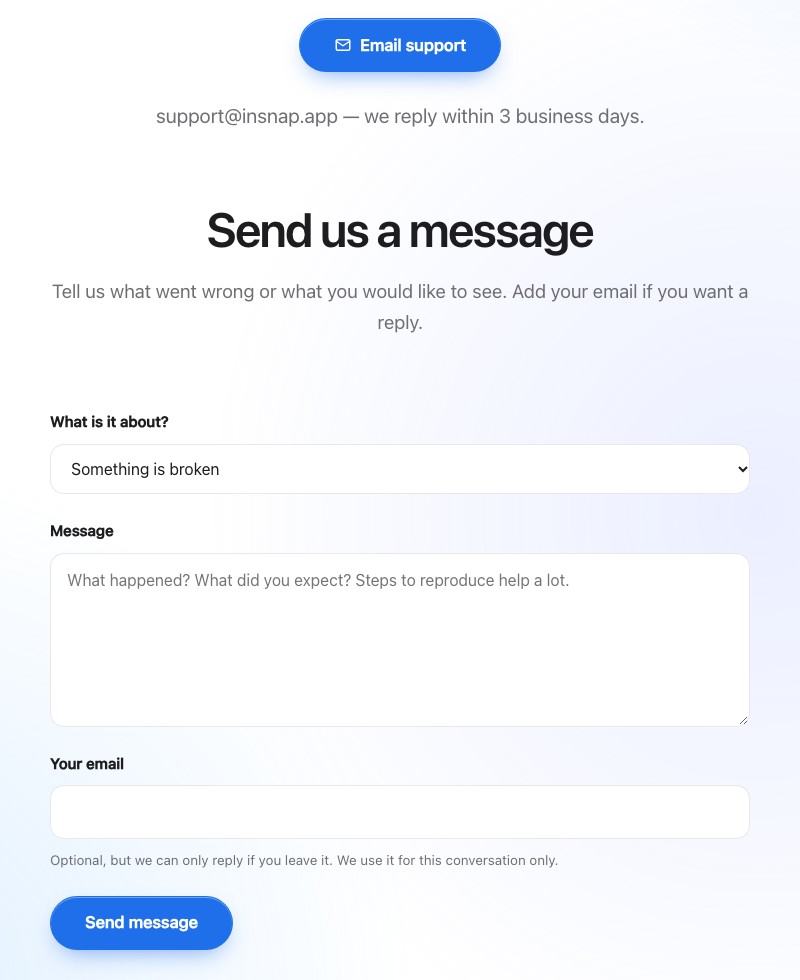
- On the web: the support page at insnap.app/support.
The in-app form can include app-specific context; the website form is for people who cannot open the app or prefer a browser.
What to write
A useful report answers four questions:
- What did you do? The steps, in order, including the app or page you were capturing.
- What did you expect? The result you thought would happen.
- What happened instead? The actual result, with the exact error text if there is one.
- Can it be reproduced? Always, sometimes, or once.
If the problem is visual, attach a screenshot. If it involves a recording, mention the mode (Quick Record, GIF, Record & Edit) and whether audio or camera was on.
What gets attached
The form separates the data into two groups:
- Environment information — app version, operating system and platform. This is included by default and shown in the form so you can see exactly what will be sent.
- Logs and screenshots — optional. Screenshots are limited to a small number; logs are off unless you choose to include them.
You can remove the environment block if you prefer, but it is the first thing support needs to identify a version-specific problem. Nothing is uploaded until you press Send.
A screenshot is most useful when it shows the whole context once and the detail once: one full-window shot, one cropped close-up, and a note pointing at the element. Three focused screenshots are better than ten overlapping ones.
Privacy checklist before sending
- Crop or blur anything private in the screenshot: names, emails, tokens, internal URLs.
- Read the environment block — it should contain version and OS, not document contents.
- Include logs only if asked, or if the problem is a crash or a failure with no visible error.
- Use the email field if you want a reply; without it the report is anonymous.
The feedback goes to the support address shown in the app, and the reply comes from a person, not an autoresponder.
What happens next
- Reports are read in the order they arrive; the website states a response target of three business days.
- If the report needs more information, support replies to the email you left.
- A confirmed bug usually gets a fix in a later release; the reply may ask you to try a build.
There is no ticket portal to log into. The email thread is the thread.
A better report in one minute
| Before sending | Why |
|---|---|
| Steps written down | Reproducible |
| Expected vs actual | Separates a bug from a preference |
| Screenshot cropped to the issue | Faster to understand, less private data |
| Version visible | Rules out an old build |
| One problem per report | Easier to route and close |
FAQ
Do I need an InSnap account to send feedback?
No. The form works without signing in. Leave an email if you want a reply; otherwise the report is anonymous.
Are logs sent automatically?
No. Logs and screenshots are optional and off unless you choose them. The environment block (version and OS) is shown in the form and included by default.
How long does a reply take?
The website states a target of three business days. Include an email address if you want a response.
More from the blog

How to Add Text to a Screenshot (and Make It Readable)
Add labels, titles and callouts to a screenshot with readable contrast, the right size and clean placement — plus how to edit them later on Mac and Windows.
October 25, 2026
Auto Zoom for Screen Recordings: What It Does and When to Use It
How InSnap's auto zoom follows your clicks in a screen recording, how the strength settings change the result, and when a static recording is better.
October 25, 2026
How to Make a Before-and-After Comparison Image
One image beats two attachments: capture both states at the same size, stitch them side by side, label them, and send a comparison the reader can scan.
October 25, 2026