 InSnap
What Is a .insnap File? Open, Share and Edit Recordings
A .insnap file is a recording package, not a video. What is inside it, how to open it on Mac and Windows, and when to send the MP4 instead.
If you recorded with Record & Edit, you have probably seen a file ending in .insnap. It is not a video format and it does not play in QuickTime or Windows Media Player. It is a package that keeps the recording together with the events needed to edit it.
What is inside
A .insnap file is a ZIP container. Depending on the recording, it holds:
| File | Contents |
|---|---|
video.mp4 | The screen recording, with its audio tracks |
mouse.json | Mouse positions and clicks, on the recording's clock |
key.json | Keystrokes, when key recording was on |
camera.mp4 | The camera track, when the camera was enabled |
The video is a normal H.264 MP4. The JSON files are what make the recording editable: they let InSnap rebuild cursor motion, click effects, keystroke overlays, auto zoom and camera picture-in-picture without re-recording.
How to open it
- Double-click the file in Finder or Explorer. InSnap is registered for the
.insnaptype and opens the video editor. - From the menu bar, choose Open recording… and pick the file.
- Drag it onto the InSnap icon if your system supports opening documents that way.
If another copy of InSnap is already running, it receives the request instead of starting a second instance.
What you can do with it
Opening a .insnap file gives you the full editor:
- Trim and split the recording.
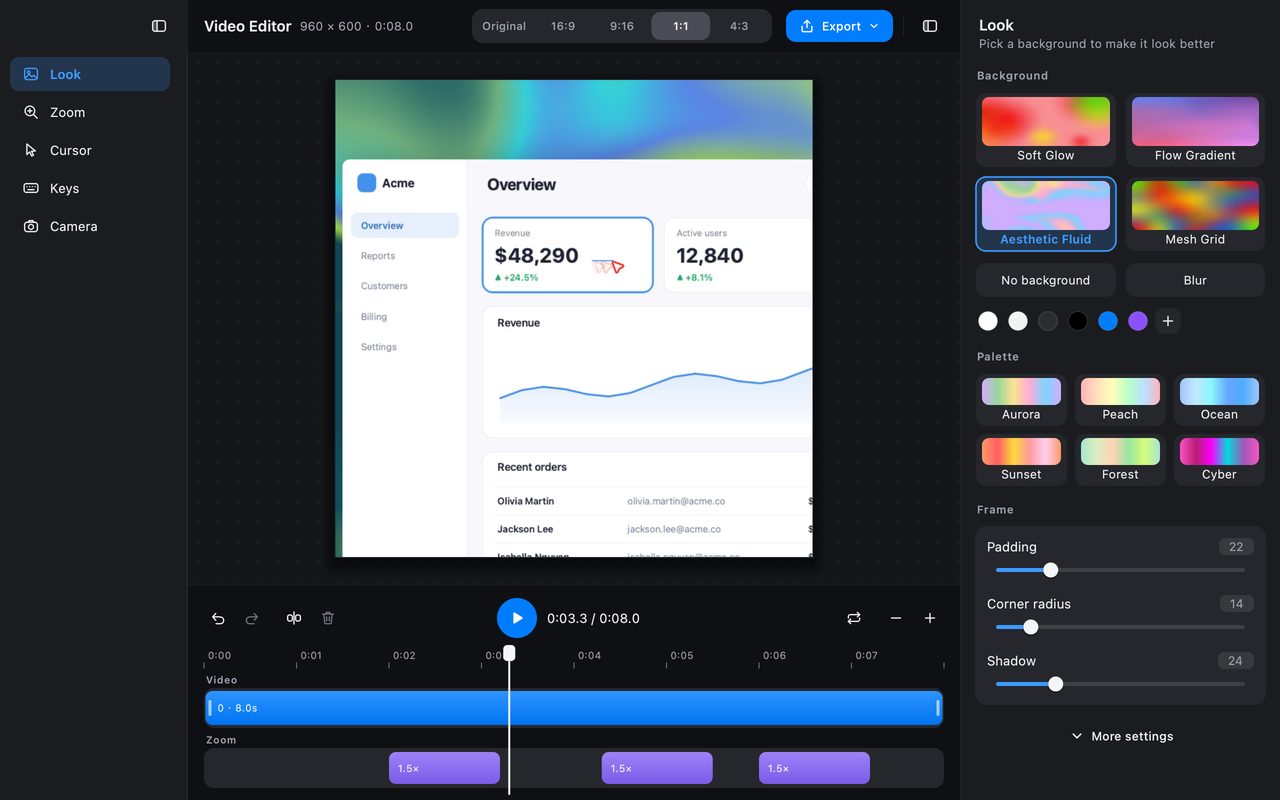
- Turn on auto zoom, camera picture-in-picture, cursor styles and keystroke overlays.
- Change the canvas ratio and the background.
- Export to MP4 or GIF at the quality you choose.
The edits are stored in the project, not baked into video.mp4, so you can reopen the file and change your mind. InSnap also keeps a per-recording edit state, so the next time you open the same source, the editor restores the background, cursor, camera, zoom segments and trims you set.
When to send the MP4 instead
A .insnap file is only useful to someone who has InSnap. For everyone else:
- Export to MP4 in the editor and send that. It plays everywhere.
- Export to GIF for a short loop that needs to autoplay in a chat or a document.
- Use a share link if you have an InSnap Cloud subscription; the link opens in a browser and can expire.
Do not rename .insnap to .zip and expect the recipient to know what to do with the contents. If they need the video, send the exported file.
File size and storage
The package is not much larger than the video itself; the JSON event files are small. A long recording is still a long recording, so the same advice applies as for any video: trim before sharing, and keep the original if you may need to change the effects later.
If you delete a .insnap file, you delete the source recording. Exported MP4s and GIFs are separate files and are not affected.
FAQ
Can I open a .insnap file without InSnap?
Not as an editable recording. It is a ZIP container; you can unzip it and play video.mp4, but the mouse, key and camera tracks will not be applied. Use InSnap to open the project, or ask the sender for an exported MP4.
Does the .insnap file contain my mouse and keyboard data?
Yes, when those tracks were recorded: mouse.json stores positions and clicks, and key.json stores keystrokes. Treat the file as sensitive as the recording itself and do not share it outside the team without checking.
Can I convert an MP4 back into a .insnap file?
No. The event data cannot be reconstructed from a finished video. If you need an editable recording, record with Record & Edit from the start.
More from the blog

How to Add Text to a Screenshot (and Make It Readable)
Add labels, titles and callouts to a screenshot with readable contrast, the right size and clean placement — plus how to edit them later on Mac and Windows.
October 25, 2026
Auto Zoom for Screen Recordings: What It Does and When to Use It
How InSnap's auto zoom follows your clicks in a screen recording, how the strength settings change the result, and when a static recording is better.
October 25, 2026
How to Make a Before-and-After Comparison Image
One image beats two attachments: capture both states at the same size, stitch them side by side, label them, and send a comparison the reader can scan.
October 25, 2026