 InSnap
How to Copy a Table From a Screenshot Into Excel or Google Sheets

Tables in screenshots can be recovered as text, but the columns rarely survive the trip. Here is a workflow that gets the cells right, and how to check them.
A screenshot of a table — an invoice, a pricing page, a dashboard — is pixels, not data. You cannot sort it, sum it, or paste it into a spreadsheet and have the columns line up.
Text recognition will get the words out of it. What it will not do, on its own, is rebuild the grid. Recognised text comes back as lines, and a table row is one line that happens to contain several cells separated by space. Everything after that is a small amount of cleanup, done in the spreadsheet rather than in the screenshot.
What survives recognition, and what does not
Keep these two facts straight and the rest of the workflow makes sense.
- Characters survive. Run text recognition on a screenshot of a table and the words, numbers and symbols come out in reading order.
- The grid does not. Column boundaries on screen are gaps of white space, and the recogniser does not know whether a gap means "new column", "new phrase" or "indentation". It tends to collapse consecutive spaces, so the columns arrive as one long line.
That is why pasting straight from OCR into a spreadsheet produces one column with everything crammed into it. The data is there; the structure needs to be rebuilt once.

Step 1: capture at a size the recogniser can read
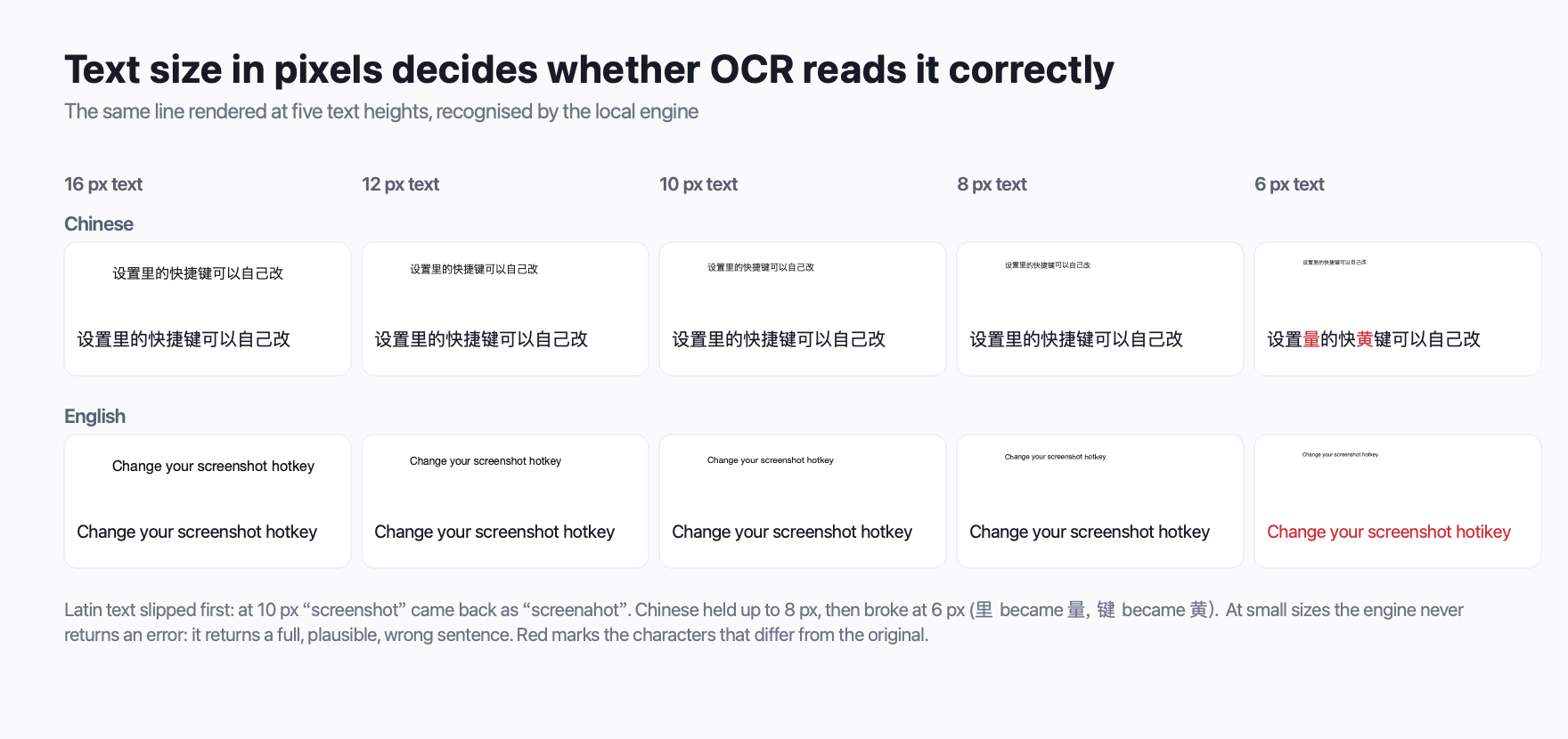
Table text is usually small — that is what makes tables compact. Small text is also the single biggest cause of recognition errors, so capture generously before you start cropping.
Take the screenshot so that each row is comfortably taller than a couple of millimetres on screen, and avoid shrinking the image before recognition. If the table is narrow, zoom the page first and capture the larger rendering rather than capturing small and upscaling afterwards.
InSnap's recognition runs on the pixels you select: drag a region around the table, click OCR on the capture toolbar, and the recognised lines appear in a panel next to the selection. Each line is one row, on the whole. You can also drag across the text on the screenshot itself, character by character, if a single cell needs re-selecting.
Step 2: get the text into the spreadsheet
Copy the recognised text out of the panel, then paste it into the spreadsheet. Both Excel and Google Sheets take plain text with line breaks and spread it down one column, one row of the table per spreadsheet row — that is the outcome you want here.
Google Sheets sometimes offers an Import dialog when pasting text that contains tabs, because it cannot tell whether the tabs are columns. Command-Shift-V on a Mac or Ctrl-Shift-V on Windows pastes without formatting and skips that dialog, and so does the same shortcut in Excel (where it is Paste Values).
If every row landed in a single column, that is expected. The next step fixes it.
Step 3: split the columns
The recognised line usually keeps its cells apart by a run of spaces or, less reliably, by a tab. Both spreadsheets can split on that:
Excel. Select the column, choose Data › Text to Columns, pick Delimited, tick Space (or Tab if the rows came out tab-separated), and finish. Check the preview before accepting: spaces inside a cell — "New York", "Acme Inc." — will also split, so you may need to include a few extra delimiters or fix those cells by hand.
Google Sheets. Select the column and choose Data › Split text to columns, then set the separator to Space (or Custom if you want to specify it). The split happens in place.
Excel's own route. Recent versions of Excel include Data › From Picture, which runs its own recognition on an image file and builds a table directly. It is worth trying on the saved screenshot: when the table has visible gridlines it often produces a proper table with far less cleanup. Check your version before relying on it.
Step 4: verify the numbers
Cleanup is the step people skip, and it is the step that matters, because recognition fails quietly. It returns its best guess, not an error.
- Compare digit by digit. Amounts, dates and IDs are where a wrong character is invisible on screen and fatal downstream. Spot-check the largest values row by row.
- Check that the row count matches. If the screenshot has twelve product lines and the pasted text has eleven, two rows were merged into one line.
- Check empty cells. A blank cell in the original often disappears entirely in the recognised text, shifting every following value one column left. Empty cells are the most reliable way to get a spreadsheet that is subtly wrong.
- Look at totals. If the table has a total row, add up the column in the spreadsheet and compare. A mismatch means at least one number is wrong.
For anything with money in it, this check takes a minute and saves an afternoon.
Alternatives worth knowing
If you only need a single figure, skip the spreadsheet: select just that cell's text on the screenshot and copy it. If the table is a PDF you already have, extract the text from the PDF directly — a PDF does not need recognition at all, and the output is exact.
For photos of printed tables — a whiteboard, a receipt — the same workflow applies, but recognisers do worse on curved paper and uneven light. Capture straight on, fill the frame, and expect to correct more cells.
FAQ
Why does pasting OCR text into Excel put everything in one column?
Because recognition returns lines of text, not cells. The gaps between columns are on-screen white space, and the recogniser has no way to keep them as separators reliably. Use Text to Columns or Split text to columns afterwards to rebuild the grid.
Can InSnap recognise a table and export it as a spreadsheet?
No. InSnap's recognition gives you selectable text, which you can copy anywhere. The column rebuilding step is done in Excel or Google Sheets, where you can also verify the numbers.
Does the recognition work on numbers and symbols?
Generally yes for digits in a normal UI font, and it is worth checking every value that matters: a wrong digit looks exactly like a right one. Currency symbols and thousands separators survive in most cases but are among the first things to be misread, so compare totals.
Is the recognition done locally?
Yes, in InSnap. The screenshot and the recognised text stay on your device; nothing is uploaded. Recognition is part of the free version on macOS and Windows.
More from the blog

How to Copy Text From a Screenshot or Image on Mac and Windows
Turn the words in a screenshot into text you can copy. Built-in options on Mac and Windows, plus a fast on-device OCR workflow with InSnap.
October 23, 2026
How to Copy Text From a Video or a Paused Frame
Subtitles, slides, error messages and code in a video are still text. Pause on the frame, capture the area, and run OCR to copy it out — no retyping.
October 25, 2026
Why OCR Returns the Wrong Word Instead of an Error
Text recognition rarely says it failed. It hands back a full sentence with one character wrong — the one that matters. Here is where that happens and how to catch it.
October 29, 2026
Pin Settings: Opacity and Click-Through Defaults
Initial opacity, click-through for new pins and the per-pin overrides: how to keep pinned screenshots readable without letting them block your clicks.
October 25, 2026