 InSnap
Every Annotation Tool in InSnap, and When to Use It
A quick reference to every annotation tool in InSnap: what each one is for, which are free, which need Pro, and the options worth adjusting.
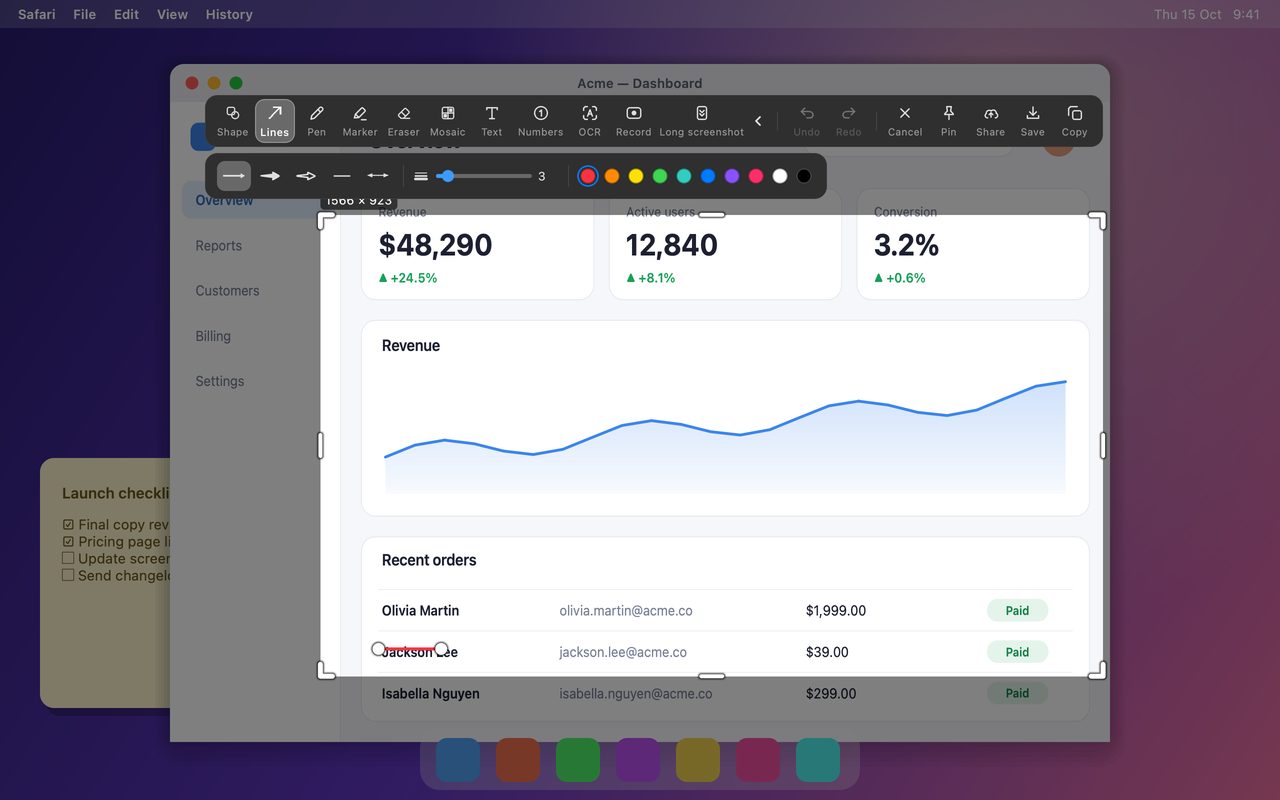
InSnap's capture toolbar is deliberately short: a dozen tools, with the specialized ones tucked behind the arrow at the start. Knowing which tool solves which problem is most of the skill. This is the reference version: what each tool does, what it costs, and when to reach for it.
The toolbar at a glance
| Tool | Use it for | Cost |
|---|---|---|
| Shape | Rectangles and ellipses around an area | Free |
| Lines | Straight lines and arrows, including curved arrows | Free |
| Pen | Freehand ink | Free |
| Marker | Translucent highlighting | Free |
| Eraser | Removing annotations you drew | Free |
| Mosaic | Mosaic or blur over sensitive details | Free |
| Text | Labels and short callouts | Free |
| Numbers | Numbered steps in a sequence | Free |
| OCR | Copying text out of the image | Free |
| Record | Opening the screen recording panel | Free (MP4) |
| Long screenshot | Stitching a scrolling page | Pro |
Drawing attention: Shape, Lines, Pen, Marker
- Shape draws a rectangle or an ellipse. Hold Shift to get a perfect square or circle. Use it to group a cluster of controls or outline one field.
- Lines covers both plain lines and arrows. An arrow implies direction or sequence; a plain line is better for pointing from a label to a part of the screen without implying movement. The style row includes straight and curved variants.
- Pen is opaque freehand ink, for circling by hand or drawing a quick bracket.
- Marker is the highlighter: translucent, blended so text underneath stays readable. It has a freehand style and an area style, and "Snap to line" turns a rough stroke into clean highlights over whole OCR-detected text lines.
Removing: Eraser, Mosaic, Blur
- Eraser removes annotations, not the screenshot. It is the tool for a stray stroke or the edge of a shape that went too far. It has no effect on the pixels of the captured page.
- Mosaic replaces an area with blocks, and its style row also offers Blur. Mosaic reads as redacted at a glance; blur is softer. Both have a strength control, and for real secrets a solid shape or a crop is still safer.
- To remove something that is actually in the screenshot — a name, an object, a bit of background — that is Smart Erase, which is Pro. It is a different job from the Eraser.
Explaining: Text and Numbers
- Text places a label exactly where you click, with a font, size and color. Standard is a solid fill; Outline adds a contrasting stroke, which is what you want over photos and busy UI.
- Numbers drops numbered markers. Use them in the order the reader should follow, and keep the count low: three numbers on one screenshot is usually the limit before the image becomes a puzzle.
- Both tools can be selected again after they are placed, so a typo or a wrong number is fixable before you copy or save.
Everything else
- OCR reads the text in the selected area on your machine and shows it in a side panel. You can drag over the text on the image like a text document and copy a selection, or copy everything.
- Record opens the recording panel. Quick Record to MP4 is free; GIF, video editing effects and high-quality export are part of Pro.
- Long screenshot (also called scrolling capture) stitches a scrolling page into one image. It is a Pro feature.
- Behind the ‹ arrow on the toolbar: Smart Erase, Spotlight, Magnifier and Watermark, all Pro. Spotlight dims everything except a region; Magnifier shows a zoomed lens; Watermark adds text or a timestamp across the image.
Picking the right tool
| The reader should… | Use |
|---|---|
| Look at one spot | Shape or Marker |
| Follow a direction | Arrow |
| Follow an order | Numbers |
| Read an explanation | Text |
| See a detail closely | Magnifier (Pro) |
| Focus on one area of a busy screen | Spotlight (Pro) |
| Not see something | Mosaic, Blur, or Smart Erase (Pro) |
| Copy the words | OCR |
The most common markup mistake is using three tools where one would do. A single arrow with two words often beats a rectangle, a circle and a caption. If the toolbar feels crowded, open Toolbar settings and move the tools you never use into the collapsed group.
FAQ
Are all the annotation tools free?
No. Shape, Lines, Pen, Marker, Eraser, Mosaic and Blur, Text, Numbers, OCR and basic MP4 recording are free. Long screenshot, Smart Erase, Spotlight, Magnifier and Watermark require Pro, a one-time purchase of $15 that covers up to three devices.
What is the difference between Pen and Marker?
Pen draws opaque ink that covers what is underneath. Marker is a translucent highlighter with a blending mode that keeps text readable, and its Snap to line option turns a rough stroke into a clean highlight over detected text lines.
Can I hide the tools I never use?
Yes. The toolbar can be configured: open Configure toolbar from the expanded toolbar or from Settings, and move unused tools into the collapsed group. The collapsed tools remain available behind the ‹ arrow.
More from the blog

How to Add Text to a Screenshot (and Make It Readable)
Add labels, titles and callouts to a screenshot with readable contrast, the right size and clean placement — plus how to edit them later on Mac and Windows.
October 25, 2026
Auto Zoom for Screen Recordings: What It Does and When to Use It
How InSnap's auto zoom follows your clicks in a screen recording, how the strength settings change the result, and when a static recording is better.
October 25, 2026
How to Make a Before-and-After Comparison Image
One image beats two attachments: capture both states at the same size, stitch them side by side, label them, and send a comparison the reader can scan.
October 25, 2026