 InSnap
How to Screenshot a Dropdown Menu or Tooltip Before It Closes

Menus and tooltips vanish the moment you touch the mouse. Three ways to catch them: an instant full-screen capture, a delay timer, or a frozen screen you pick from after.
To screenshot a menu, a right-click context menu or a hover tooltip, the trick is to capture before the mouse does anything. On a Mac, Shift-Command-3 grabs the whole screen in one keypress while the menu is still open. On Windows, Print Screen copies the whole screen to the clipboard the same way. Neither asks you to drag first, so nothing has a chance to close.
The reason people lose the menu is almost always the same: the tool they use wants them to drag a rectangle, and the mouse-down that starts the drag counts as a click outside the menu. The menu closes, and the screenshot comes back showing the page underneath.
There are three ways around it, and they suit different tools.
Why the menu disappears
A macOS menu closes as soon as it receives a mouse-down outside its own bounds, and Windows menus behave the same way. Screen-capture tools that let you choose an area first, such as Shift-Command-4 on a Mac or Windows key + Shift + S on Windows, need that first click to begin selecting. The menu is gone before the crosshair has moved.
Full-screen shortcuts and delay timers both avoid this, because neither involves clicking.
Capture the whole screen in one keypress
This is the fastest fix and needs no settings.
| System | Shortcut | Result |
|---|---|---|
| macOS | Shift-Command-3 | Full screen saved to the desktop |
| macOS | Control + Shift-Command-3 | Full screen copied to the clipboard |
| Windows | Print Screen | Full screen copied to the clipboard |
| Windows | Windows key + Print Screen | Full screen saved to Pictures › Screenshots |
Open the menu, press the shortcut, then crop the result in any image editor. It costs you one extra crop step, and in exchange nothing has a chance to close.
One caveat on a Mac: the capture a selected window mode of Shift-Command-5 captures one window's own contents, so an open menu — which is a separate element on screen — usually is not in the shot. For a menu, use an area or full-screen capture instead.

Use a delay timer
A delay does exactly what it sounds like: the capture is armed, you have several seconds to arrange the screen, then it fires on its own. Because nothing is clicked at the moment of capture, an open menu survives.
macOS. Press Shift-Command-5, open Options, and choose a Timer of 5 or 10 seconds. Press Capture, then open the menu during the countdown; the shot is taken when the countdown ends. In Terminal, screencapture -T 5 -x shot.png does the same thing with a five-second delay.
Windows. Open Snipping Tool, set the delay next to New to 3, 5 or 10 seconds, press New, and right-click to open the context menu while the countdown runs. Snipping Tool's own delay is the only place to get this on Windows 11, since Windows key + Shift + S has no timer.
The delay is also the cleanest way to catch a tooltip: hover the element, let the tooltip appear, and wait for the timer instead of moving the mouse.
Or freeze the screen first
InSnap takes a different route: pressing the capture hotkey freezes the entire screen immediately, and the area you select afterwards is chosen on that frozen image, not on the live desktop.
That means you open the menu first and press the hotkey second. Whatever was on screen at that moment — an open menu, a tooltip, a hover highlight — is already part of the frozen picture, and dragging a selection cannot close it.
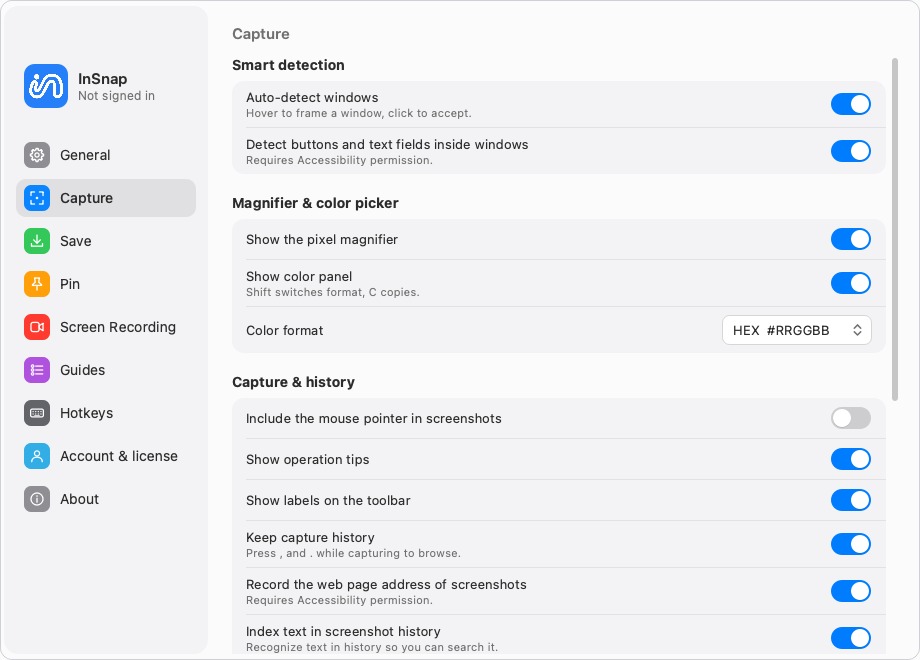
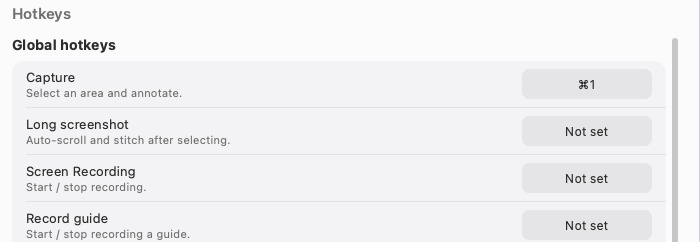
The default hotkey is Command-1 on a Mac and Ctrl+1 on Windows. You can change it in Settings › Hotkeys, and if the pointer should be visible in the result, turn on the mouse-cursor option in Settings › Capture.
Because the frozen image is captured at full screen resolution before you draw anything, the menu comes out at the same sharpness as the rest of the screen — no scaling, no re-render.
Submenus and hover states
A few cases need care even with a frozen screen or a delay timer.
- Submenus. On a Mac, move diagonally from a menu item into its submenu rather than straight across; the submenu stays open. Open the deepest level you need before capturing.
- Hover-only menus. Some web apps open a menu only while the pointer rests on a button. Keep the pointer still — any movement can close it — and let the timer fire or press the hotkey.
- Right-click menus. Open the context menu, then press the hotkey without clicking anything else. Both the full-screen shortcut and a frozen-screen capture handle this.
- Multiple monitors. A full-screen shortcut only captures one display unless the tool supports all of them. InSnap captures every connected display when the hotkey fires and opens the selection overlay on the screen with the pointer, so a menu on the second monitor is still in the frozen picture.

Annotate what you wanted to show
A menu screenshot rarely needs to speak for itself. Once you have the capture, a thick arrow from a short label to the exact item, or a rectangle around the three related entries, saves the reader a paragraph of explanation.
For anything step-based — "click here, then here, then choose this" — the numbered Number tool lays out a sequence on the same image, and step guides turn a series of captures into one document. Neither is needed just to catch a menu, though, and basic capture and annotation are free.
FAQ
Why does my screenshot show the page without the menu?
The tool asked you to drag before capturing, and the mouse-down closed the menu. Use a full-screen shortcut, a delay timer, or a tool that freezes the screen on the hotkey.
Can I screenshot a right-click context menu on Windows?
Yes. Either press Print Screen with the menu open, or set a 3–10 second delay in Snipping Tool and open the menu during the countdown. Windows key + Shift + S does not work, because you have to drag to select the area.
How do I capture a tooltip that only appears on hover?
Hold the pointer over the element until the tooltip appears, then trigger a capture without moving the mouse — a delay timer, or a hotkey that freezes the screen. Moving the pointer closes the tooltip.
Do I need a paid plan for this?
No. Area and window capture, the frozen-screen behaviour and the annotation tools used here are part of the free version of InSnap on macOS and Windows.
More from the blog

How to Screenshot Just One Window (Not the Whole Screen)
Capture a single window on macOS and Windows with the built-in shortcuts, why a hand-drawn box picks up clutter, and how to grab menus that close on a key press.
October 24, 2026
How to Take a Screenshot on a Second Monitor
Capturing on a second display is easy once the app knows which screen you mean. How multi-monitor capture works, including mixed Retina and low-DPI displays.
October 25, 2026
How to Take a Screenshot on Windows 10 and 11: Every Shortcut
The Windows screenshot shortcuts that matter: Print Screen, Win+Shift+S, Alt+Print Screen, where files are saved, and how to record the screen.
October 23, 2026
How to Record Your Screen With Sound on Mac and Windows
How to record your screen with system audio and microphone on Mac and Windows: what the built-in recorders can and cannot capture, and how to do it with InSnap.
October 23, 2026