 InSnap
Turn Anything You Copy Into a Floating Pin on Your Screen

Text, a file, a table or an image in the clipboard can become a floating note on top of your windows. Here is when that beats a text file.
InSnap can pin whatever is in your clipboard to your screen as a floating card: an image, plain text, rich HTML from a web page, or a file. The card stays on top of other windows, so you can read it while you work in another app, and it leaves no file behind.
This article covers what gets turned into a pin, how the card behaves, and when a pin is the wrong tool.
What you can pin
The pin-clipboard action checks the clipboard in this order and renders the first thing it finds:
| Clipboard content | What the pin looks like |
|---|---|
| An image | The image, at full resolution |
| A file | Image files are shown as images. Text files (.txt, .md, .json, code and similar) are rendered as their content. Other files, or several at once, appear as a small card with names and sizes |
| Rich HTML, such as text copied from a web page | The formatted text: bold, italics, colors, lists and links are kept |
| Plain text | A text card. Text that looks like code gets a dark, monospaced card; everything else gets a light card |
Plain text with nothing visible in it does not create a pin; you get a short message instead. Cards render at your screen's pixel density, so text stays sharp on a Retina display, and very wide text wraps to a readable width.

How the card behaves
A pin is a real floating window, not a preview bubble. It stays above normal windows, including while you use other apps. Scroll on it to resize; hold Command (Control on Windows) while scrolling to change its opacity. Double-click or press Escape to close it, and the right-click menu adds lock, scale and opacity presets, shadow, rounded corners, a border, click-through, plus copying, saving and opening it in the image editor.
That is the difference from pasting into a notes app: the card is visible at the same time as the thing it refers to. A support reply you are working from, a short list, or the one line of an API key you need for the next five minutes.
Pin the clipboard, not the screen
There are two ways to get something on screen as a reference:
- Pin the clipboard (the second default hotkey: Command-2 on Mac, Ctrl+2 on Windows). Use it when the thing is already copied, or comes from an app you do not need to show. The pin is just the content; the source app stays where it is.
- Take a screenshot and pin it. Use it when the content depends on layout, width or color: a chart, a dialog, a formatted table, a design reference.
The first keeps the structure; the second keeps the pixels. A table copied from a web page and pinned as HTML keeps clean, selectable-looking text at its natural size; a screenshot of the same table shows exactly what was on screen, colors and all.
Settings that matter
Two settings on the Pin page in Settings change how a new pin behaves:
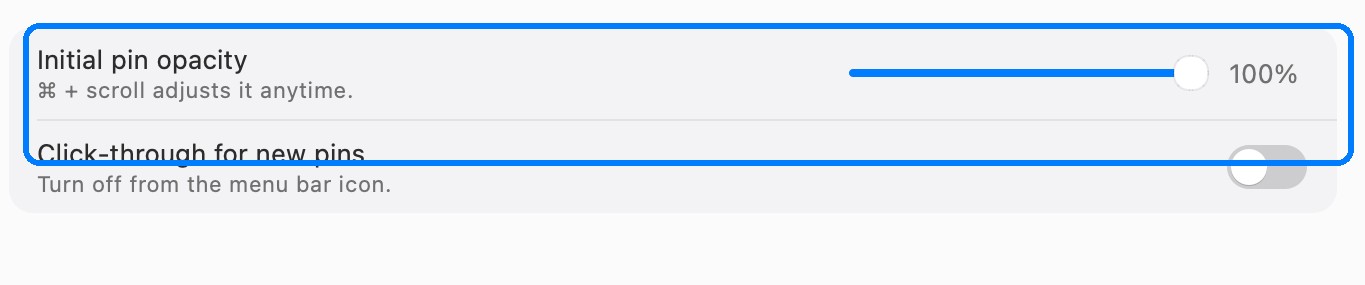
- Initial pin opacity. Pins start fully opaque. If you use pins as background references, 60–80% keeps the text readable while letting you see what is underneath.
- Click-through for new pins. Off by default. Turn it on when a pin is purely a reference and should stop intercepting clicks, so you can work through it. You can also toggle it later from the menu bar icon.
Each pin also has its own settings in its right-click menu. They are independent, so a locked pin at 50% opacity does not change the next one you create.
When a pin is not the right tool
A pinned card is a glance, not a document. Use something else when:
- You need to keep it. Pins vanish when the app quits or the card is closed. For anything you will come back to tomorrow, save it or keep it in the screenshot history, which persists and is searchable.
- You need the original text. A pinned text card is an image; you cannot select from it. Copy the text and use OCR on a screenshot if you need the words back.
- It is long. A pin is meant for a screenful; a whole page belongs in the history or a saved file.
- It must not be visible to others. A pin sits on your screen and is captured with everything else, so close the ones you do not want in a recording or screen share.
FAQ
Can I pin text from a copy without opening an app?
Yes. Copy the text, then press the pin-clipboard hotkey (Command-2 on Mac, Ctrl+2 on Windows) or choose pin clipboard from the InSnap menu. No text editor is involved.
Does a pin stay after I quit InSnap?
No. Pins are temporary. Anything worth keeping should be saved as a file, kept in the screenshot history, or shared to Cloud.
Can I move the pin off the edge of the screen?
Yes, including past the top edge. Drag it wherever you want; you can pull it partly off-screen if it is blocking what you need to see.
Does the pin show up in a screen recording or a meeting?
Yes. A pin is a normal window on your display and is not excluded from screen sharing, so close the ones you do not want to show before you record or share.
More from the blog

PNG, JPEG and Clipboard Formats: Screenshot Output Settings
Save as PNG or JPEG, scale Retina captures to 1x, add a border, and choose whether Copy puts an image or a file on the clipboard. What each setting changes.
October 25, 2026
How to Pin a Screenshot on Top of Other Windows
Keep a screenshot floating above your other windows as a reference while you work. How pinning works on Mac and Windows, and how to do it in InSnap.
October 23, 2026
Pin Settings: Opacity and Click-Through Defaults
Initial opacity, click-through for new pins and the per-pin overrides: how to keep pinned screenshots readable without letting them block your clicks.
October 25, 2026
Snagit alternative for Mac and Windows: how InSnap compares
Looking for a Snagit alternative for Mac or Windows? How InSnap compares on capture, annotation, scrolling capture, OCR, recording and licensing.
October 27, 2026