 InSnap
Screenshot Comes Out Black? What Causes It and How to Fix It

A black screenshot is usually a permissions problem, protected video, a graphics driver or an app that blocks capture. Here is how to tell which one it is.
A screenshot that comes out black is rarely the capture tool failing at random. On both macOS and Windows there are a handful of causes, and where the black area sits tells you which one it is.
Read the picture before changing any setting: a fully black image is almost always permissions or a graphics driver; a black rectangle inside an otherwise correct image is protected video; a window that renders black only in the capture usually means the app blocks screen capture on purpose.
Start with where the black is
| What you see | Most likely cause | First thing to try |
|---|---|---|
| The whole image is black | Screen recording permission, or the capture tool itself | Take the same screenshot with the system tool |
| One rectangle is black, the rest is fine | Protected video (DRM) | Nothing; this is by design |
| A window is black, everything else fine | The app hides itself from screen capture | Capture the visible desktop instead |
| Black only in one app | That app draws with hardware acceleration the capture path cannot read | Try the system tool, then update the graphics driver |
Whole screenshot is black on a Mac
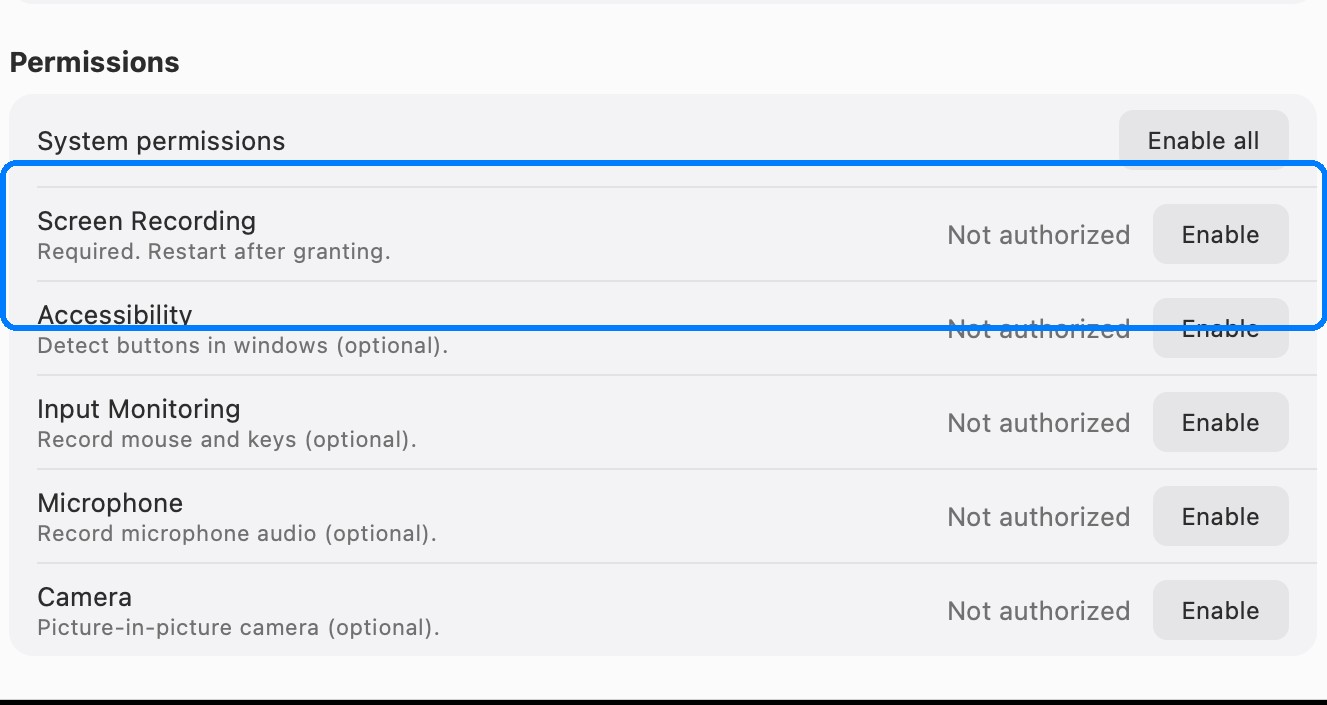
The usual cause is a missing Screen Recording permission. macOS does not let a third-party app read the screen until you grant it, and a denied app receives empty frames rather than an error, which is why you get a black image and no message.
- Open System Settings › Privacy & Security › Screen Recording.
- Find the app you used. If it is listed but switched off, switch it on.
- If it is not listed, take a screenshot from that app once; macOS adds it after it asks. Then switch it on.
- Quit and reopen the app; some apps need a restart before the new permission applies.
If the permission is on and screenshots are still black, switch it off and on again: a code-signing change after an update can leave the old grant pointing at a binary that no longer matches. That is why a stable signing identity matters for tools that capture the screen.
Whole screenshot is black on Windows
Windows does not gate screen capture the way macOS does, so a black screenshot points at the graphics side or the tool:
- A window using hardware acceleration. Some apps render into a GPU surface a simple capture API cannot read, and you get black where the window is. Try the built-in Snipping Tool (Windows key + Shift + S); if that works, the problem is the tool you were using.
- System-protected content. Streaming apps, secure desktop prompts and the lock screen are black in every capture method. That is deliberate and not a bug to work around.
- A graphics driver update. A driver that changed recently can leave certain windows unreadable; rolling back or updating often settles it.
- An app that blocks capture. Banking apps, password managers and some conferencing tools set a flag that hides their window from any capture.

A rectangle is black but the rest is fine
If the menu bar, the window frame and everything around it are captured and only the video player area is black, the content is protected. Streaming services exclude protected video from every screen recorder and screenshot tool by design, on both platforms, and no setting on the capturing side changes it.
Do not look for a tool that strips the protection. If you legitimately need the clip, use the service's own download or playback features.
A window is missing or black
Some apps draw themselves only to the screen and hide the window from the capture system: a call in a small window, a protected player, or an app handling sensitive data. In InSnap, the screenshot still captures everything else, so the window shows as black or as the frozen background behind it.
The useful approach is to annotate what is visible rather than expect that window to be recorded. For a call, the meeting service's own recording is the sanctioned route.
FAQ
Why is my screenshot black on a Mac?
Most often the app lacks the Screen Recording permission and received empty frames. Grant it in System Settings › Privacy & Security › Screen Recording, then restart the app.
Why is only the video area black?
That is protected video. Streaming services hide DRM-protected video from every capture tool on purpose, and no setting on your side changes it.
Why does the Windows Snipping Tool work when my app does not?
Windows grants screen capture to the system tool without a per-app permission, so a black result in a third-party app points at its own capture method or a graphics issue.
Will turning off hardware acceleration fix it?
Sometimes. If the app whose window is black has a setting to disable GPU acceleration, turning it off can make it readable to a simple capture path.
More from the blog

How to Set Up macOS Permissions for InSnap
Screen Recording, Accessibility, Input Monitoring, Microphone and Camera: what each permission enables, which are optional, and how to grant them without restart loops.
October 25, 2026
How to Screenshot Just One Window (Not the Whole Screen)
Capture a single window on macOS and Windows with the built-in shortcuts, why a hand-drawn box picks up clutter, and how to grab menus that close on a key press.
October 24, 2026
How to Screenshot a Dropdown Menu or Tooltip Before It Closes
Menus and tooltips vanish the moment you touch the mouse. Three ways to catch them: an instant full-screen capture, a delay timer, or a frozen screen you pick from after.
October 29, 2026
Pin Settings: Opacity and Click-Through Defaults
Initial opacity, click-through for new pins and the per-pin overrides: how to keep pinned screenshots readable without letting them block your clicks.
October 25, 2026