 InSnap
Screenshot Too Large to Upload? Why It Happens and How to Shrink It

A full-screen Retina PNG can run to several megabytes. Here is where the size comes from, and the scale, format and crop settings that bring it down without blurring text.
A screenshot that will not upload is rarely a broken file. It is a file that is bigger than the place you are sending it to allows: an attachment limit in an email client, a support form with a few megabytes of headroom, a chat app that silently refuses anything over its own cap, or a documentation site that resizes anything large into mush.
The size comes from two things — how many pixels there are, and whether those pixels are stored exactly. Both can be changed after the fact, and usually without hurting the text.
Why a screenshot gets so large
A screenshot is a lossless copy of the screen. On a Retina display a 13-inch Mac records roughly 2560 × 1600 physical pixels for the full screen, and a 27-inch 5K display records about 5120 × 2880. Stored as an uncompressed-ish PNG of interface content — sharp edges, flat colours, text — that is easily 3 to 10 MB for a single full-screen capture.
Three multipliers add up fast:
- Pixel count. Doubling width and height quadruples the pixels, and PNG size grows with them.
- Area captured. The whole screen costs several times what one window does.
- Content type. Photos and gradients compress poorly as PNG; UI and text compress well until there are lots of them.
A screenshot of a scrolling page is the worst case: a long capture stacks many screens vertically and produces an image several thousand pixels tall.
Fix 1: capture less
The cheapest fix is to send fewer pixels in the first place. Before taking the screenshot, decide what actually needs to be in it: one window instead of the whole desktop, one panel instead of the whole window, the error dialog instead of the surrounding app.
In InSnap, press the capture hotkey — Command-1 on a Mac, Ctrl+1 on Windows — and drag a tight region. Everything outside the selection is never part of the output, so the file starts small. If you are pointing at one line in a log, capture the log window, not the screen.

Fix 2: scale it down by half
The single biggest lever is the Retina scale. A 2560-pixel-wide capture downscaled to 1280 pixels wide has a quarter of the pixels, and for a screenshot that will be read on a normal display, the difference is invisible.
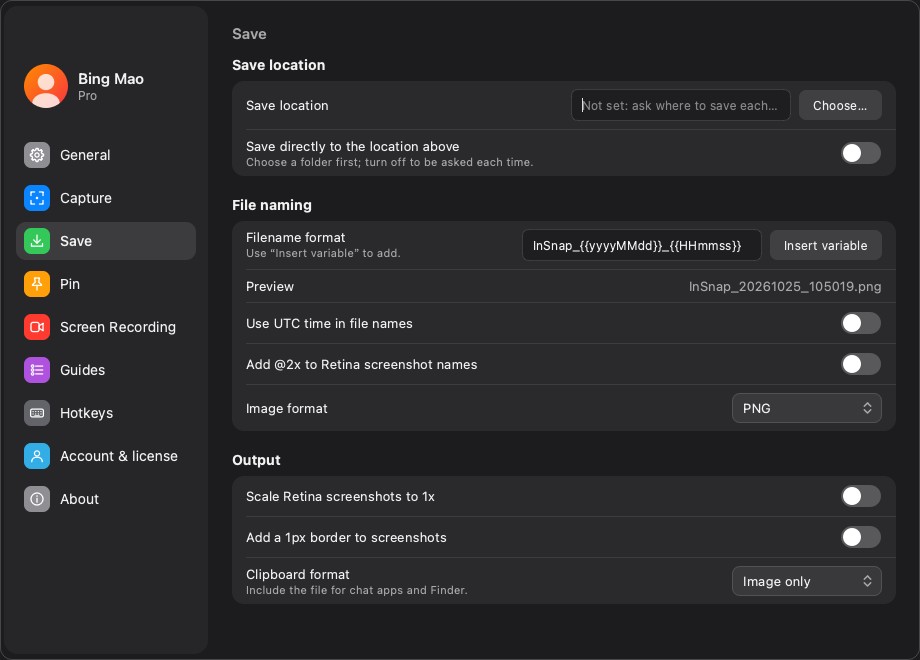
InSnap has this as a setting rather than a post-processing step: Settings › Save includes an option to scale Retina captures to 1x, which is applied to copies and saved files. One click halves the width and height, and the result still looks sharp at 100% zoom in a document or a chat window.
The trade-off is real: if someone opens the file on a high-density display and zooms in, the 1x version has less detail. For a screenshot whose purpose is to be looked at once, that is the right trade.
Fix 3: switch to JPEG when text is not the point
PNG is lossless and is the right default for screenshots of interfaces: text stays crisp and there are no artefacts around 1px borders. Its weakness is photographic content — photos, blurs, gradients — which PNG stores nearly raw.
If the screenshot is mostly a photo, a gradient background or a blurred image, export it as JPEG instead and the file can drop by a factor of five or more. For interface screenshots with small text, JPEG at high quality is usually acceptable for a one-off message but loses clarity on thin strokes; keep PNG for anything the reader has to read carefully.
Fix 4: crop, then re-check
Cropping a large image after capture reduces pixels, but avoid the common trap: resizing a screenshot up does not add detail, and repeatedly re-encoding a JPEG loses quality each time. Crop the original, do not re-export a copy of a copy.
If a tool is inserting a border or padding — InSnap can add a 1px border — that adds size on every edge, which matters on wide but short images. Turn it off when the file has to be small.
Fix 5: let the destination handle it, carefully
Some chat applications and issue trackers compress uploads themselves. That can work in your favour, but it also means the recipient sees your screenshot after their pipeline has resized and re-encoded it. A 5000-pixel-wide capture sent through a chat app is likely to come out blurry on the other side, while a 1280-pixel crop with the useful part enlarged arrives readable.
The rule of thumb: send the size the reader will actually view the image at, with some margin for high-density displays. Somewhere between 1200 and 2000 pixels wide covers most cases.
A quick checklist
| Symptom | Likely cause | Fix |
|---|---|---|
| Full-screen PNG is several MB | Retina pixel count | Scale to 1x, or capture a region |
| Long scrolling capture will not attach | Many screens stacked | Crop to the part that matters |
| Photo or gradient looks huge | PNG on photographic content | Export as JPEG |
| File is fine but uploads as a blur | Destination recompressed it | Send a smaller, tighter crop |
FAQ
Why is my screenshot larger than a photo of the same size?
A screenshot of an interface has lots of sharp edges and text, and a PNG stores them exactly. Photos are smooth and JPEG-friendly; interface screenshots are not. The comparison that matters is pixel count: a 5K screenshot has far more pixels than a typical phone photo.
Does scaling a screenshot to 1x make the text unreadable?
No, for normal use. Halving a Retina capture still leaves text at roughly the size the screen displayed it, which is readable in a document or chat window. It only falls short when someone zooms into the image or views it on a high-density display.
What is the best format for a screenshot I need to send by email?
PNG for anything with text or UI, unless the email client rejects it for size, in which case scale it down before switching formats. A smaller PNG usually beats a full-size JPEG for readability.
Can InSnap reduce the file size automatically?
Yes, in part. Settings › Save controls the format and can scale Retina captures to 1x for copies and saved files, and the capture region itself decides how many pixels are included. There is no separate quality slider for PNG output.
More from the blog

Screen Recording File Too Large? How to Make It Smaller
Why a five-minute recording becomes 800 MB, and the four levers that actually shrink it: duration, resolution, quality and format.
October 28, 2026
PNG, JPEG and Clipboard Formats: Screenshot Output Settings
Save as PNG or JPEG, scale Retina captures to 1x, add a border, and choose whether Copy puts an image or a file on the clipboard. What each setting changes.
October 25, 2026
Pinned Screenshot Missing or Stuck? Fix It Quickly
A pin that will not move, click or stay visible is usually click-through, lock or an off-screen window. The four checks that bring a pinned screenshot back.
October 25, 2026
How to Change InSnap's Screenshot Hotkey
The default Command-1 is convenient until it collides with a browser tab. How to rebind capture and pin shortcuts, read conflict warnings, and keep both hands free.
October 25, 2026