 InSnap
Move Screenshots and Recordings From a Mac to Windows

Sending a screenshot or a recording from a Mac to a Windows PC is the same small job every time. Five ways to do it, and which keep quality and privacy.
A screenshot or a short recording made on a Mac often has to end up on a Windows PC: a support case, a bug report, a colleague on the other platform, a Windows-only test environment. There is no built-in handoff between the two systems, so the job is to pick a route that does not lose quality, break the file or leak more than it should.
Here are five practical routes, when each fits, and the two things that usually go wrong: the wrong format, and more in the frame than you meant to send.
The five routes, compared
| Route | Good for | Watch out for |
|---|---|---|
| InSnap Cloud share link | Any file type, a link instead of an attachment | Needs an InSnap account with the Cloud subscription |
| A shared drive or network folder | Files you will both keep, such as a bug report bundle | Slow over a VPN, and a network folder may sync slower than you think |
| A chat app or email | A one-off image, or a quick note to a colleague | Size limits, then compression |
| A USB stick or external drive | Large recordings, offline machines | Easy to forget, and it is a copy you have to delete |
| AirDrop | Handing a file to a nearby iPhone or iPad so it can travel on | Windows PCs cannot receive AirDrop, so it is not the last leg |
InSnap Cloud is the one designed for this
InSnap runs on both macOS and Windows, so a file made on one side opens and shares on the other. Share the screenshot, recording or guide in the app and you get a link to paste anywhere, including a chat on the Windows machine.
- A screenshot is shared as an image, a recording as the video file, a guide as a PDF.
- The link has an expiry date you choose, and a password if you want one.
- The Windows PC opens the link in any browser; viewing it needs no InSnap install on that side.
Cloud is a separate subscription from Pro. Pro unlocks Smart Erase, long screenshots, GIF, video editing and guides; sharing to a link needs Cloud.
What to check before you send
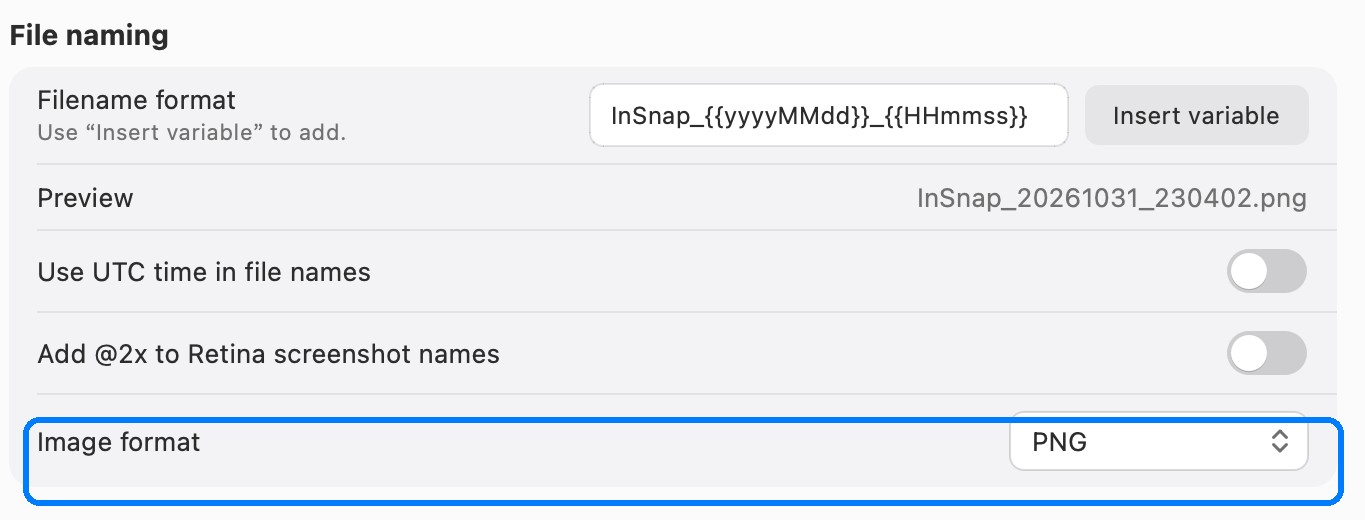
Screenshot format. For a document, a bug tracker or a slide, send the PNG. Screenshots of interfaces have flat colors and hard text edges; JPEG turns those edges into a faint halo around every letter. In our own measurement of 63 interface screenshots, a high-quality JPEG was often no smaller than the PNG, so there was nothing to gain. Save PNG, or share the original screenshot rather than a re-saved copy.
What is in the frame. A Retina screenshot is high detail: a password field, an email address, a customer name in a sidebar or a token in a URL is sharp enough to read after a small zoom. Before the file leaves for Windows, blur or cover what does not matter, or crop to the window instead of the whole screen.
A practical routine
For a bug report or support case that starts on the Mac and ends on Windows:
- Take the screenshot and annotate it while the context is fresh. Number the steps if there are several.
- If the problem is a flow rather than a state, record a short clip; a 20-second recording explains more than five screenshots.
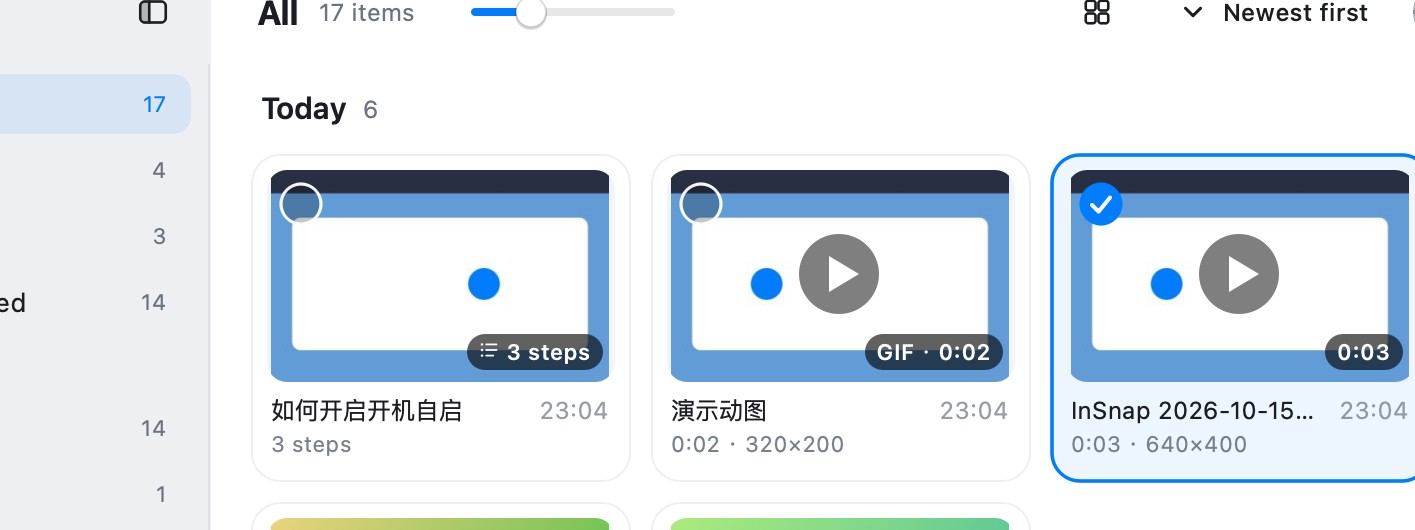
- Keep both in InSnap's screenshot history, so they are findable when the ticket comes back.
- Upload the screenshot and the clip and copy the links into the ticket or the chat.
- On the Windows PC, open the links, download, and attach the files to whatever system of record you use.
The link is the transfer; the history is your copy.
Across different setups
Three differences are worth planning for:
- HiDPI. A screenshot from a Retina display has twice the pixels of the same window on a standard Windows screen. If the Windows side will scale it down, consider sending a 1x copy; InSnap can scale Retina screenshots to 1x on output.
- Window chrome. The window captured on the Mac has traffic-light buttons; the Windows version has minimize, maximize and close. If the point is the interface, crop to the content so neither set of buttons distracts.
- Text files. If you also send a log or a config file, Mac text files use LF line endings and some Windows tools expect CRLF. Most editors cope; some build scripts do not. Images and recordings are unaffected.
FAQ
Can I AirDrop from a Mac to a Windows PC?
No. AirDrop is an Apple feature and Windows PCs do not receive it. Use a link, a shared drive or a chat app for the last leg.
Do I need an InSnap account to open a shared link?
No. Anyone with the link can open it in a browser on Mac, Windows or another device. An account is only needed to create the share.
Does a shared recording play in the browser?
A shared recording is served as a video file, which current browsers play. It can also be downloaded if yours does not.
Will a screenshot lose quality crossing platforms?
Not if it is a PNG. A PNG screenshot arrives pixel for pixel. Converting it to JPEG, or letting a chat app compress it, is where quality is lost.
More from the blog

Share a Screenshot as a Link Instead of an Attachment
When a screenshot is too big for chat or needs to reach several reviewers, a share link works better. What to check, and how expiry and passwords work.
October 24, 2026
How to Sign In to Your InSnap Account (and When You Need To)
Signing in happens in the browser, not with a password in the app. What the account unlocks, why Pro activation does not need it, and how to sign out.
October 25, 2026
PNG or JPEG for Screenshots? We Measured 63 Real Ones
For interface screenshots, JPEG is often no smaller than PNG. We compared PNG, JPEG and WebP on 63 real screenshots: file sizes, text artifacts and what really shrinks a file.
October 30, 2026
Screen Recording Is Black or Silent? Fix It on Mac and Windows
Why screen recordings come out black or with no sound, and how to fix permissions, audio sources, protected video and graphics issues on macOS and Windows.
October 25, 2026